Storewide Discount
Storewide Discount lets you apply a percentage discount to all items in the store, or set different rates per category using Category Distinguish. You can limit it by customer tier, time period, minimum amount, and minimum quantity.
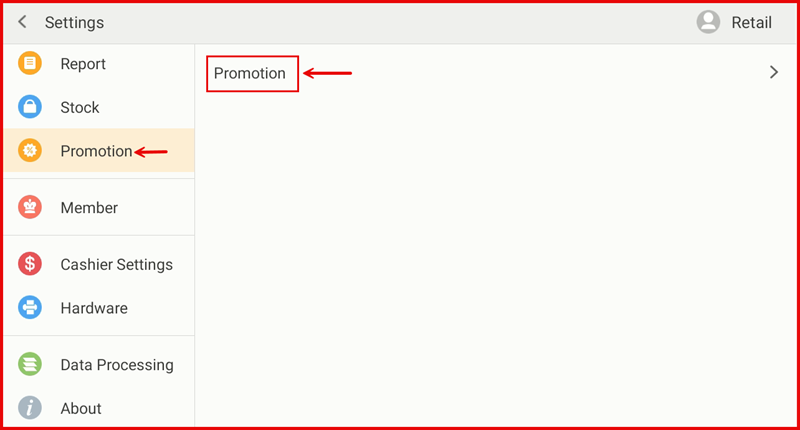
Step 1: Go to Settings → Promotion
From the POS Settings screen, tap Promotion in the left sidebar, then tap Promotion on the right panel to open the Promotion page.
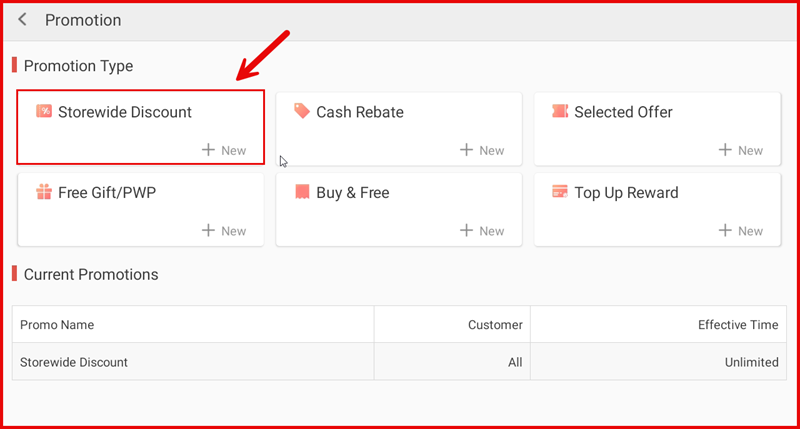
Step 2: Tap + New under Storewide Discount
On the Promotion page under Promotion Type, tap + New in the Storewide Discount tile.
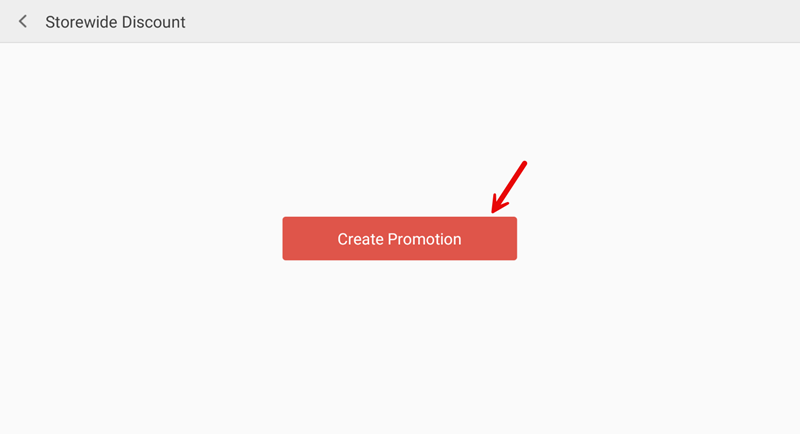
Step 3: Tap Create Promotion
Tap the Create Promotion button to open the setup form.
Step 4: Fill In Promotion Details and Save
Complete the following fields then tap Save:
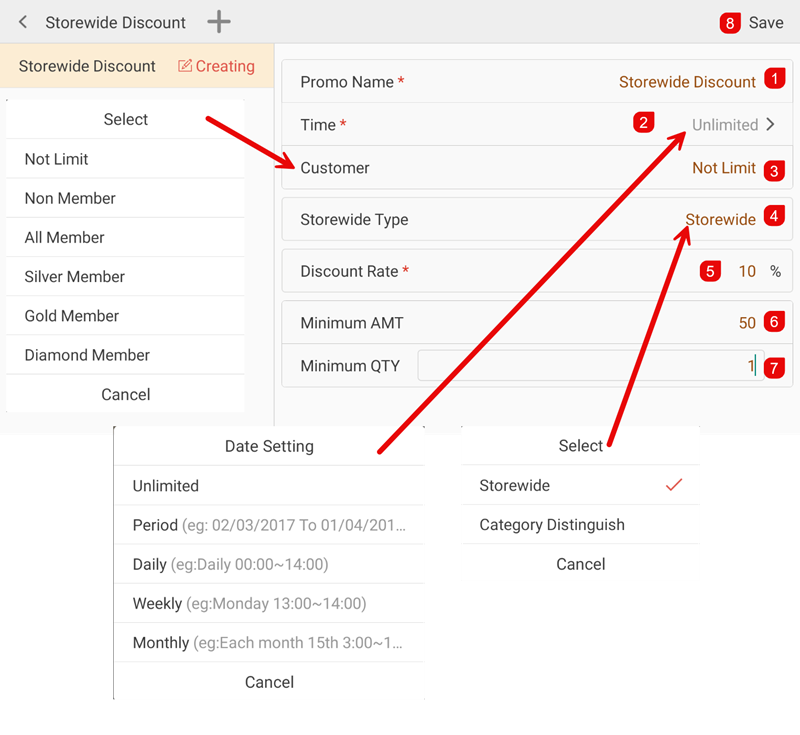
- ① Promo Name — Enter a name for the promotion (e.g. Storewide Discount).
- ② Time — Set the effective period: Unlimited, Period, Daily, Weekly, or Monthly.
- ③ Customer — Choose who qualifies: Not Limit, Non Member, All Member, or a specific member tier.
- ④ Storewide Type — Select Storewide (one rate for all items) or Category Distinguish (different rates per category).
- ⑤ Discount Rate — Enter the discount percentage.
- ⑥ Minimum AMT — Set the minimum purchase amount required.
- ⑦ Minimum QTY — Set the minimum quantity required.
Step 5: Category Distinguish — Set Discount Rate by Category (Optional)
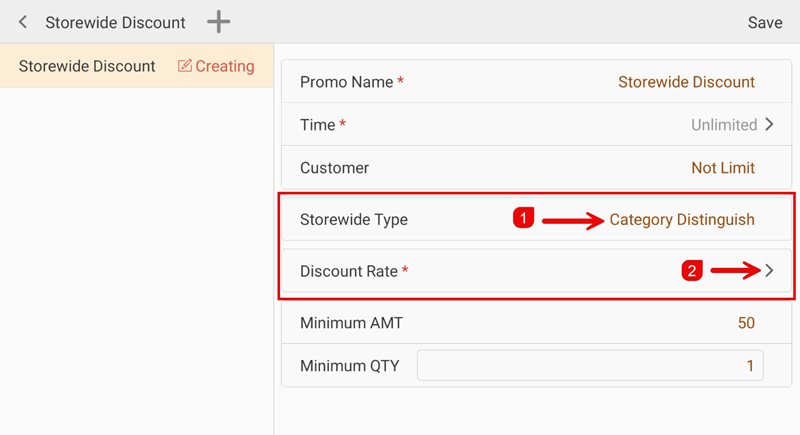
If Storewide Type is set to Category Distinguish (①), tap the > arrow next to Discount Rate (②) to configure per-category rates.
Step 6: Enter Per-Category Rates and Save
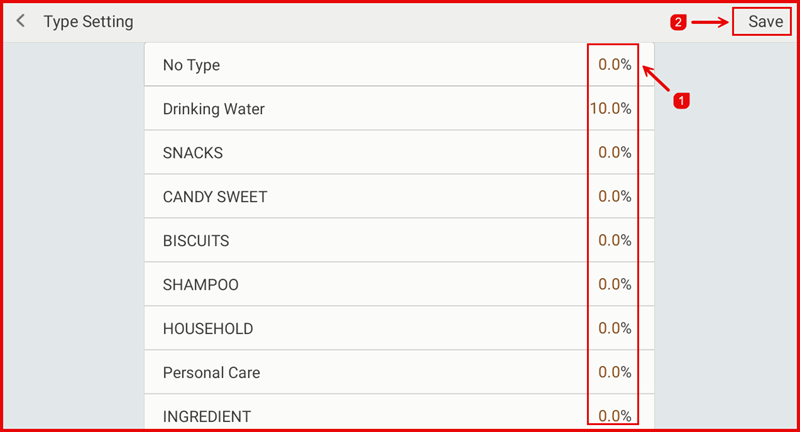
On the Type Setting page, enter the discount percentage (①) for each category. Tap Save (②) to apply the rates.