Free Gift/PWP
The Free Gift/PWP (Purchase With Purchase) promotion automatically offers customers a free item when their purchase total reaches the configured minimum amount. You can also set a Top Up AMT to allow the customer to pay the difference to get the free item.
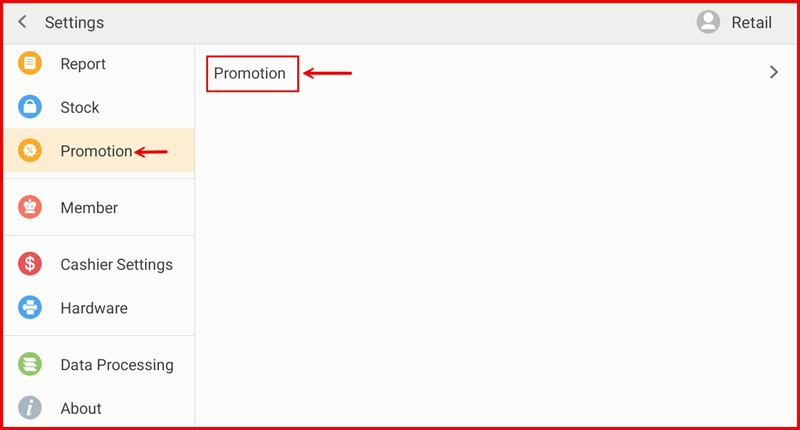
Step 1: Go to Settings → Promotion
From the POS Settings screen, tap Promotion in the left sidebar, then tap Promotion on the right panel.
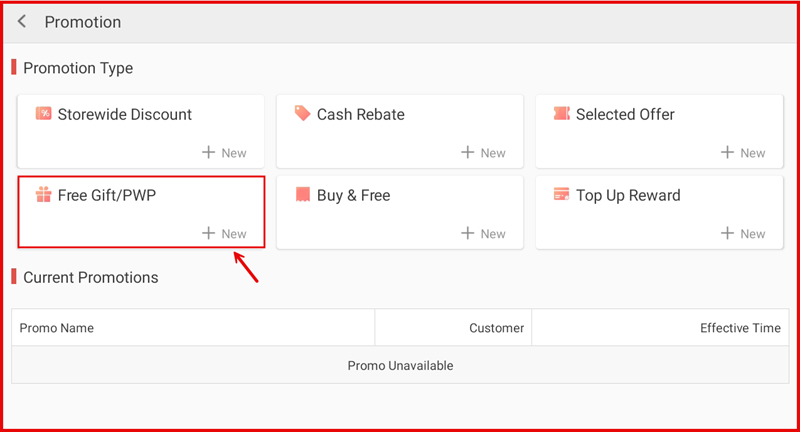
Step 2: Tap + New under Free Gift/PWP
On the Promotion page, tap + New in the Free Gift/PWP tile.
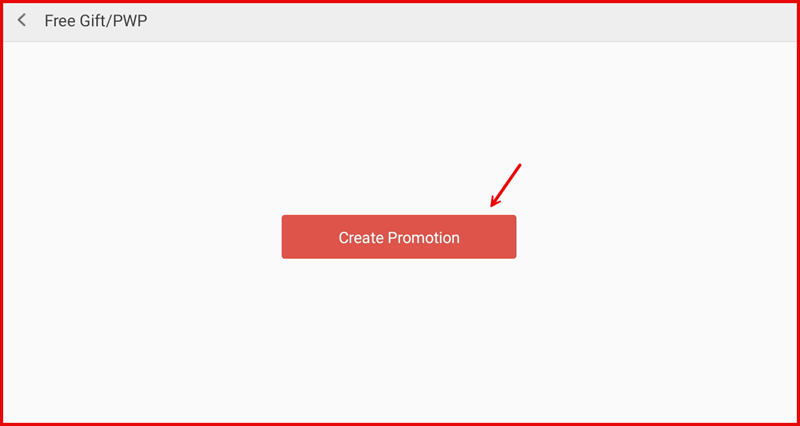
Step 3: Tap Create Promotion
Tap the Create Promotion button to open the setup form.
Step 4: Fill In Promotion Details and Save
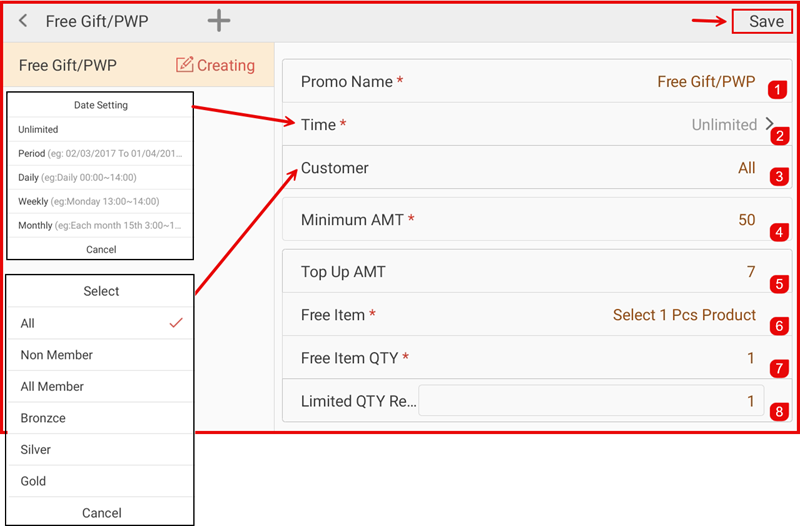
Complete the following fields then tap Save:
- ① Promo Name — Enter a name (e.g. Free Gift/PWP).
- ② Time — Set the effective period (Unlimited, Period, Daily, Weekly, or Monthly).
- ③ Customer — Select who qualifies: All, Non Member, All Member, Bronzce, Silver, or Gold.
- ④ Minimum AMT — Set the minimum purchase amount for the free item to be offered.
- ⑤ Top Up AMT — Optional top-up amount the customer may pay to complete the purchase of the free item.
- ⑥ Free Item — Tap to select the item to be given free.
- ⑦ Free Item QTY — Set the quantity of the free item.
- ⑧ Limited QTY Re... — Set the daily redemption limit per transaction.
Step 5: Promotion is Active
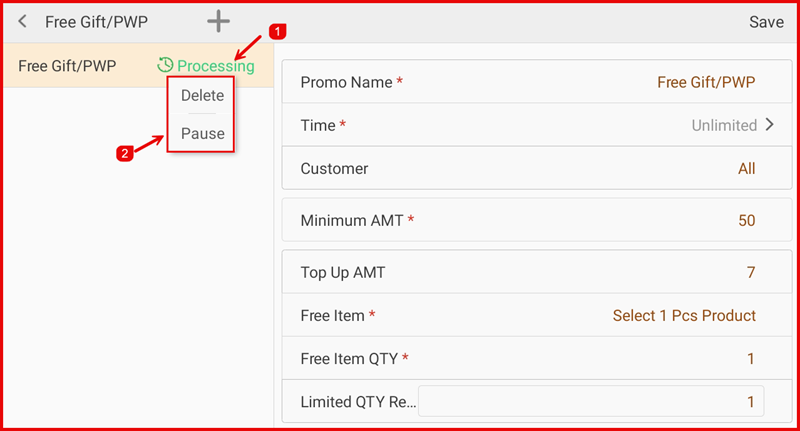
The promotion status shows Processing (①). Tap the name to reveal Delete or Pause (②) options.
Step 6: Free Item Prompt at Checkout
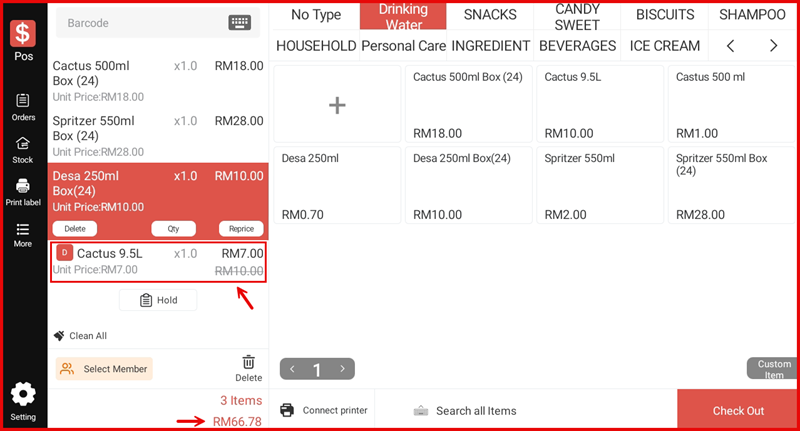
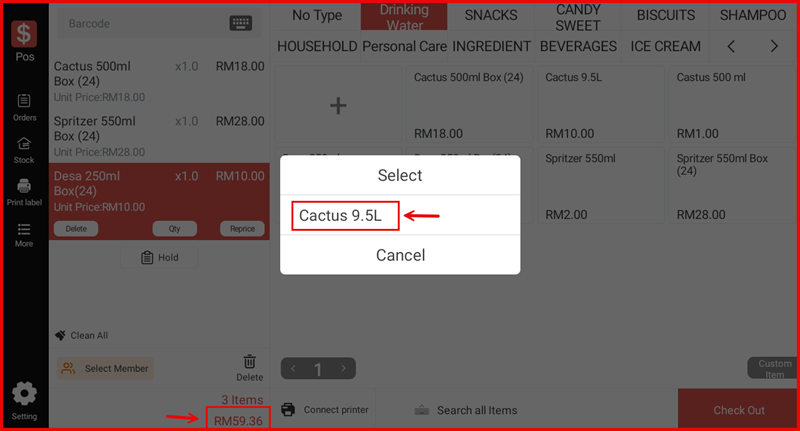
When a customer's cart total meets the Minimum AMT, a popup appears prompting the cashier to select the free item (e.g. Cactus 9.5L). Tap the item name to add it to the cart.
Step 7: Free Item Added to Cart
The free item is added to the cart at the discounted price (based on Top Up AMT if applicable), with the original price shown crossed out.