Buy & Free
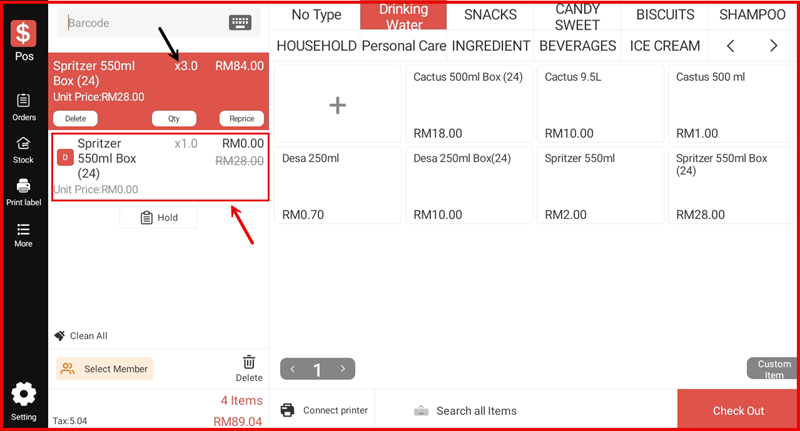
The Buy & Free promotion automatically adds a free item to the cart when the customer purchases the required quantity of an applicable product. For example, Buy 3 Get 1 Free of the same item.
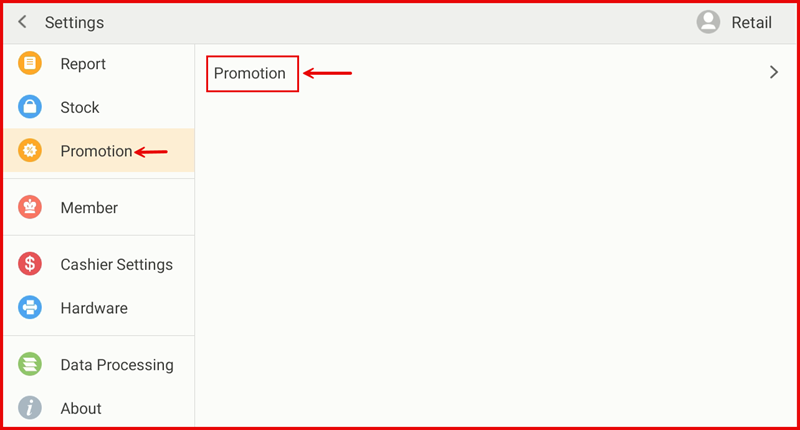
Step 1: Go to Settings → Promotion
From the POS Settings screen, tap Promotion in the left sidebar, then tap Promotion on the right panel.
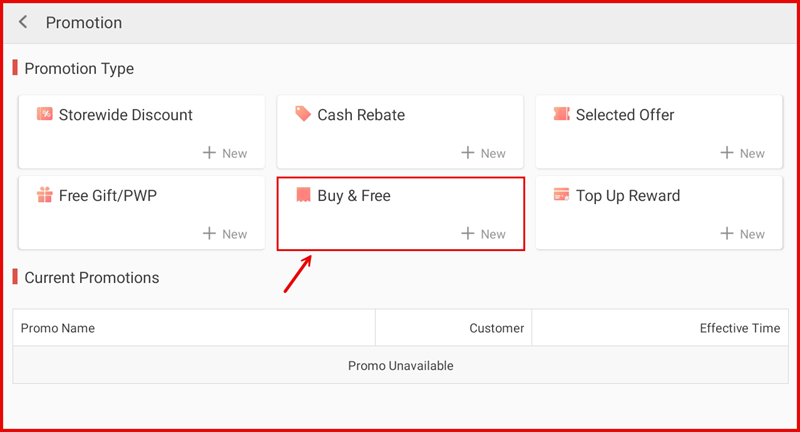
Step 2: Tap + New under Buy & Free
On the Promotion page, tap + New in the Buy & Free tile.
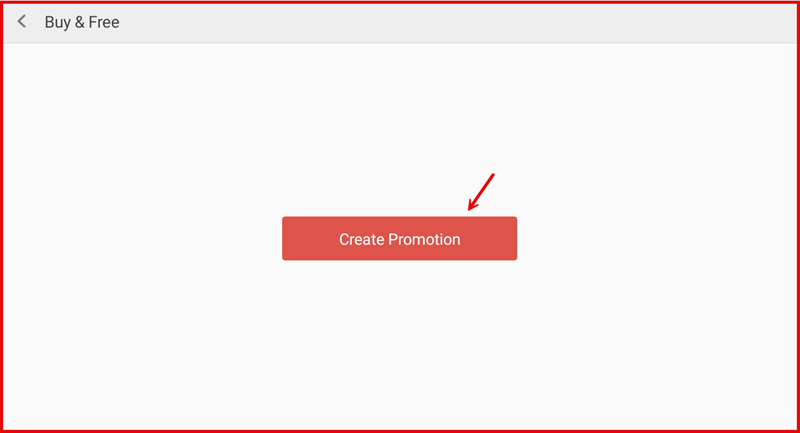
Step 3: Tap Create Promotion
Tap the Create Promotion button to open the setup form.
Step 4: Fill In Promotion Details and Save
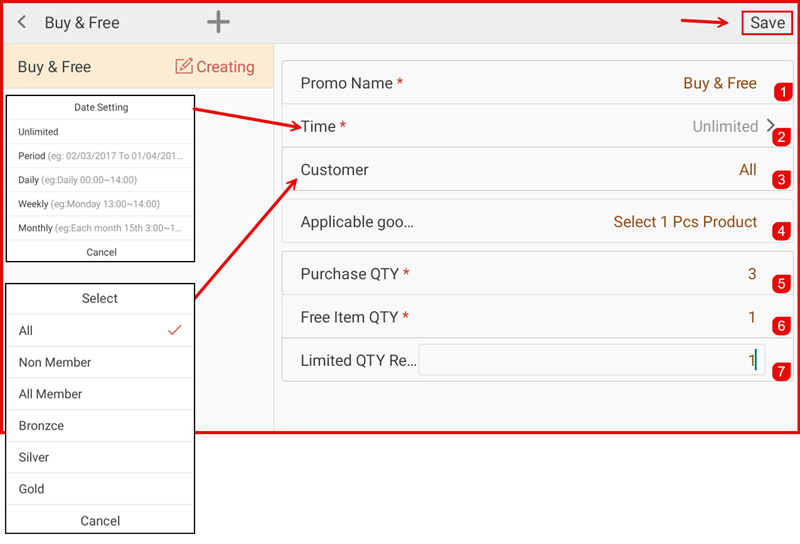
Complete the following fields then tap Save:
- ① Promo Name — Enter a name (e.g. Buy & Free).
- ② Time — Set the effective period (Unlimited, Period, Daily, Weekly, or Monthly).
- ③ Customer — Select who qualifies: All, Non Member, All Member, Bronzce, Silver, or Gold.
- ④ Applicable goods — Tap to select the product(s) this promotion applies to.
- ⑤ Purchase QTY — Set the quantity the customer must buy to trigger the free item.
- ⑥ Free Item QTY — Set the quantity of the free item.
- ⑦ Limited QTY Re... — Set the daily redemption limit per transaction.
Step 5: Promotion is Active
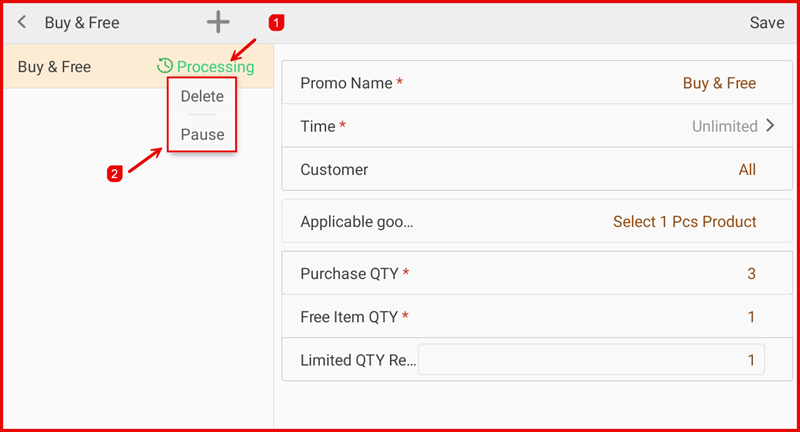
The promotion status shows Processing (①). Tap the name to reveal Delete or Pause (②) options.
Step 6: Free Item Added Automatically in Cart
When the required quantity is added to the cart (e.g. Spritzer 550ml Box x3), the free item (Spritzer 550ml Box x1) is automatically added at RM0.00, with the original price shown crossed out.