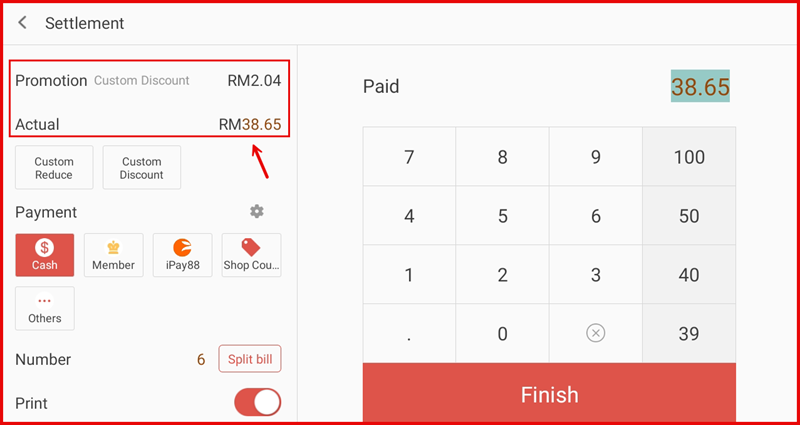
Custom Discount
iPOS Retail allows cashiers to apply custom discounts at both the order level and item level. This guide explains how to configure custom discount settings and apply discounts during sales.
Step 1: Configure Custom Discount Settings
Go to Settings and tap Operation from the left sidebar. Then tap Custom Discount to access the configuration page. Set the following options:
- Allow Discount % — Enable to allow percentage-based discounts.
- Allow Discount Amount — Enable to allow fixed amount discounts.
- Max Discount % — Set the maximum discount percentage allowed (e.g. 50%).
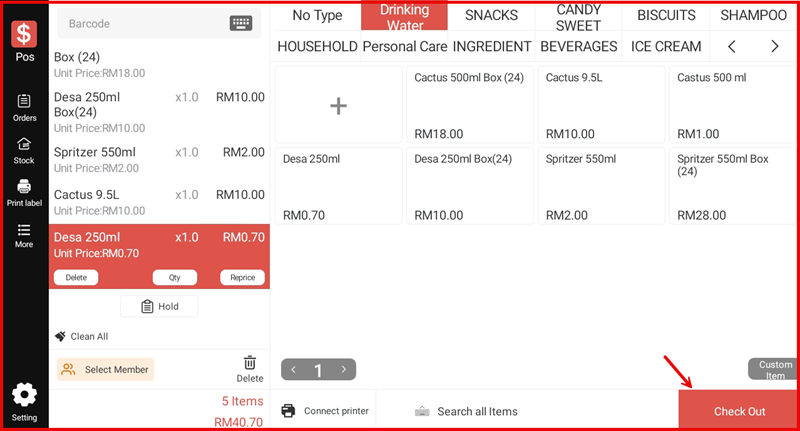
Step 2: Apply Order-Level Discount
On the cashier screen during a sale, tap the Discount button to open the discount dialog.
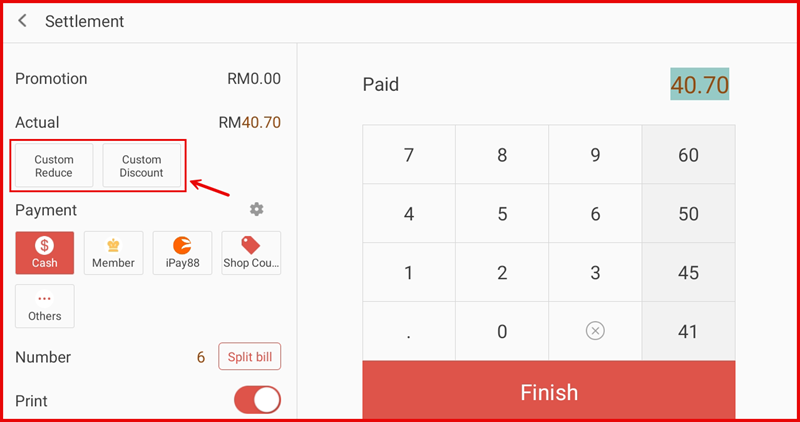
Step 3: Enter Discount Value
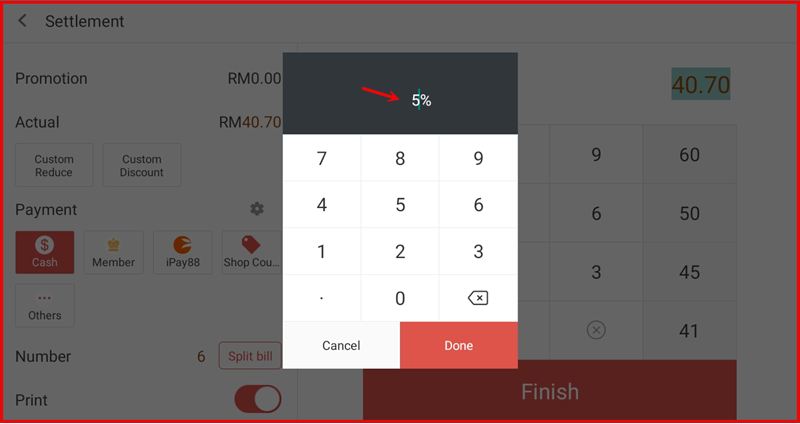
In the discount dialog, you can choose to apply a percentage discount or a fixed amount discount:
- Tap the % tab to enter a discount percentage.
- Tap the Amount tab to enter a fixed discount amount.
Enter the discount value and tap Apply to add the discount to the order.
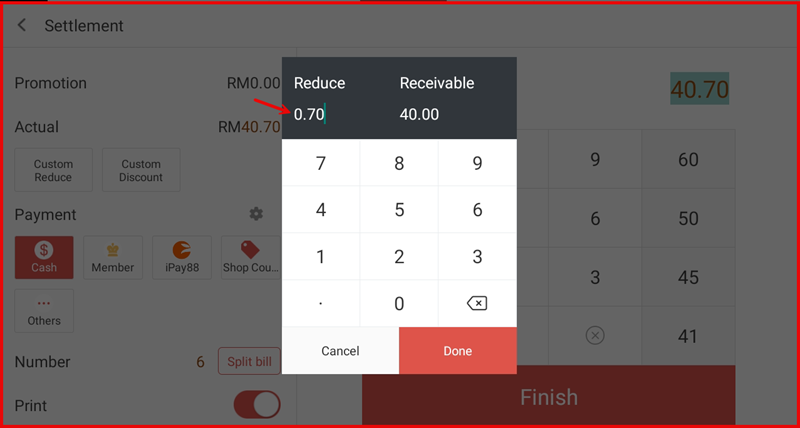
Step 4: View Discount Applied
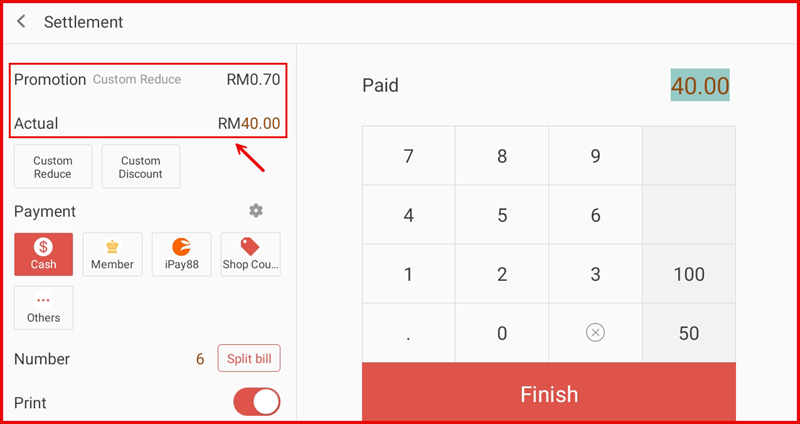
Once applied, the order summary shows the Original Price, Discount amount, and Nett (final) price with the discount deducted.
Step 5: Apply Item-Level Discount
To discount a specific item instead of the whole order, tap on the item in the cart to open the item details dialog.
Step 6: Enter Item Discount
In the item discount dialog, enter the discount percentage or amount for that specific item, then tap Apply. The item-level discount will be applied only to that item.