Customer Display Setting
The Customer Display feature connects iPOS Retail to a serial pole display unit that faces the customer. It shows the current order total in real time, providing transparency during checkout.
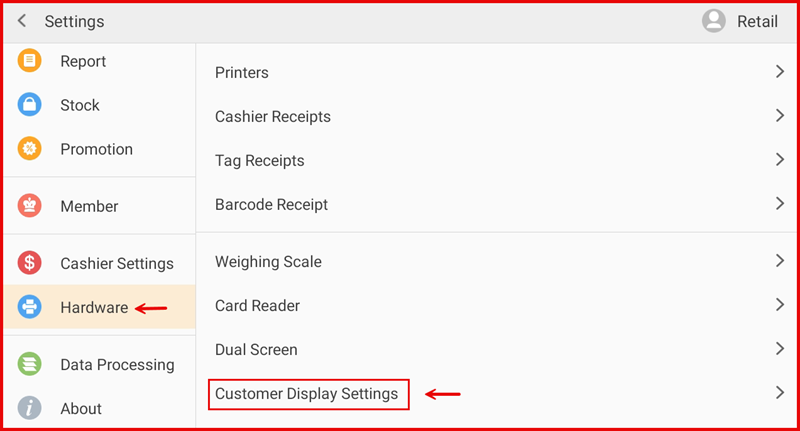
Step 1: Go to Settings → Hardware → Customer Display Settings
From the POS Settings screen, tap Hardware in the left sidebar, then tap Customer Display Settings from the right panel.
Step 2: Configure Customer Display Settings
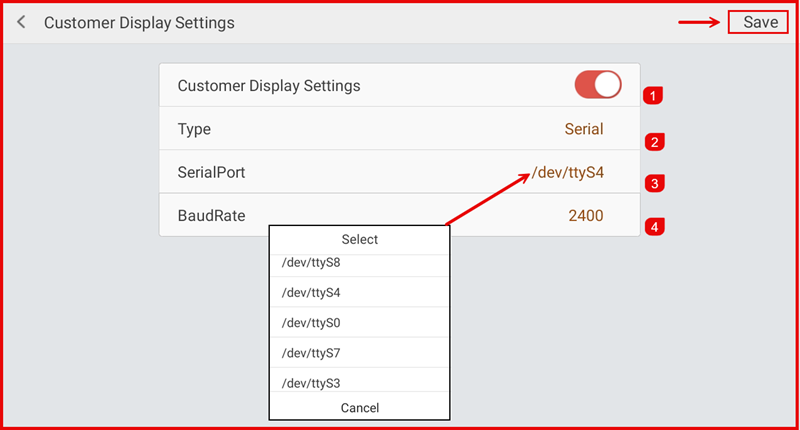
Set up the following options and tap Save:
- ① Customer Display Settings — Toggle ON to enable the customer display.
- ② Type — Select the connection type. Choose Serial for a serial port pole display.
- ③ SerialPort — Select the serial port the display is connected to (e.g. /dev/ttyS4, /dev/ttyS8, /dev/ttyS0, /dev/ttyS7, /dev/ttyS3).
- ④ BaudRate — Set the baud rate that matches your display device (e.g. 2400).