Weighing Scale Settings
iPOS Retail supports USB weighing scales for selling items by weight (e.g. fresh produce, seafood). Once configured, the POS reads the weight live from the scale and calculates the price automatically.
Step 1: Open Settings
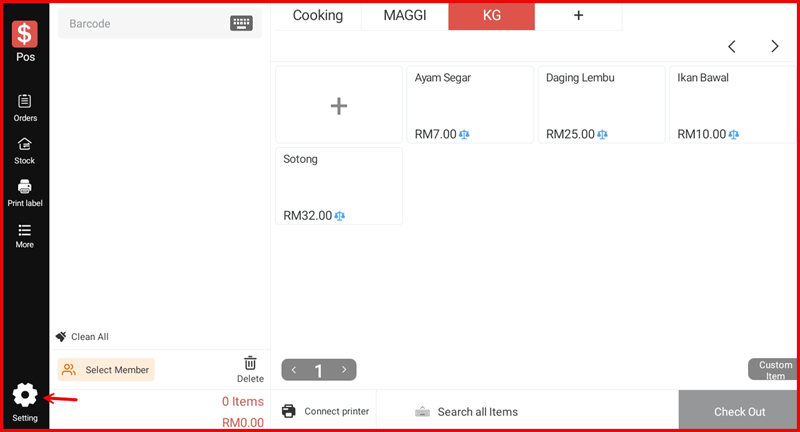
From the main POS screen, tap the Setting icon at the bottom left of the sidebar to open Settings.
Step 2: Go to Hardware → Weighing Scale
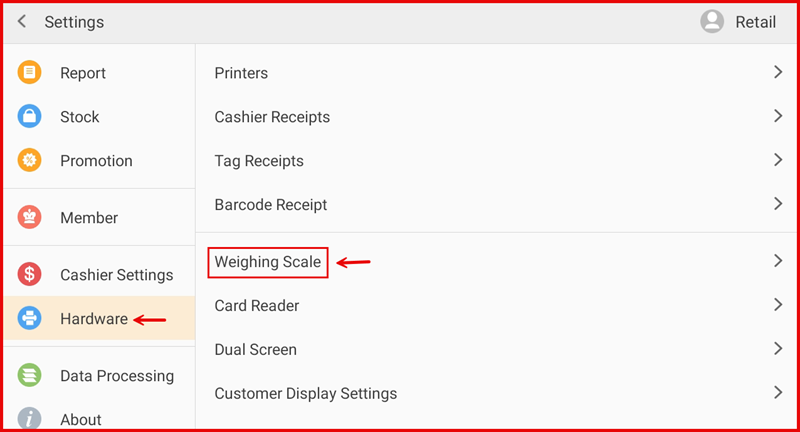
Tap Hardware in the left sidebar, then tap Weighing Scale from the right panel.
Step 3: Configure Weighing Scale Settings
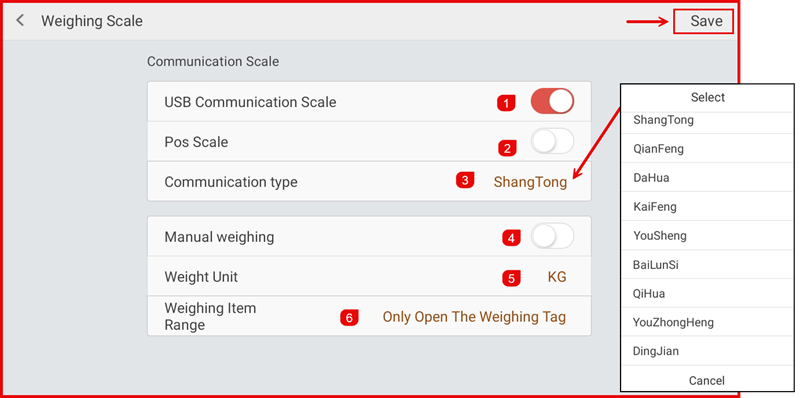
Set up the following options and tap Save:
- ① USB Communication Scale — Toggle ON to enable the USB weighing scale.
- ② Pos Scale — Toggle ON if using a built-in POS scale.
- ③ Communication type — Select your scale brand/model (e.g. ShangTong, QianFeng, DaHua, KaiFeng, YouSheng, BaiLunSi, QiHua, YouZhongHeng, DingJian).
- ④ Manual weighing — Toggle ON to allow cashiers to enter the weight manually instead of reading from the scale.
- ⑤ Weight Unit — Set the unit of measurement (e.g. KG).
- ⑥ Weighing Item Range — Set which items are shown in weighing mode (e.g. Only Open The Weighing Tag).
Step 4: Weighing Scale Active on POS
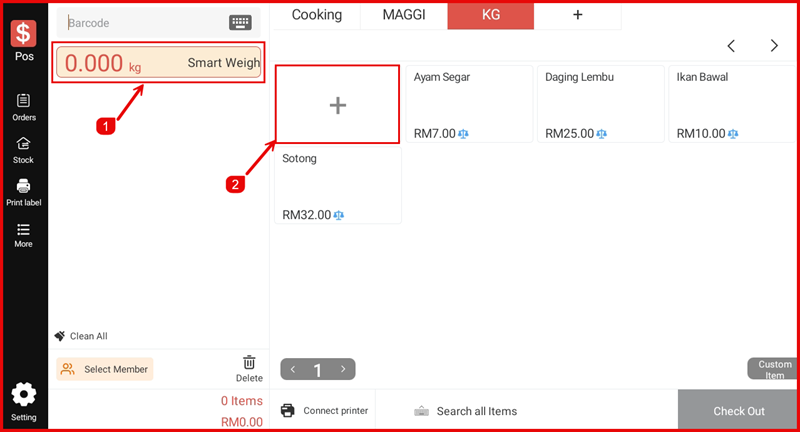
After saving, the POS screen shows a live weight reader (① 0.000 kg — Smart Weigh) at the top left. Place an item on the scale and it will update in real time. Tap the + area (②) or an item tile to add a weighing item to the cart.
Step 5: Enable Weighing on an Item
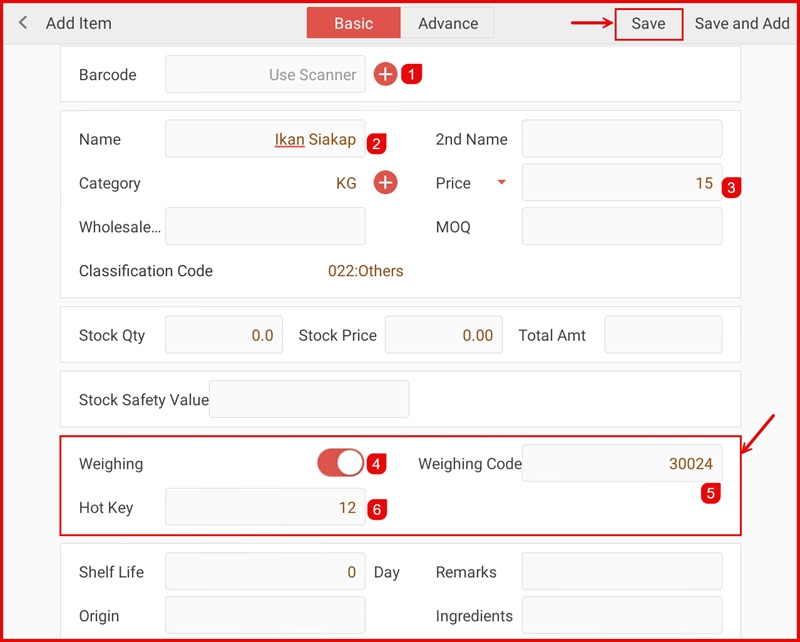
To mark an item as weight-based, go to Stock → Add / Edit Item and configure:
- ① Barcode — Scan or enter the barcode.
- ② Name — Enter the item name (e.g. Ikan Siakap).
- ③ Price — Set the price per KG.
- ④ Weighing — Toggle ON to enable weighing for this item.
- ⑤ Weighing Code — Enter the scale code assigned to this item (e.g. 30024).
- ⑥ Hot Key — Assign a shortcut number for fast access on the POS screen.
Tap Save when done.
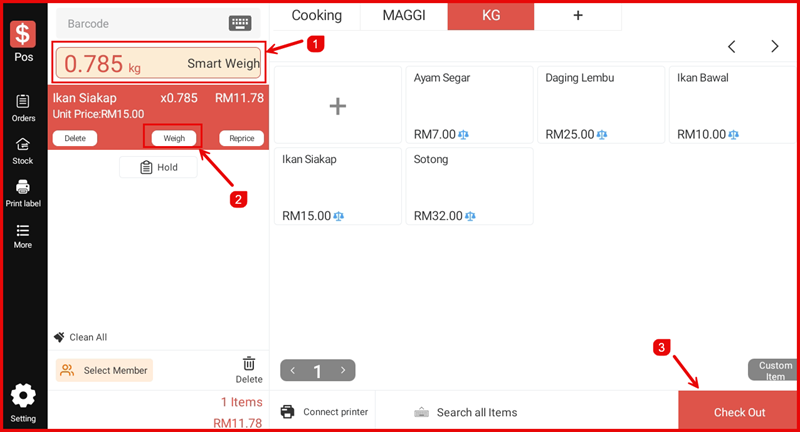
Step 6: Sell by Weight at POS
Place the item on the scale. The weight is read automatically (① e.g. 0.785 kg). The item is added to the cart with the weight as quantity and the total price calculated (e.g. RM11.78 at RM15/kg). Tap Weigh (②) to re-read the weight if needed, then tap Check Out (③) to proceed.