Split Payment
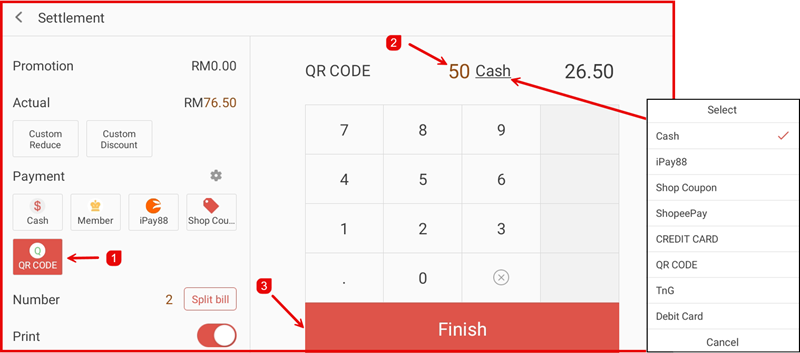
The Split Payment feature in iPOS Retail allows customers to pay using two or more payment methods for a single transaction — for example, part by QR Code and the remaining balance by Cash.
Step 1: Add Items and Tap Check Out
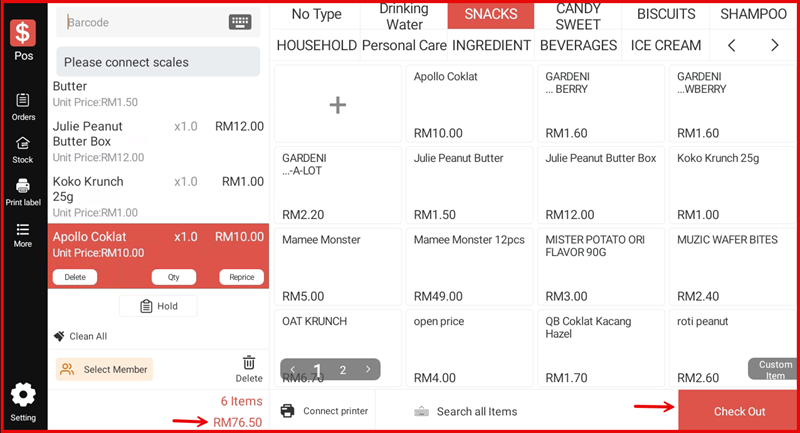
Add all items to the cart on the POS screen. Once the order is ready, tap Check Out at the bottom right to proceed to the Settlement screen.
Step 2: Select the First Payment Method
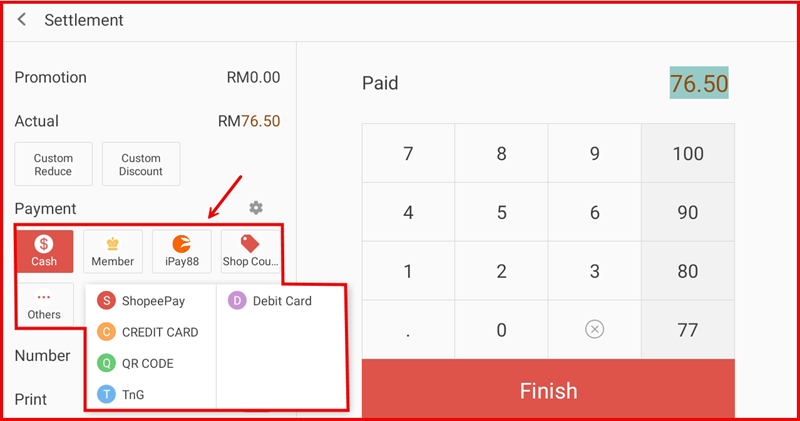
On the Settlement screen, the full order amount is shown under Actual. Tap your preferred first payment method — for example, QR CODE — from the Payment section. You can also tap Others to expand and see all available methods (ShopeePay, Debit Card, Credit Card, QR Code, TnG, etc.).
Step 3: Enter First Payment Amount and Split
After selecting the first payment method (e.g. QR CODE), use the number pad to enter the partial amount the customer is paying with that method (e.g. 50). The remaining balance will be automatically calculated and shown next to the second payment method. Tap Split bill to confirm the split. The Number field shows 2, indicating two payment methods are in use. Tap Finish to complete the transaction.