Return
The Return feature in iPOS Retail allows you to process item returns from past transactions. You can return individual items or all items in an order, choose the refund method, and record the return reason.
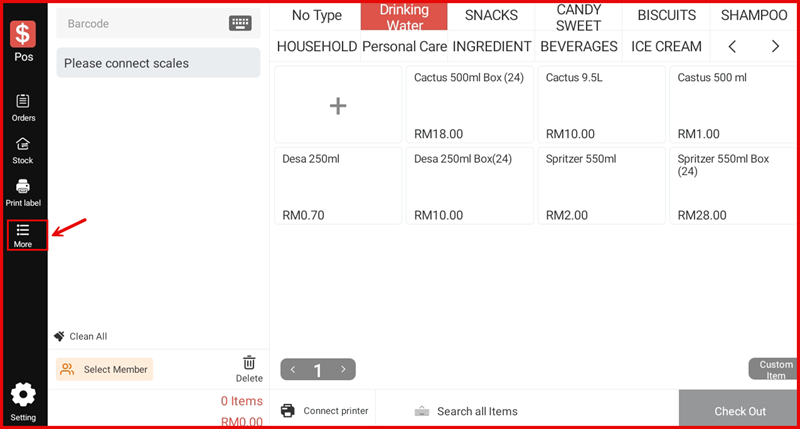
Step 1: Tap More
From the main POS screen, tap the More icon on the left sidebar to open the additional menu.
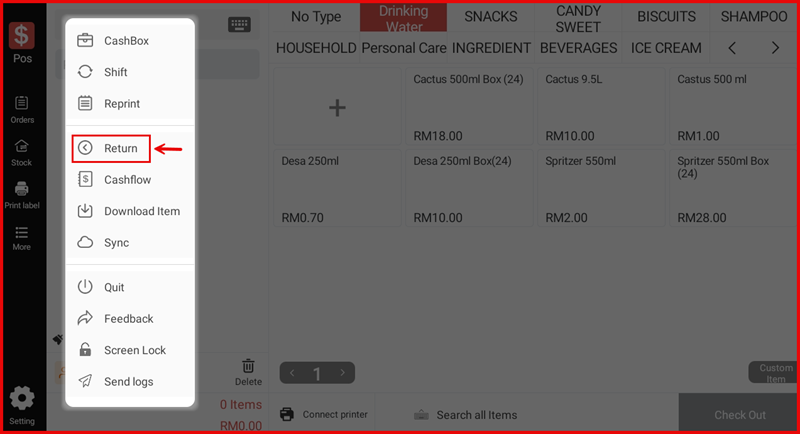
Step 2: Tap Return
From the More menu, tap Return to open the Return screen.
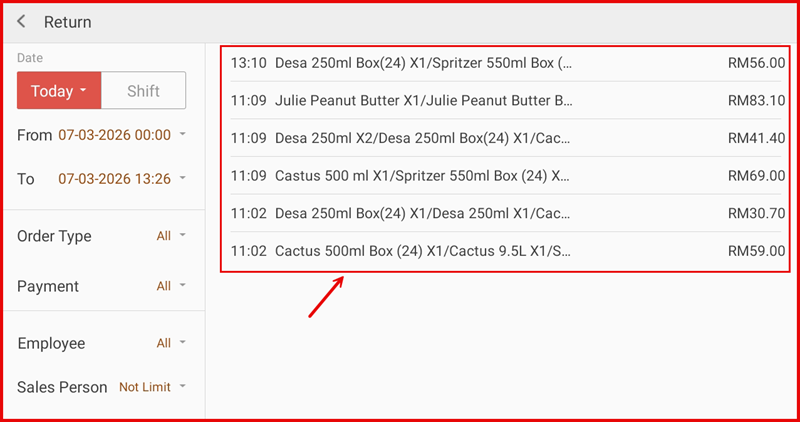
Step 3: Select the Transaction
The Return screen displays all transactions for today by default. Use the Date, Order Type, Payment, Employee, and Sales Person filters to narrow down the list. Tap the transaction you want to return.
Step 4: Choose Items to Return
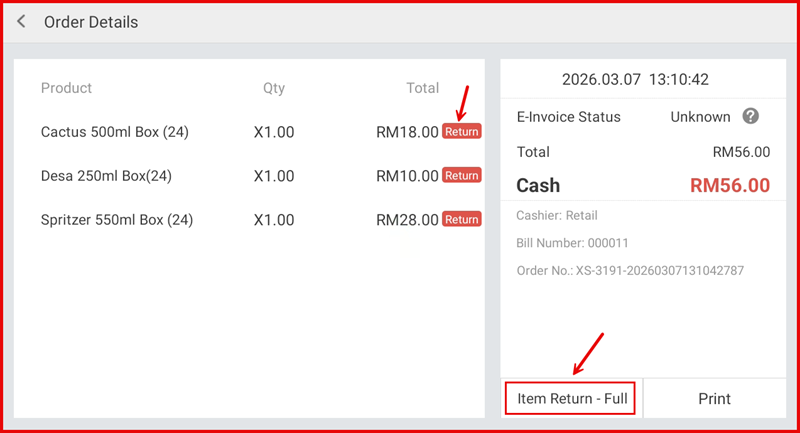
The Order Details screen shows all items in the selected transaction. You have two options:
- Tap the Return button next to a specific item to return that item individually.
- Tap Item Return - Full at the bottom right to return all items in the order at once.
Step 5: Confirm Item Return Details
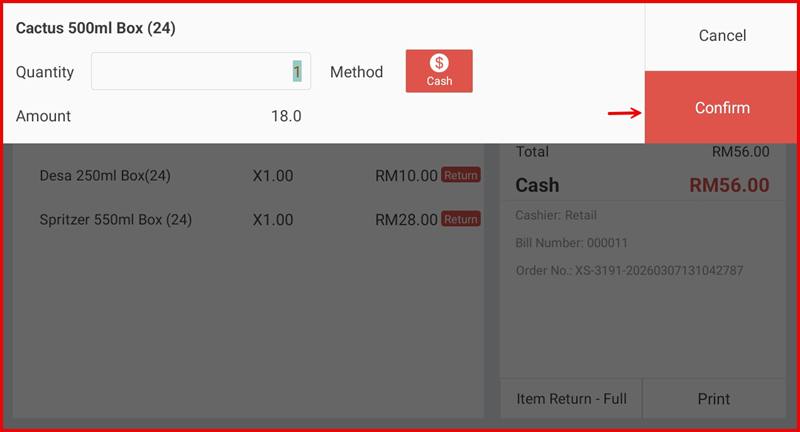
A dialog appears showing the item name, Quantity, refund Method (e.g. Cash), and Amount. Verify the details and tap Confirm to proceed.
Step 6: Fill In Return Information
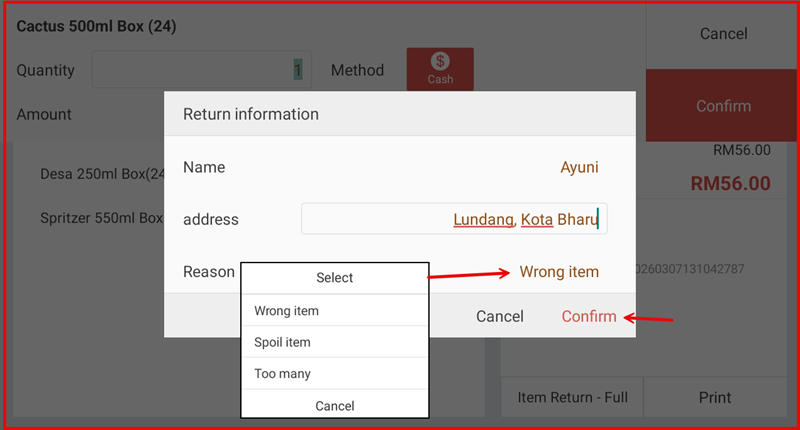
A Return information dialog appears. Enter the customer's Name and Address, then select a Reason from the dropdown:
- Wrong item — The wrong item was sold.
- Spoil item — The item is damaged or expired.
- Too many — Excess quantity was sold.
Tap Confirm to complete the return.
Step 7: Return Recorded Successfully
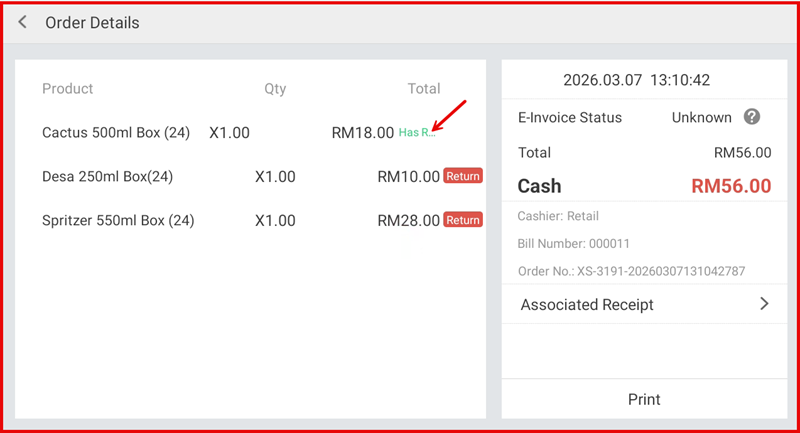
The returned item in Order Details now shows a Has Returned status, confirming the return has been processed.
Step 8: Verify in Return List
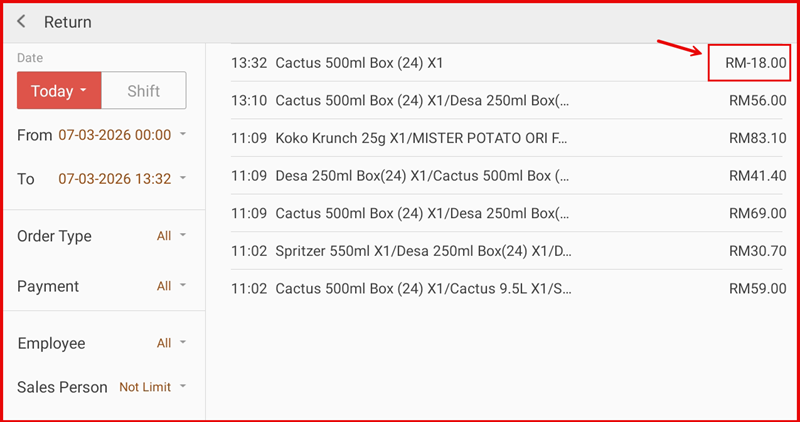
Go back to the Return screen. The completed return now appears at the top of the list with a negative amount (e.g. RM-18.00), confirming the refund has been recorded in the system.