Reprint
The Reprint feature allows you to reprint a receipt for any past transaction directly from the POS screen.
Step 1 — Open More Menu and Tap Reprint
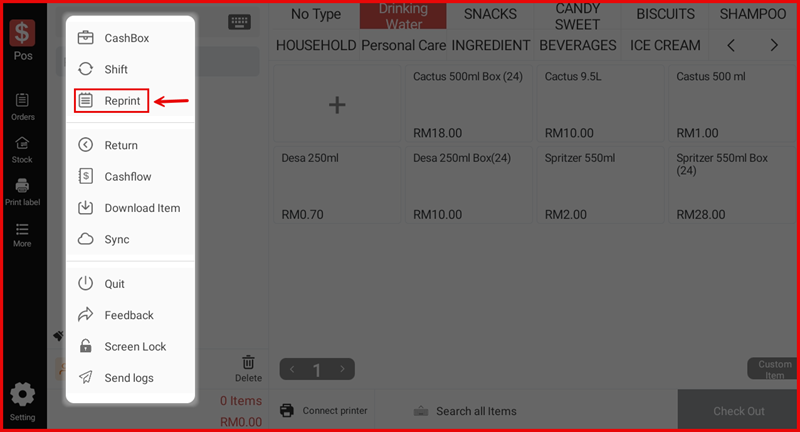
On the main POS screen, tap More on the left navigation bar to expand the options menu. Then tap Reprint.
Step 2 — Select a Transaction to Reprint
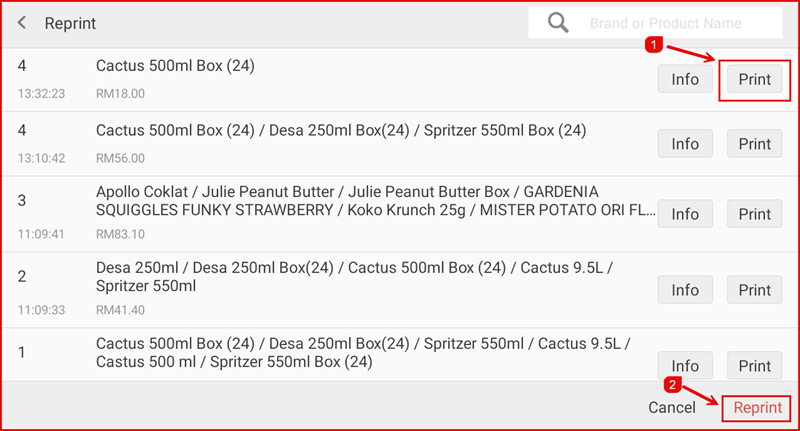
The Reprint screen displays a list of past transactions, each showing the transaction number, item names, time, and total amount. For each transaction you can:
- Tap Info to view the full order details.
- Tap Print (①) to immediately reprint the receipt for that transaction.
Alternatively, tap the Reprint button (②) at the bottom right to reprint the most recent transaction. Tap Cancel to close the screen without printing.