Hold
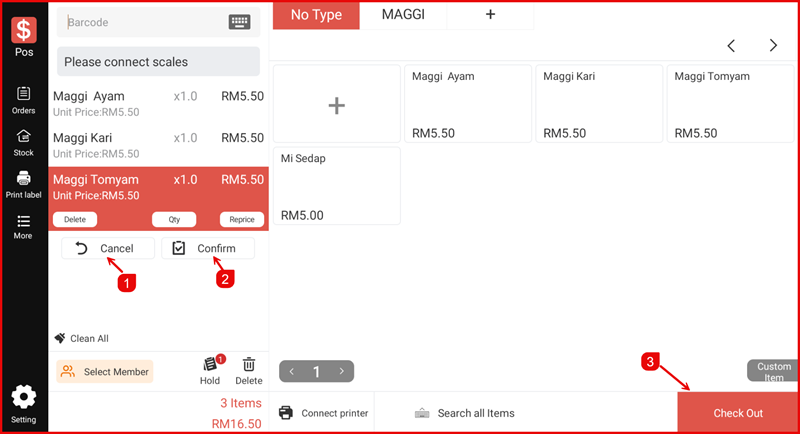
The Hold feature allows you to temporarily save the current order and retrieve it at any time. This is useful when you need to assist another customer while keeping an existing order intact.
Step 1: Open Settings
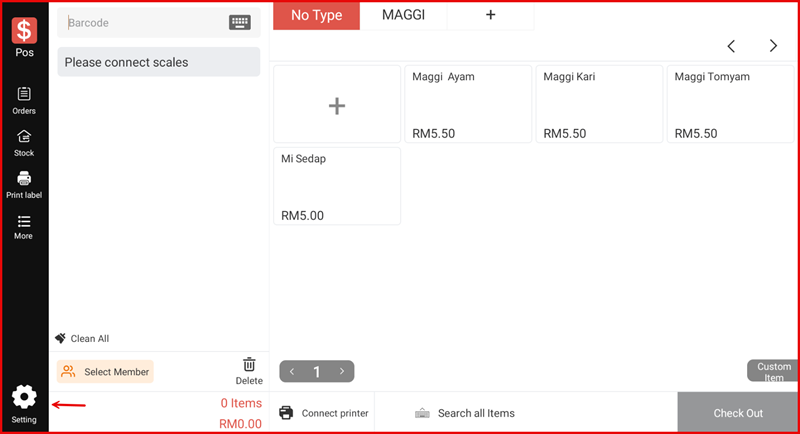
From the main POS screen, tap the Settings icon at the bottom left.
Step 2: Go to Cashier Settings → Style Setting
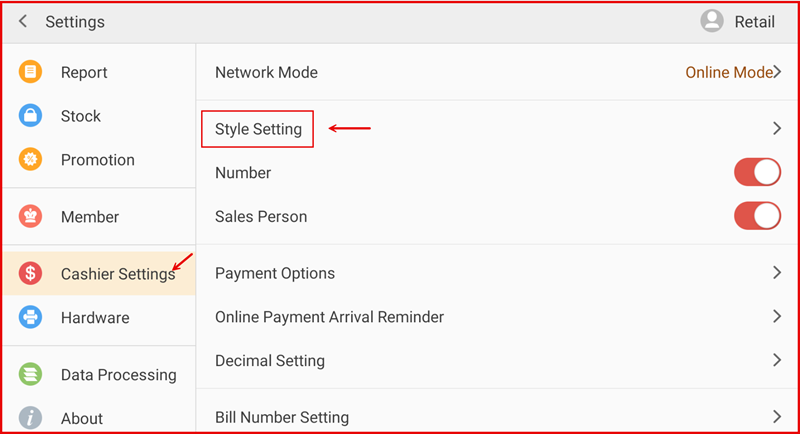
Select Cashier Settings, then tap Style Setting.
Step 3: Enable Hold Bill
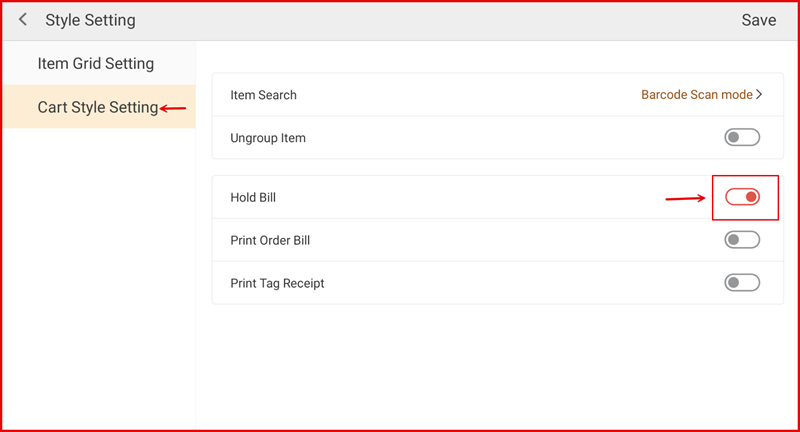
Under Cart Style Setting, toggle Hold Bill to enable it, then tap Save.
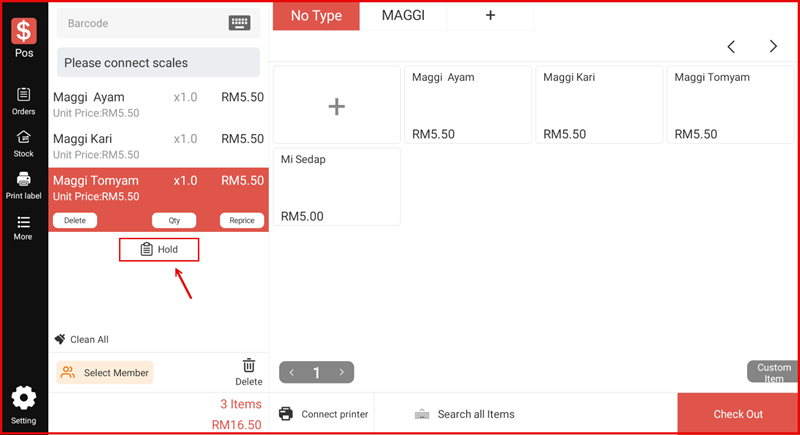
Step 4: Place an Order on Hold
Add items to the cart. Tap on an item to reveal the action buttons, then tap Hold.
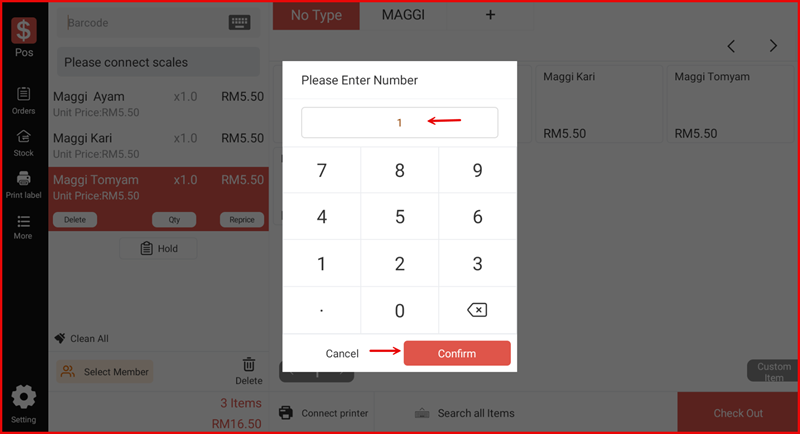
Step 5: Enter Hold Number
Enter a number to identify the held order, then tap Confirm.
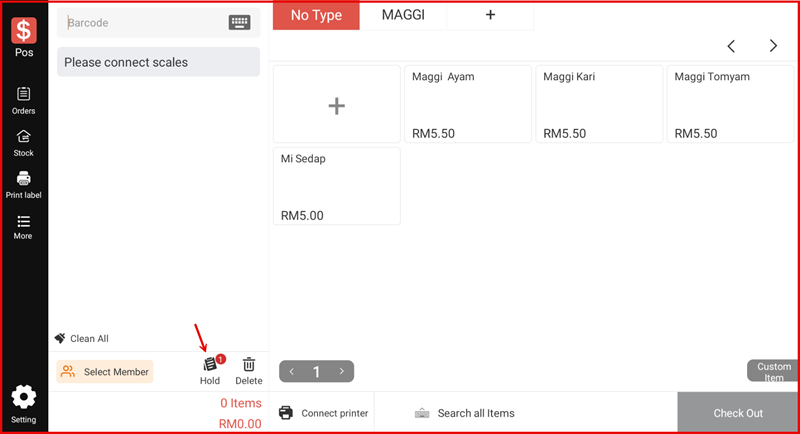
Step 6: Order Held Successfully
The cart is cleared. The Hold button displays a badge showing the number of held orders.
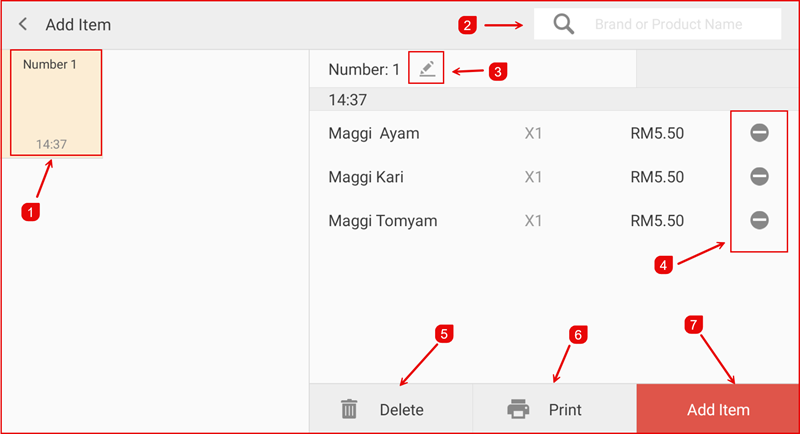
Step 7: View Held Orders
Tap the Hold button to open the held orders list. Select a hold to view its details.
- 1 – Select the held order from the list
- 2 – Search by brand or product name
- 3 – Edit the hold number
- 4 – Remove an individual item from the hold
- 5 – Delete the entire held order
- 6 – Print the hold receipt
- 7 – Tap Add Item to restore the hold to the cart
Step 8: Restore Hold to Cart
Tap Add Item to restore the held order items to the active cart. Tap Confirm to proceed or Cancel to go back.