Day Closing
The Day Closing feature lets you end the current business day, review the shift summary, and sync all transaction data. Follow the steps below to complete a day close.
Step 1 — Open the More Menu
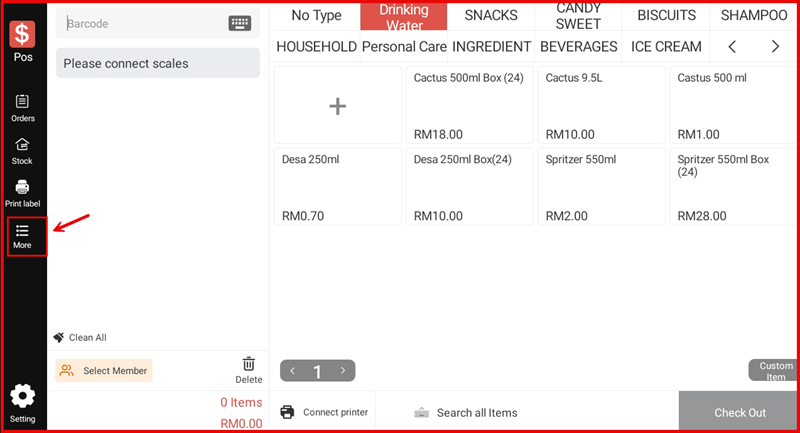
On the main POS screen, tap More on the left navigation bar to expand the options menu.
Step 2 — Tap Shift
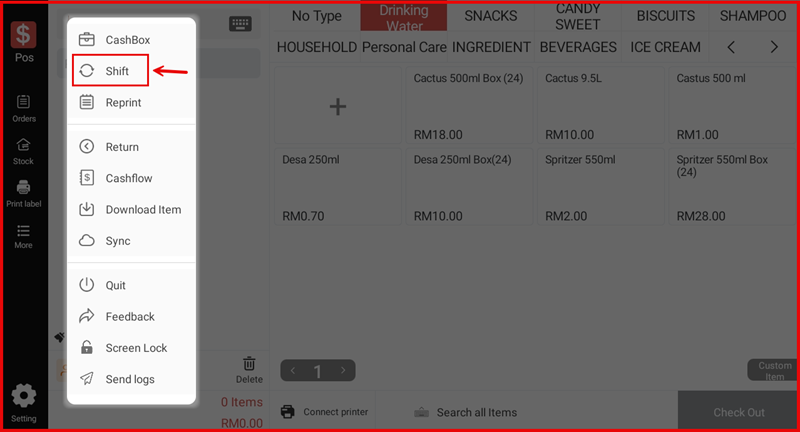
From the expanded menu, tap Shift to open the Shift summary screen.
Step 3 — Review the Shift Summary and Tap Day Closing
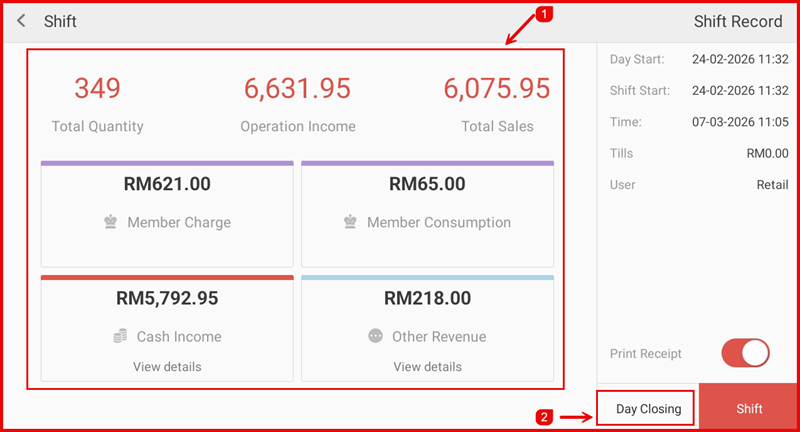
The Shift screen displays the current shift record on the right, including Day Start, Shift Start, current Time, Tills amount, and the logged-in User. The summary panel (①) shows Total Quantity, Operation Income, Total Sales, Member Charge, Member Consumption, Cash Income, and Other Revenue.
Once you have reviewed the summary, tap Day Closing (②) to close the day.
Step 4 — Sync Completes
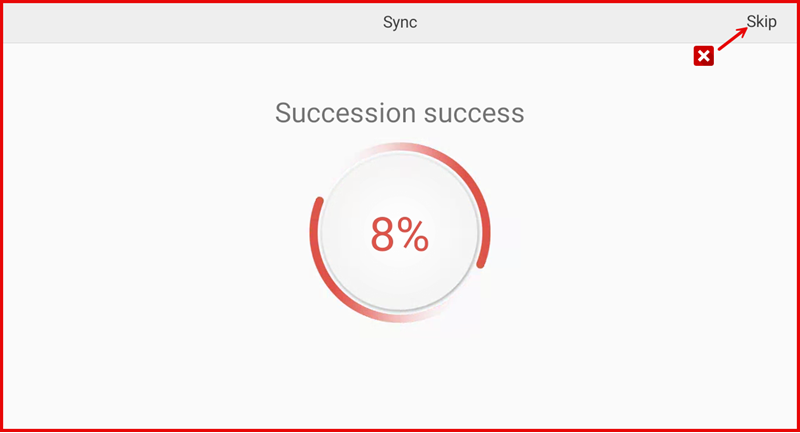
After tapping Day Closing, the system begins syncing data to the cloud. The Sync screen shows the progress percentage. Once complete, the status shows Succession success. Tap Skip (top-right) to bypass the sync step if needed.