Selected Offer
The Selected Offer promotion lets you apply a percentage discount or a fixed special price to specific items you choose. When customers add qualifying items to the cart, the discounted price is applied automatically.
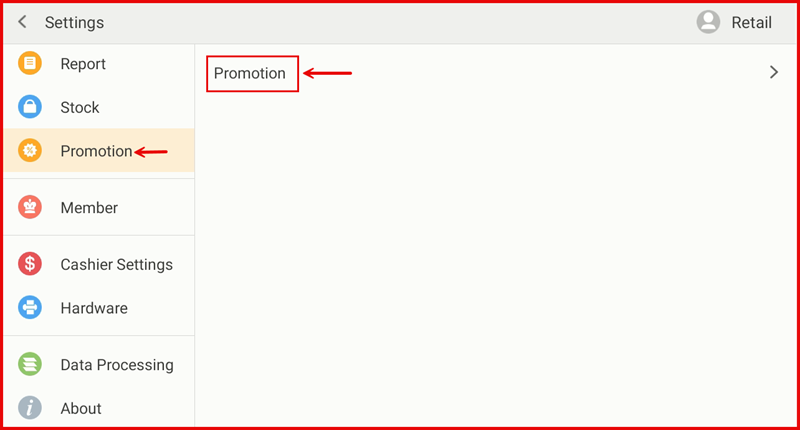
Step 1: Go to Settings → Promotion
From the POS Settings screen, tap Promotion in the left sidebar, then tap Promotion on the right panel.
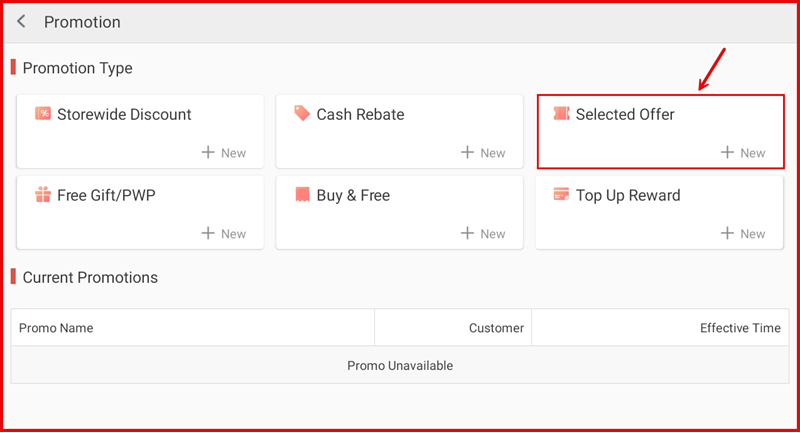
Step 2: Tap + New under Selected Offer
On the Promotion page, tap + New in the Selected Offer tile.
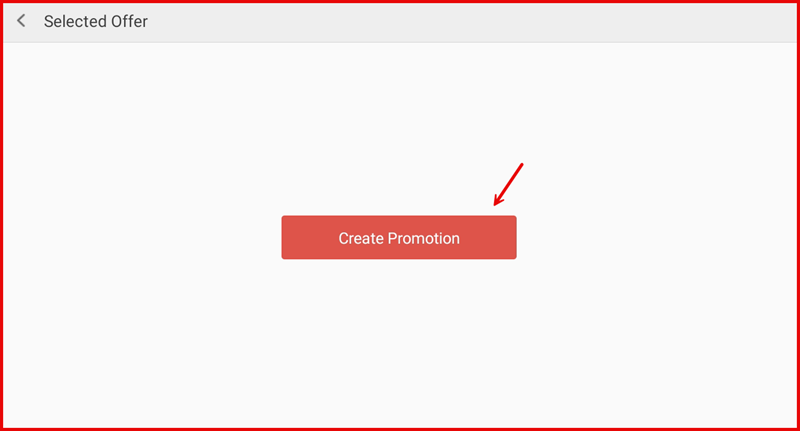
Step 3: Tap Create Promotion
Tap the Create Promotion button to open the setup form.
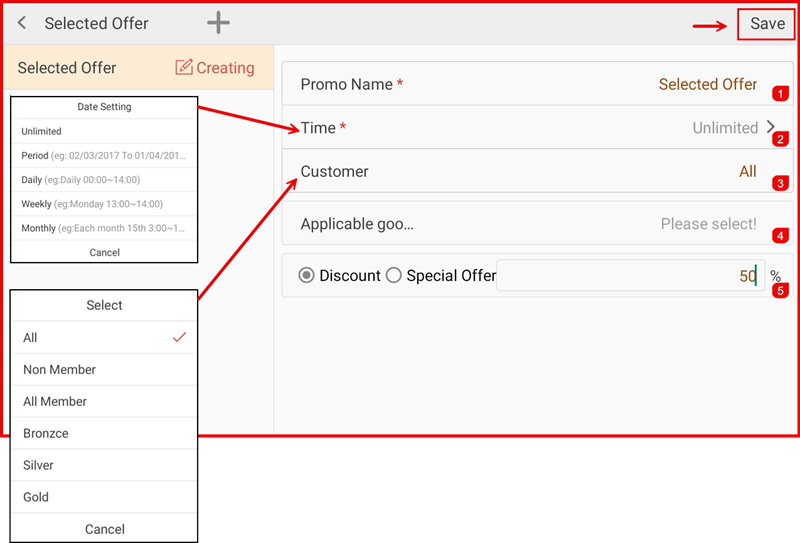
Step 4: Fill In Promotion Details
Complete the following fields:
- ① Promo Name — Enter a name (e.g. Selected Offer).
- ② Time — Set the effective period (Unlimited, Period, Daily, Weekly, or Monthly).
- ③ Customer — Select who qualifies: All, Non Member, All Member, Bronzce, Silver, or Gold.
- ④ Applicable goods — Tap to select the specific items this promotion applies to.
- ⑤ Discount / Special Offer — Choose Discount and enter the percentage, or choose Special Offer to set a fixed price.
Tap Save when done.
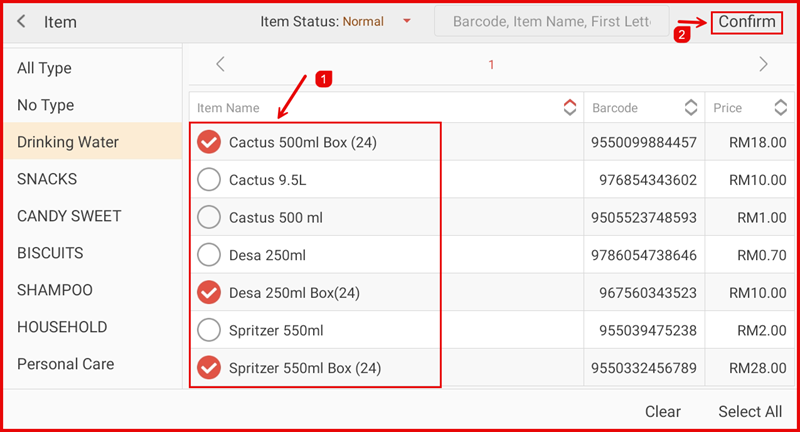
Step 5: Select Applicable Goods
On the item selection screen, filter by category on the left sidebar, then tick the items (①) to include in the promotion. Tap Confirm (②) to apply the selection.
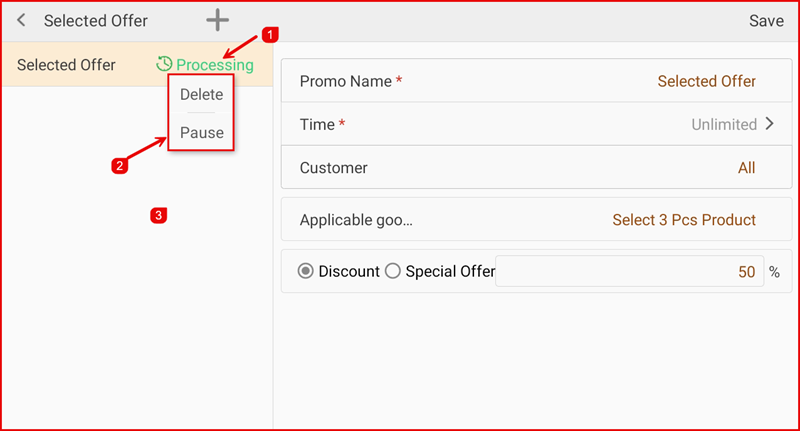
Step 6: Promotion is Active
The promotion status shows Processing (①). Tap the name to see management options: Delete or Pause (②). The Applicable goods field (③) confirms the selected items.
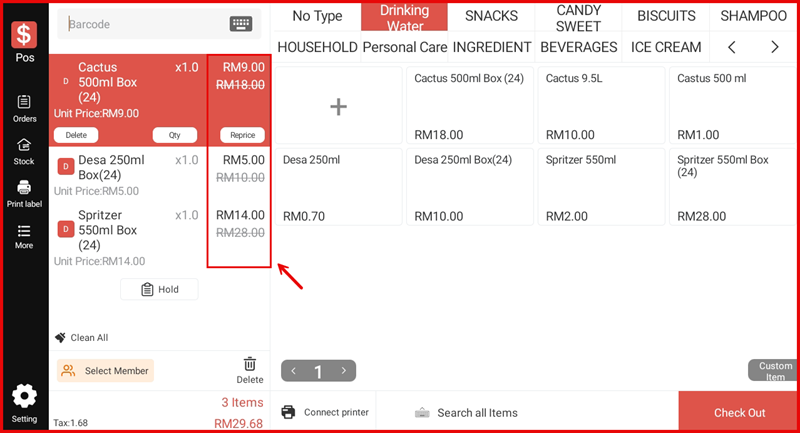
Step 7: Discounted Prices in Cart
When items with the promotion are added to the cart, the discounted price is shown alongside the original crossed-out price, confirming the promotion is applied.
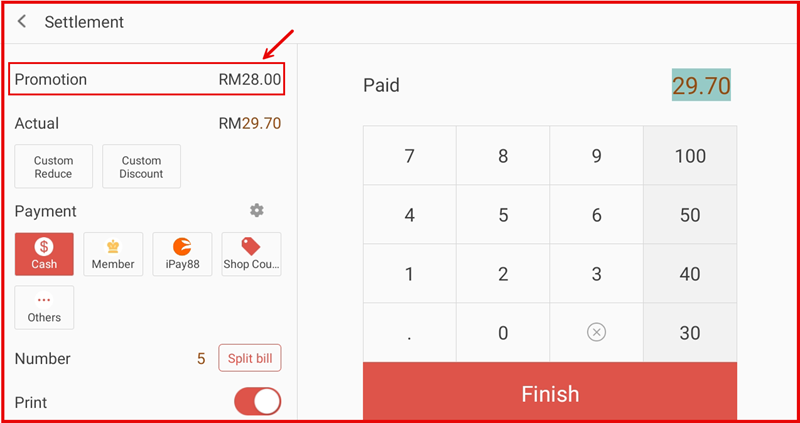
Step 8: Settlement Shows Promotion Savings
On the Settlement screen, the Promotion row shows the total savings deducted (e.g. RM28.00), and Actual shows the final payable amount after the promotion.