Dual Screen Setting
The Dual Screen feature allows a second monitor or display to face the customer during checkout. It can show the current order, your shop logo, and rotating promotional images.
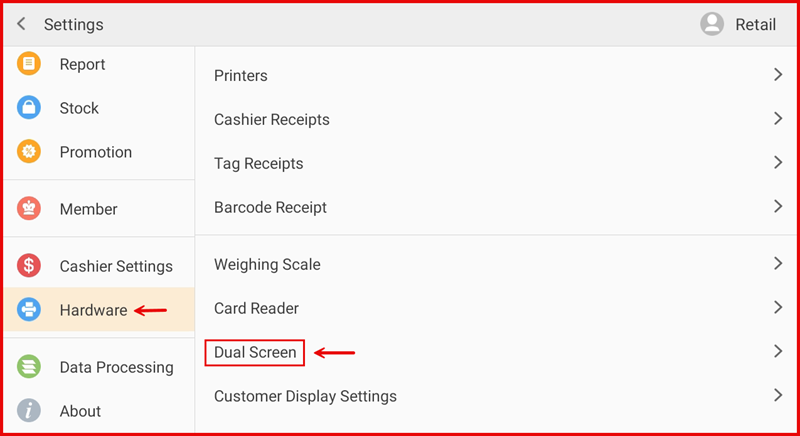
Step 1: Go to Settings → Hardware → Dual Screen
From the POS Settings screen, tap Hardware in the left sidebar, then tap Dual Screen from the right panel.
Step 2: Configure Dual Screen Options
Set up the following options on the Dual Screen configuration page:
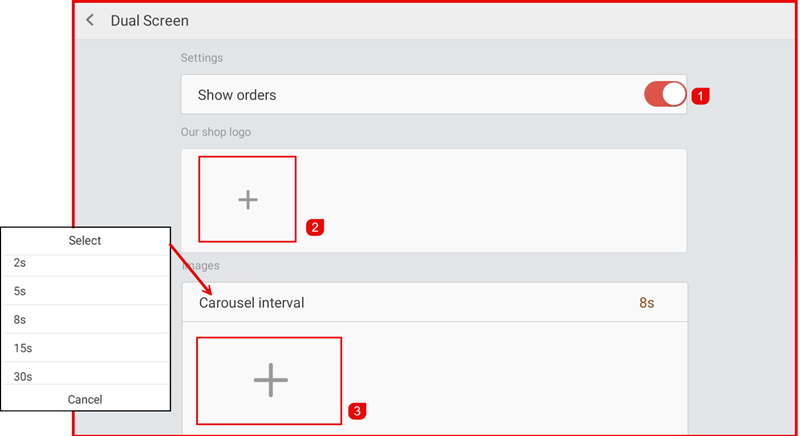
- ① Show orders — Toggle ON to display the live order items and total on the second screen during checkout.
- ② Our shop logo — Tap the + button to upload your shop logo. This is displayed on the second screen when there is no active order.
- Carousel interval — Set how long each promotional image is shown before rotating (options: 2s, 5s, 8s, 15s, 30s).
- ③ Images — Tap the + button to upload promotional or advertising images for the carousel slideshow on the second screen.