SD Card Backup
The SD Card Backup feature automatically saves your iPOS Retail data to local device storage at regular intervals, and also allows you to trigger a manual backup at any time. You can recover, delete, or send any backup file from the list.
Step 1 — Navigate to SD Card Backup
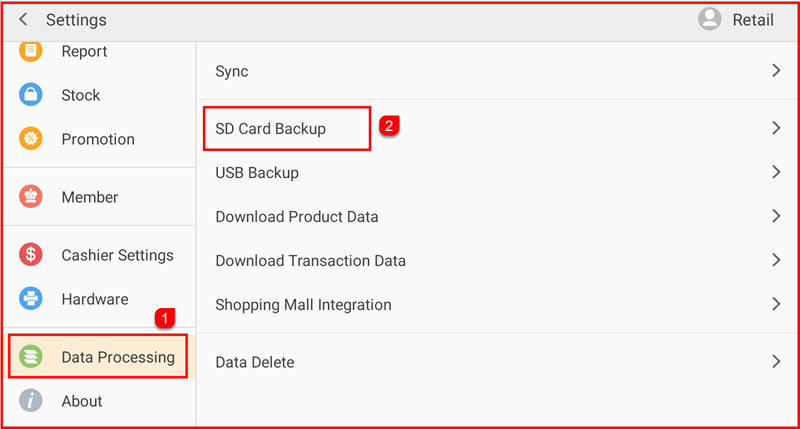
Tap Setting to open the Settings screen. In the left sidebar, tap Data Processing (①). Then tap SD Card Backup (②) on the right panel.
Step 2 — View Backup List and Manage Backups
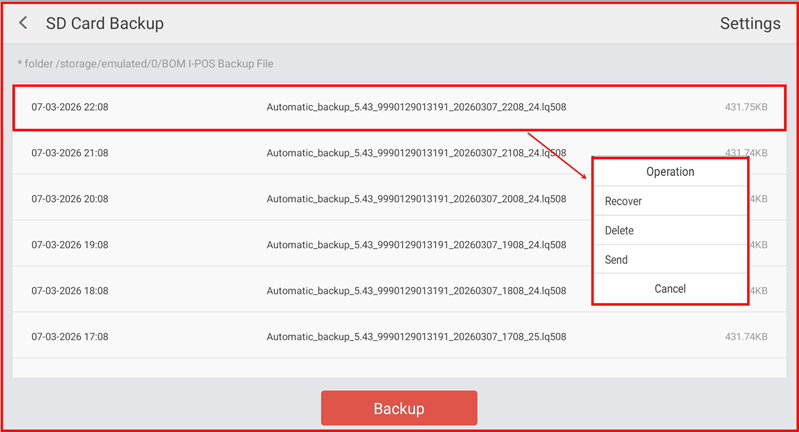
The SD Card Backup screen lists all existing backup files stored at /storage/emulated/0/BOM I-POS Backup File, sorted by date and time. Each entry shows the backup timestamp and file size. Tap any backup file to open the Operation menu with the following options:
- Recover — Restore data from the selected backup file.
- Delete — Remove the backup file from storage.
- Send — Share or transfer the backup file.
- Cancel — Close the menu without action.
Tap the Backup button at the bottom to create an immediate manual backup.
Step 3 — Configure Backup Settings
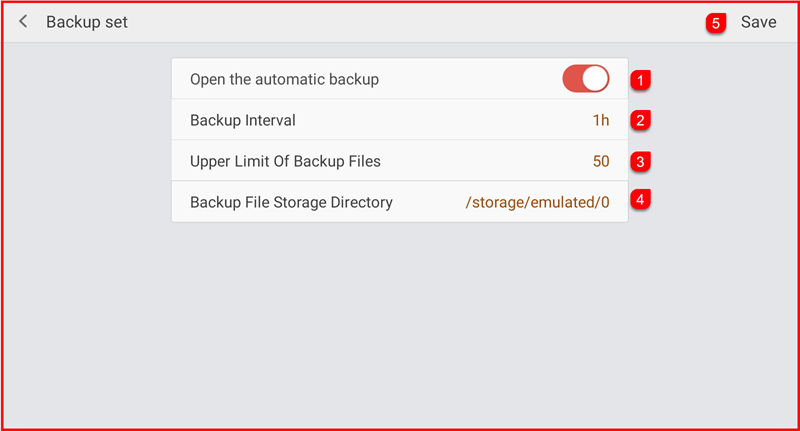
Tap Settings (top-right) on the SD Card Backup screen to open Backup set. Configure the following options and tap Save (⑤) when done:
- Open the automatic backup (①) — Toggle on/off to enable or disable automatic backups.
- Backup Interval (②) — Set how often backups are created (e.g. every 1 hour).
- Upper Limit Of Backup Files (③) — Set the maximum number of backup files to keep (e.g. 50). Older files are deleted when the limit is reached.
- Backup File Storage Directory (④) — Set the folder path where backup files are saved (e.g. /storage/emulated/0).