How to Download Transaction Data
The Download Transaction Data function allows you to pull transaction records from the server for a specified date range. Use this to restore or review historical transaction data on your device.
Step 1 — Navigate to Download Transaction Data
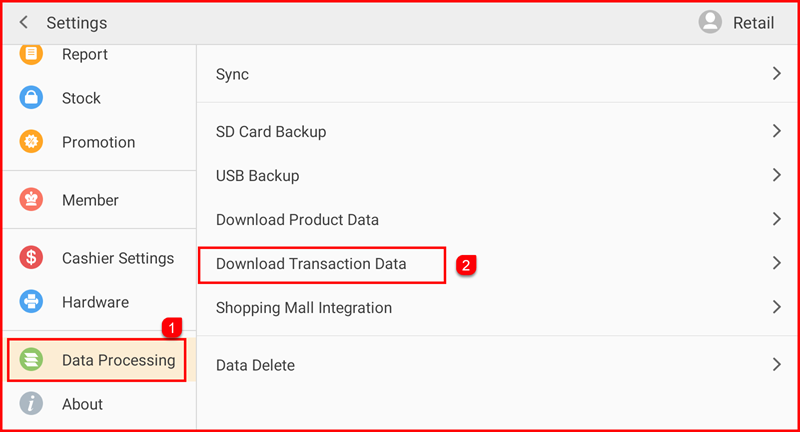
Tap Setting to open the Settings screen. In the left sidebar, tap Data Processing (①). Then tap Download Transaction Data (②) on the right panel.
Step 2 — Select Date Range
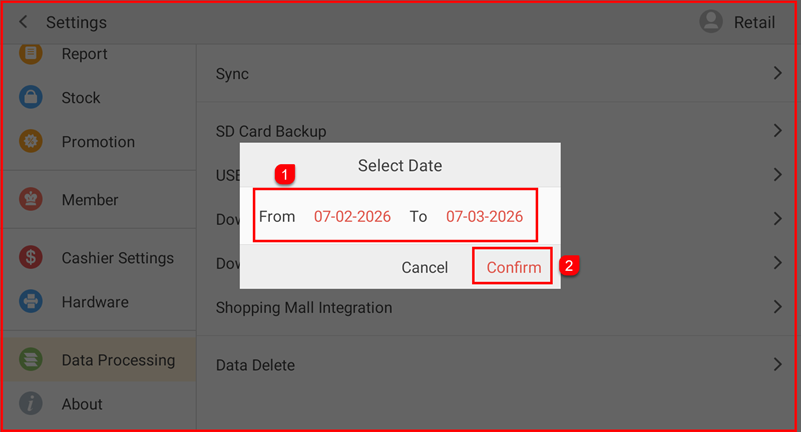
A Select Date dialog appears. Set the From and To date fields (①) to define the transaction period you want to download. Tap Confirm (②) to proceed, or Cancel to abort.
Step 3 — Download Begins
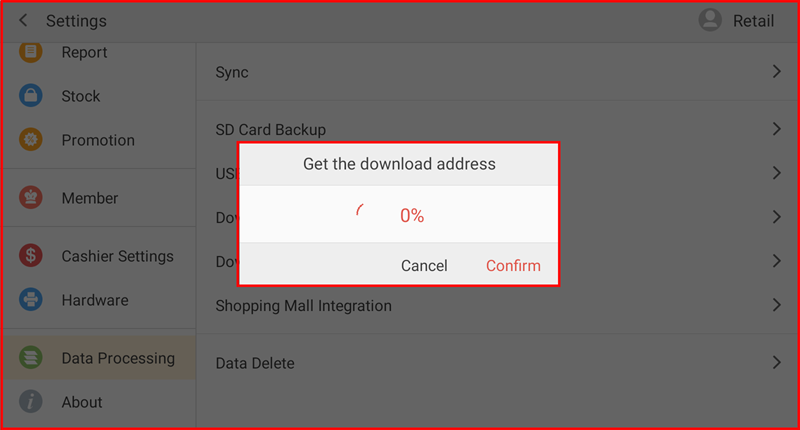
The system connects to the server and displays a Get the download address dialog showing the download progress. Wait for it to complete. Tap Cancel to stop at any time.