How to Download Product Data
The Download Product Data function pulls the latest product catalogue from the server and overwrites the local data on your device. This is useful when you have updated products from the back office and need to sync them to the POS.
Important: Local product data will be overwritten. Only proceed under the guidance of customer service.
Step 1 — Navigate to Download Product Data
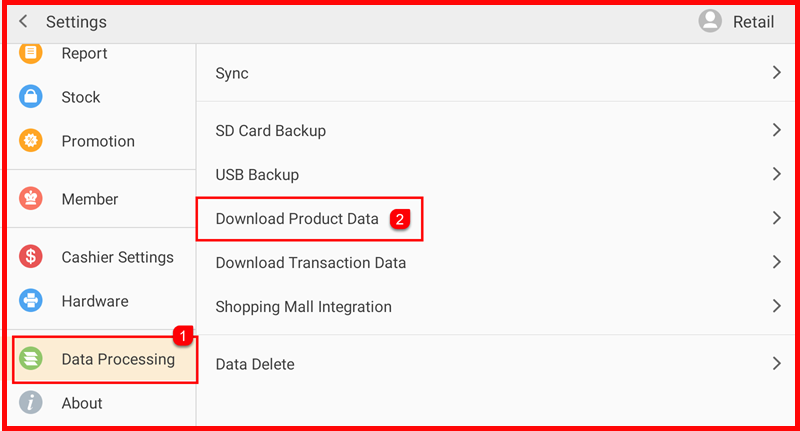
Tap Setting to open the Settings screen. In the left sidebar, tap Data Processing (①). Then tap Download Product Data (②) on the right panel.
Step 2 — Confirm the Warning
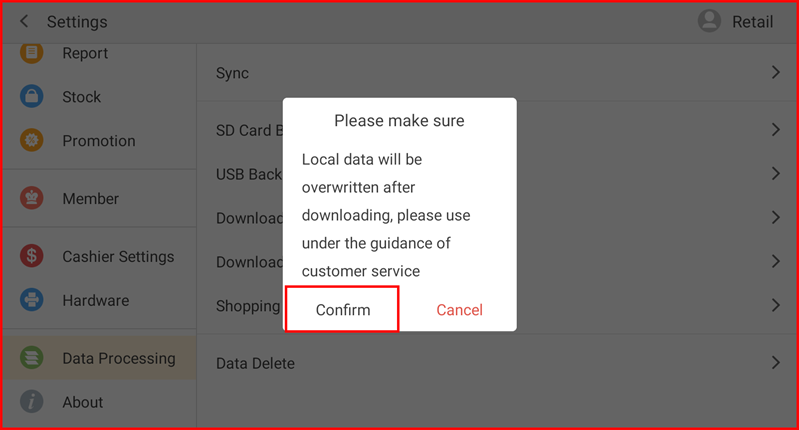
A Please make sure dialog appears with the message: "Local data will be overwritten after downloading, please use under the guidance of customer service." Tap Confirm to proceed, or Cancel to abort.
Step 3 — Download Begins
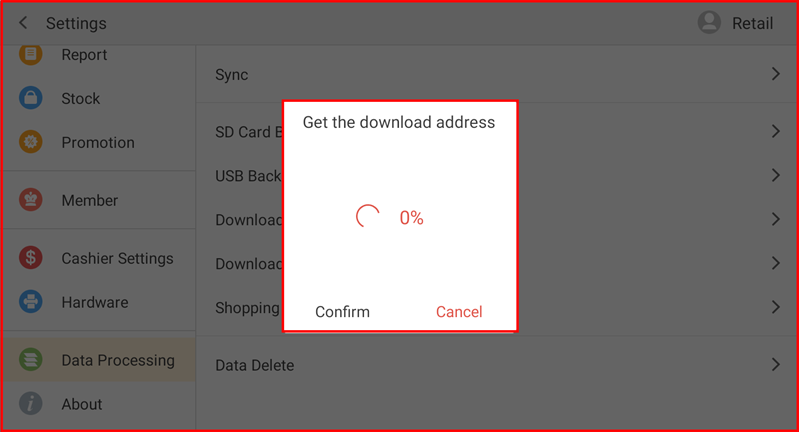
The system will connect to the server and display a Get the download address dialog showing the download progress percentage. Wait for the process to complete. Tap Cancel at any time to stop the download.