Perform Day Close
The Day Close function finalises all sales and shift records for the current business day. It should be performed at the end of each day to close out the active shift and reset the system for the next operating day.
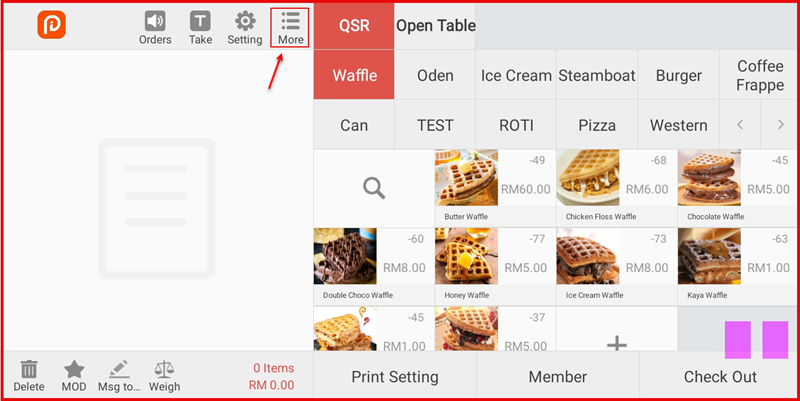
Step 1: Tap More on the Main Screen
From the main POS screen, tap the More icon at the top of the screen (the grid/list icon on the top toolbar).
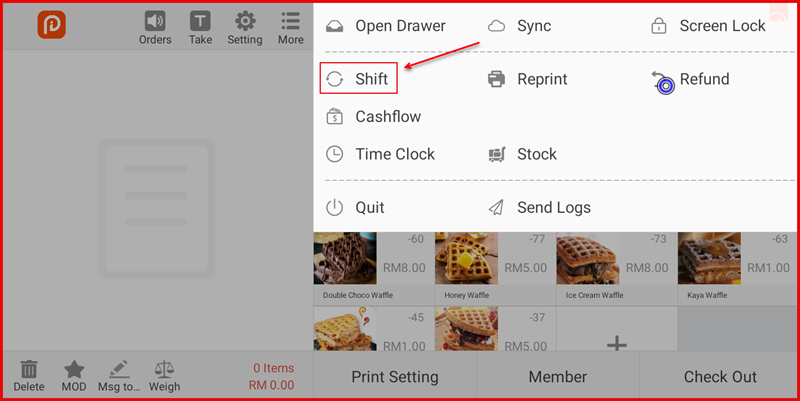
Step 2: Select Shift from the Menu
A dropdown menu will appear with options including Open Drawer, Sync, Screen Lock, Reprint, Refund, Cashflow, Time Clock, Stock, Quit and Send Logs. Tap Shift ① to open the Shift summary screen.
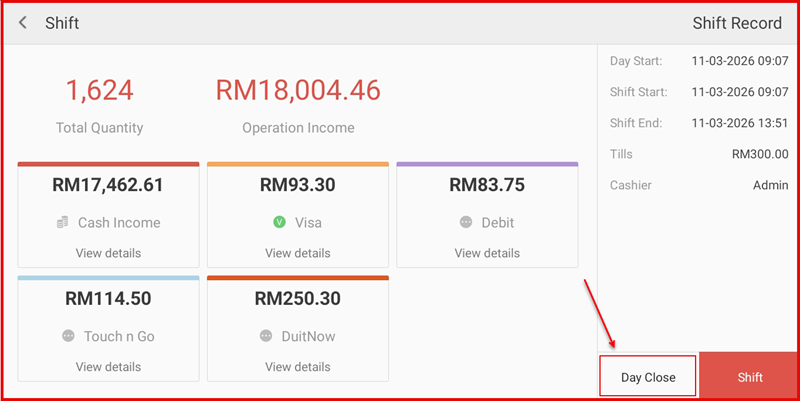
Step 3: Review Shift Summary and Tap Day Close
The Shift screen displays the full shift summary including:
- Total Quantity: 1,624 items sold
- Operation Income: RM18,004.46
- Breakdown by payment method: Cash Income, Visa, Debit, Touch n Go, DuitNow
The Shift Record panel on the right shows Day Start, Shift Start, Shift End times, Tills amount and Cashier name. Tap Day Close ① at the bottom right to proceed.
Step 4: Day Close Processing
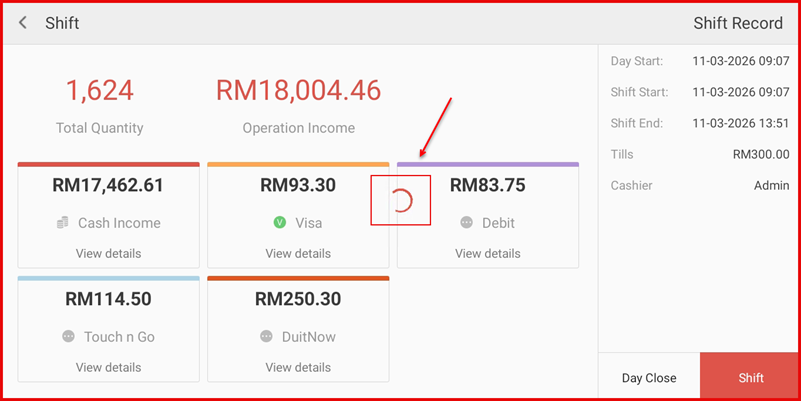
The system will process the Day Close. A loading indicator ① will appear briefly on the screen while the day close is being finalised. Once complete, the shift will be closed and the system will be ready for the next business day.