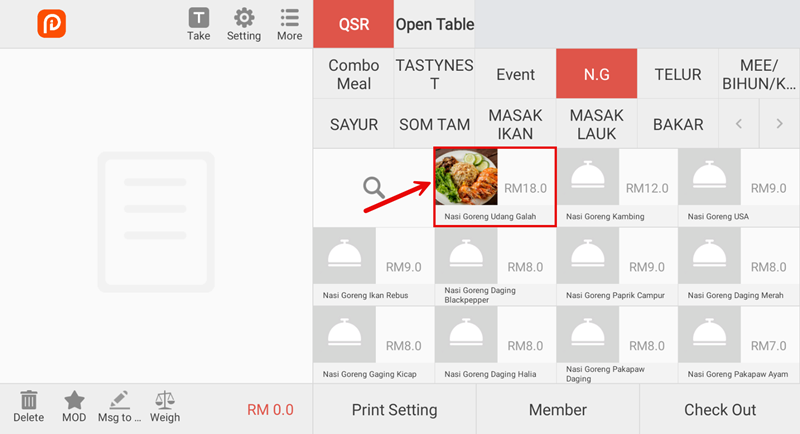
Overview
Product Management allows you to add, edit, and organize your menu items. You can manage item details, pricing, categories, availability, and modifiers all in one place.
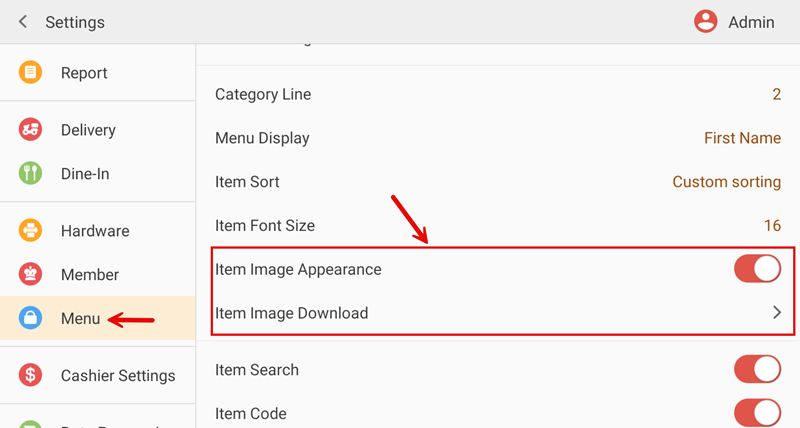
Path: Settings > Menu > Product Management
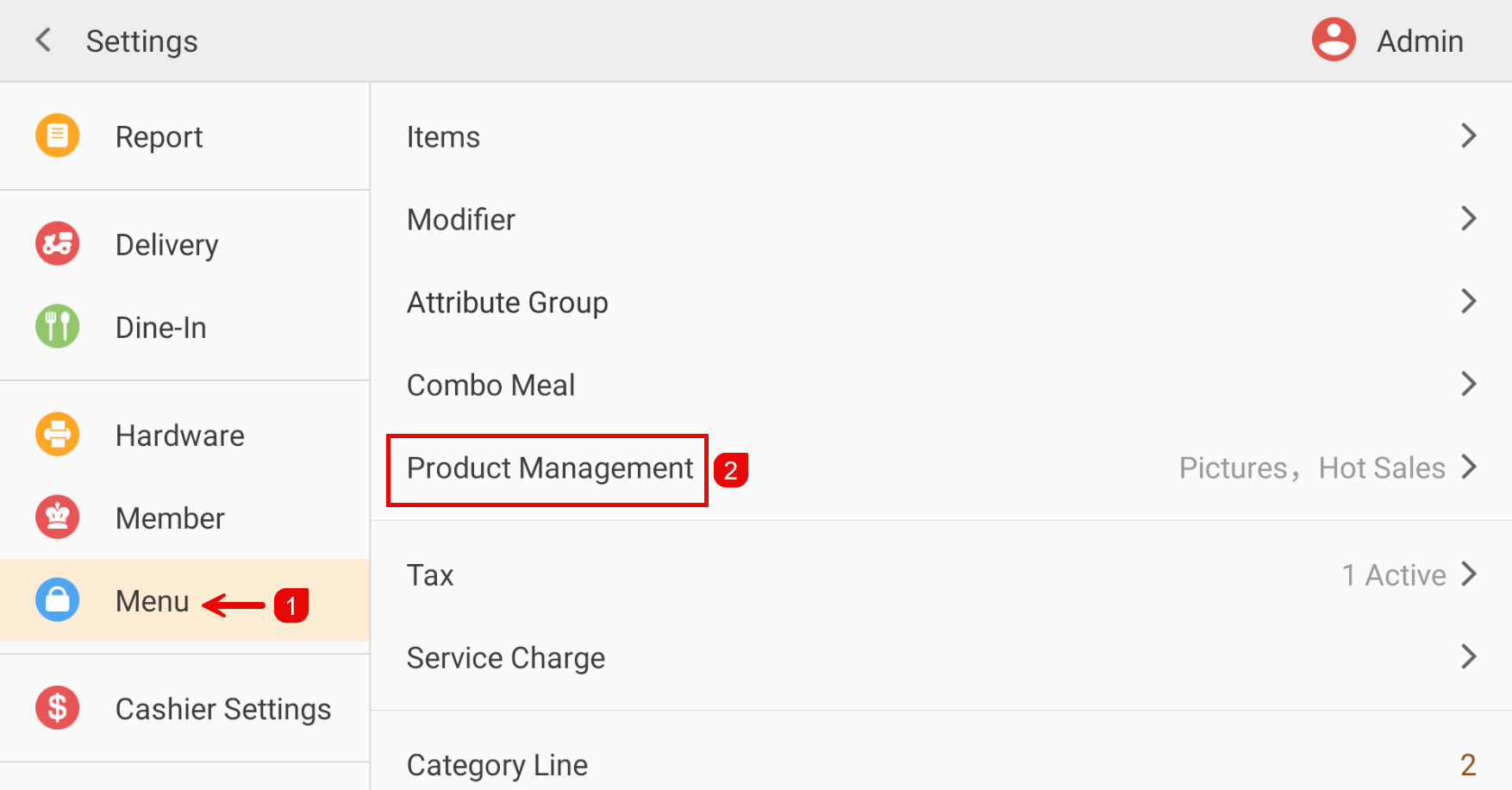
Product Management Interface
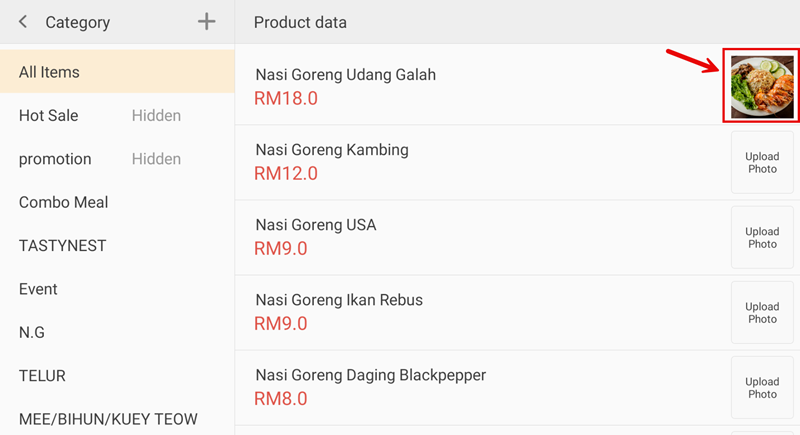
The Product Management page shows all your menu items in a list view. Each item displays:
- Item Name — The name of the menu item.
- Category — Which category the item belongs to.
- Price — The item price.
- Status — Whether the item is available (green dot) or unavailable (gray dot).
Use the search bar to quickly find items by name.
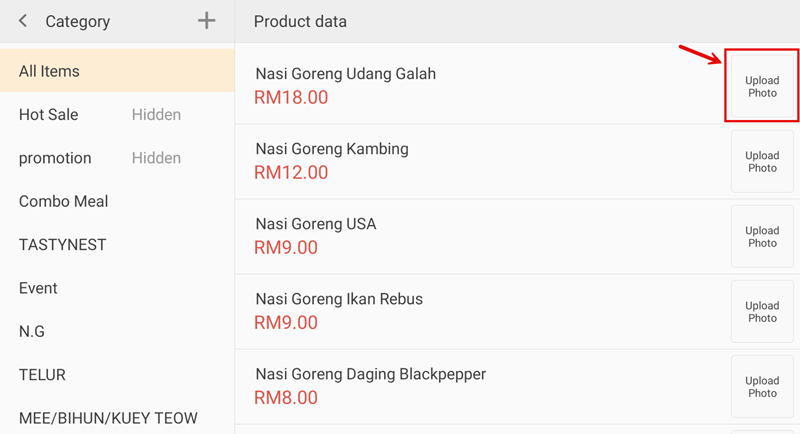
Adding a New Product
Tap the + button to add a new menu item.
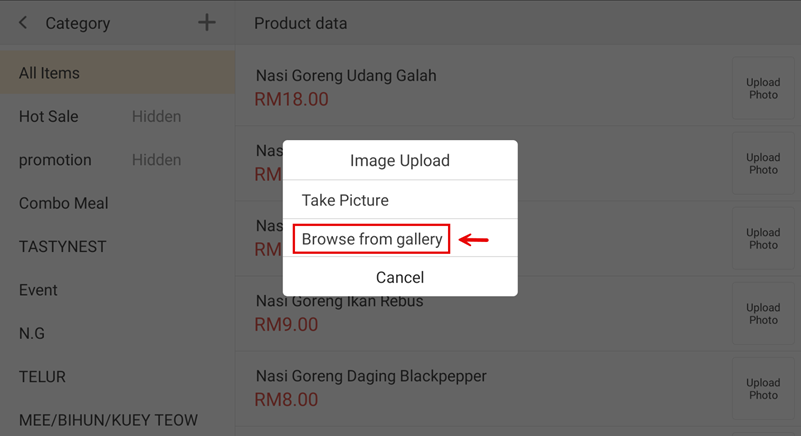
Product Details
Fill in the product information:
- Product Name * — Enter the item name.
- Category * — Select the category this item belongs to.
- Price * — Set the selling price.
- Item No. — Optional internal reference number.
- Barcode — Optional barcode for scanning.
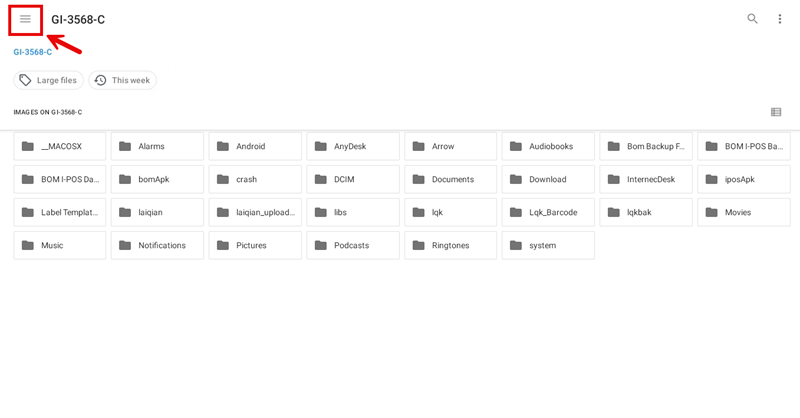
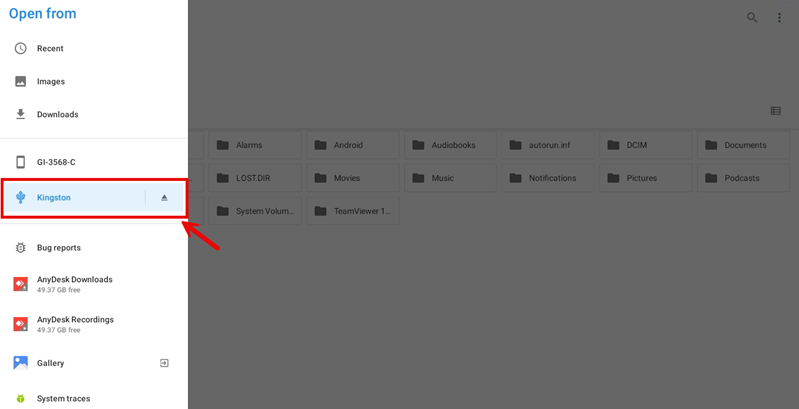
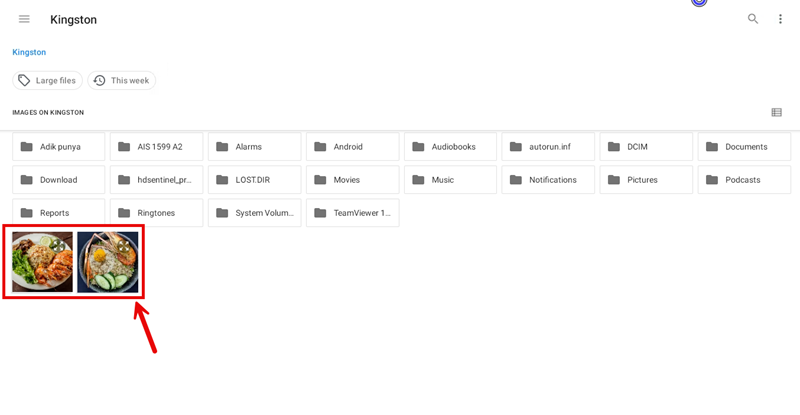
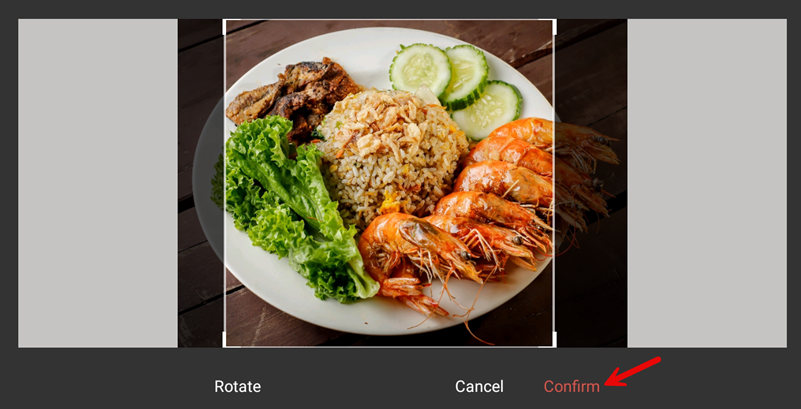
- Image — Upload an item photo.
- Description — Add a description for the item.
- Status — Toggle ON to make available, OFF to hide.
Tap Confirm to save the new product.
Managing Products
On the product list, each item has action buttons:
- Edit — Tap the edit icon to modify product details.
- Delete — Tap the delete icon to remove the product.
- Duplicate — Create a copy of an existing product.
Editing a Product
When editing, you can update all product details including name, category, price, image, description, and status.
Tap Save to apply changes.
Product Options
You can add modifiers to products such as:
- Size — Small, Medium, Large.
- Sweetness — Less Sugar, Normal Sugar, Extra Sugar.
- Ice — Less Ice, Normal Ice, No Ice.
Modifiers are configured separately in the Modifier section and linked to products.
Product Categories
Products are organized by categories. Common categories include:
- Beverages (Coffee, Tea, Juice)
- Food (Rice, Noodles, Snacks)
- Desserts
- Add-ons
Create and manage categories in the Category section of Menu settings.
Availability Toggle
Quickly toggle item availability without editing:
- Green dot — Item is available for ordering.
- Gray dot — Item is unavailable (sold out).
Tap the status indicator to switch between available and unavailable.
Tips for Product Management
- Use clear names — Make item names descriptive and easy to understand.
- Add photos — Items with photos sell better and help customers identify items.
- Set accurate prices — Double-check prices before saving.
- Organize categories — Group related items together for easier navigation.
- Regular updates — Remove discontinued items and add new products regularly.