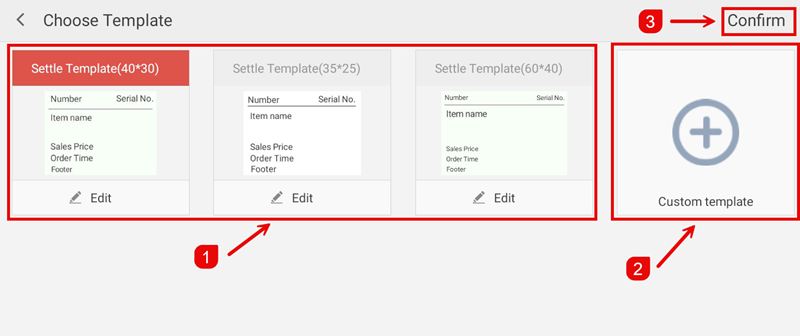
Overview
USB Printers connect directly to the POS device via USB cable for receipt printing. This guide covers adding and configuring USB printers in the system.
Path: Settings > Hardware > Printer
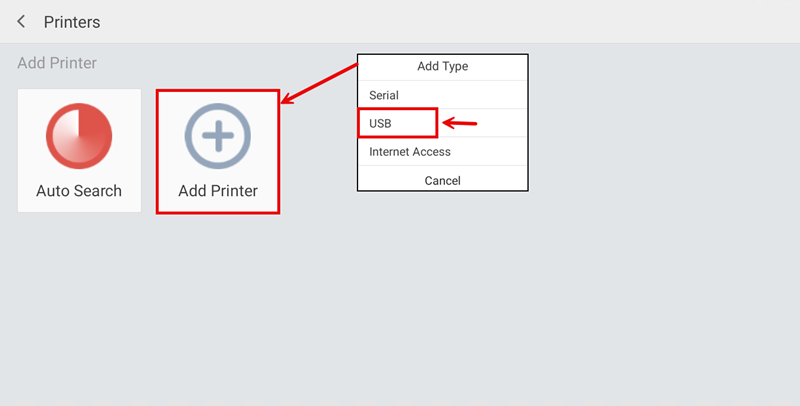
Adding a USB Printer
On the Printer page, tap Add Printer to add a new printer.
Select USB Printer as the printer type.
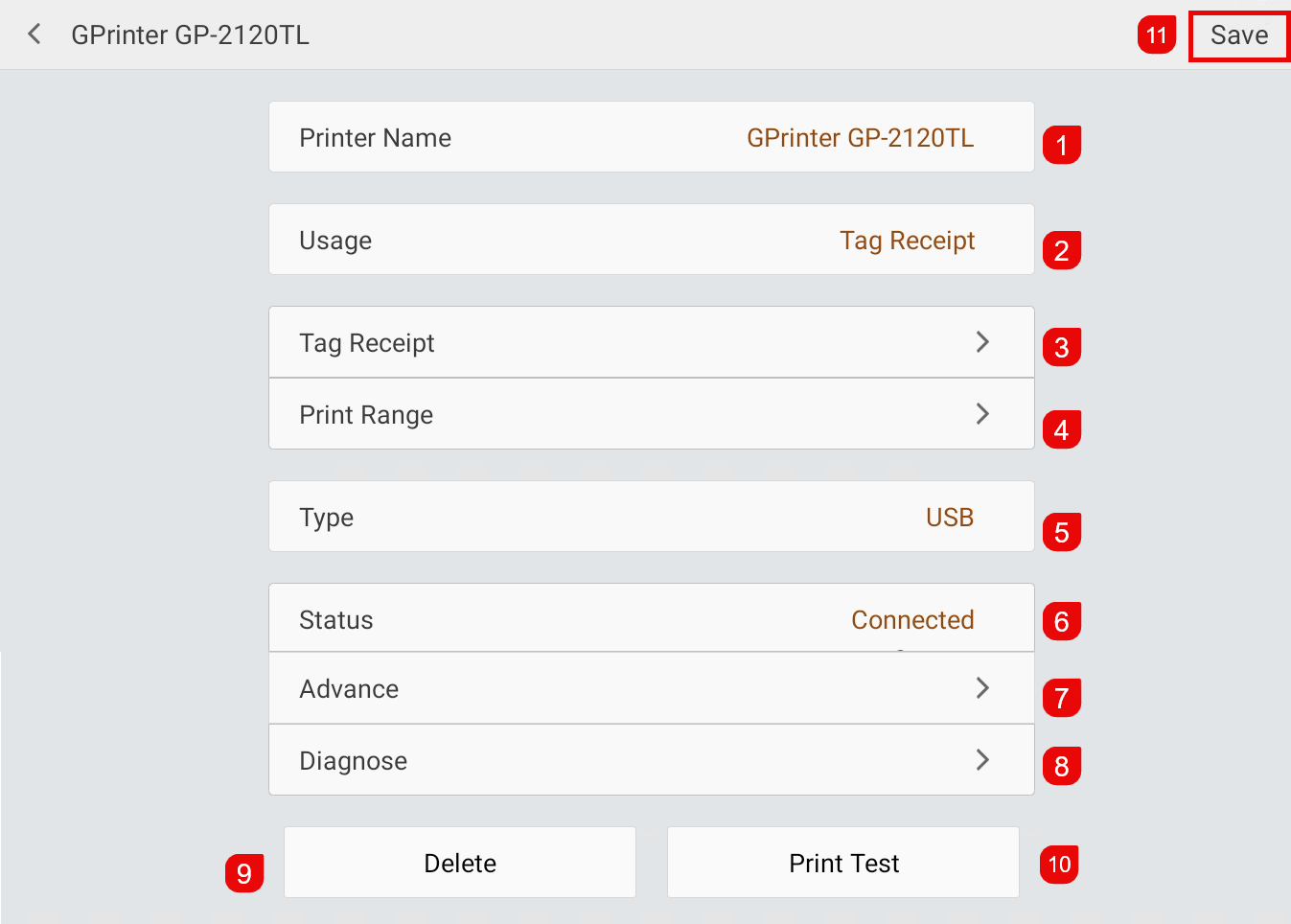
Configuring the Printer
Fill in the printer settings:
- Name * — Enter a name for the printer (e.g. USB Receipt Printer).
- Type * — Select the printer type: Cashier Printer, Kitchen Printer, or Tag Printer.
- Connection Type — USB
- Print Copies — Number of copies to print.
- Print Content — Choose what to print (Header, Footer, QR Code, etc.).
- Tap Confirm to save.
Managing Printers
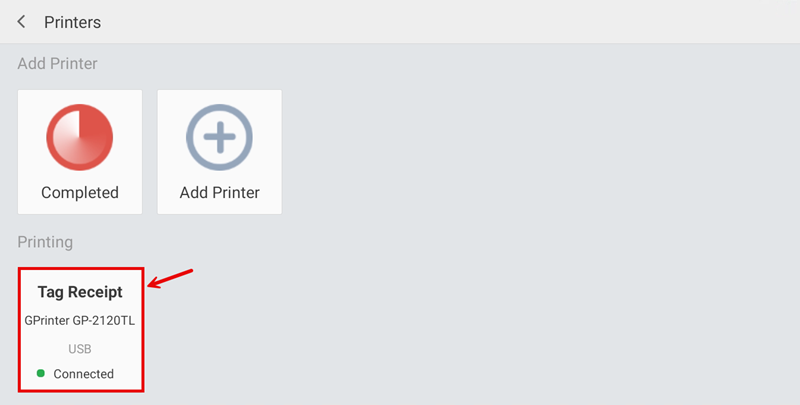
After adding, the printer appears in the list. Tap the edit icon to modify settings or the delete icon to remove the printer.