Overview
Tag Printers are used to print price tags for menu items. These tags can be attached to food items, packaging, or display areas to show prices to customers.
Step 1: Add Printer
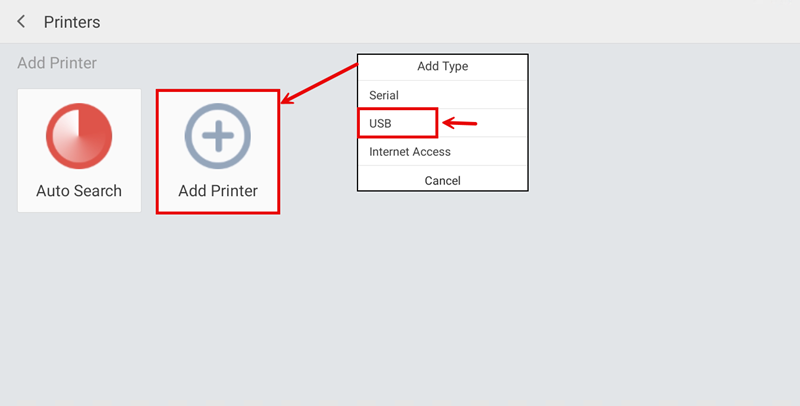
Go to Printers and tap Add Printer.
Select USB as the printer connection type.
Step 2: Select the Tag Receipt Printer
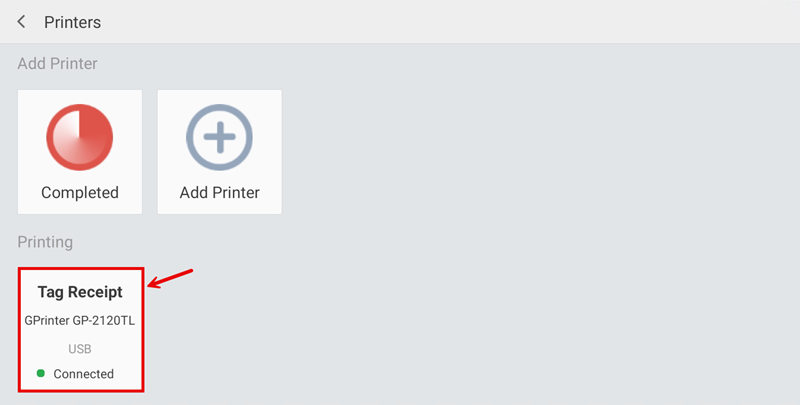
In the Printers screen, select the Tag Receipt printer that has been added.
Make sure the printer shows USB and the status is Connected.
Step 3: Configure the Printer
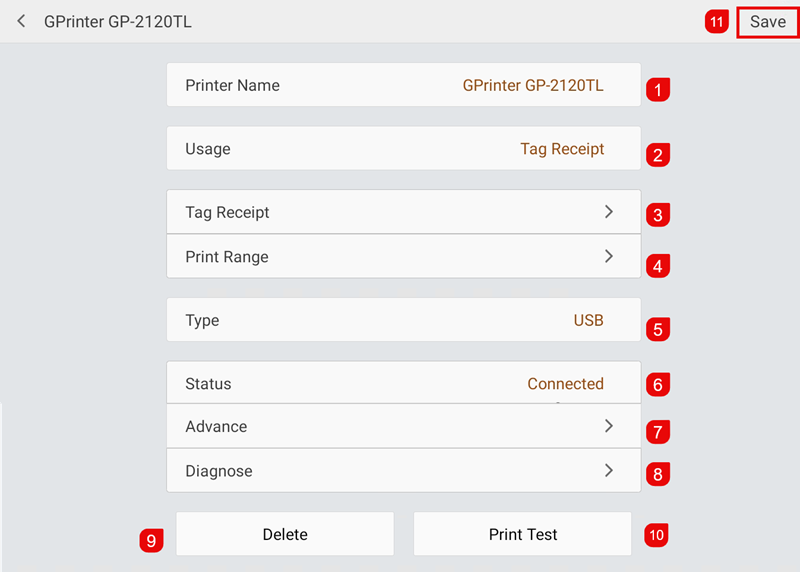
Select the printer and check the settings:
- Printer Name: GPrinter GP-2120TL
- Usage: Tag Receipt
- Type: USB
- Status: Connected
Tap Save to save the printer settings.
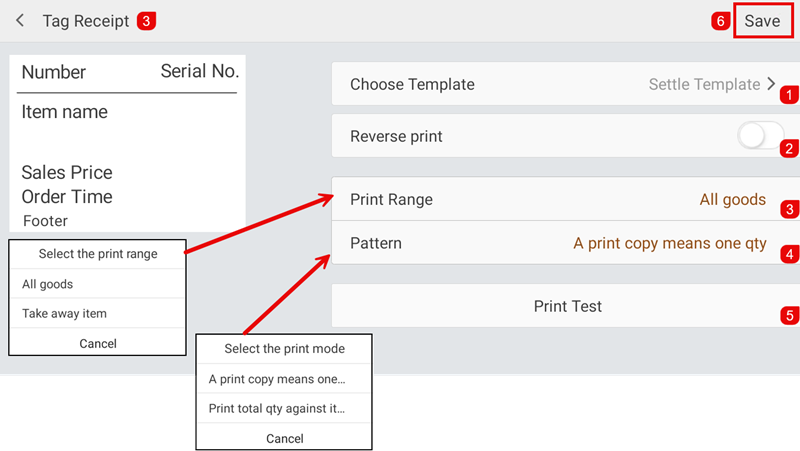
Step 4: Configure Tag Receipt
Select Tag Receipt to configure the receipt printing settings.
Choose the required Template, set the Print Range, and select the preferred Pattern / Print Mode.
After completing the settings, tap Save.
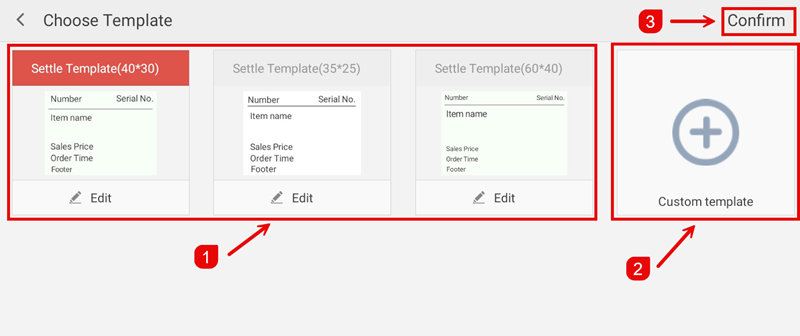
Step 5: Choose a Template
Select the required Tag Receipt template from the available options.
If you want to create your own layout, select Custom Template.
Once the template has been selected, tap Confirm.