Overview
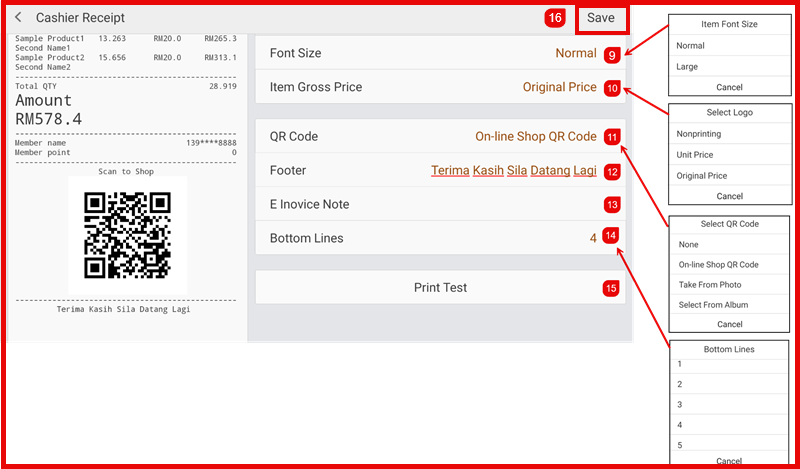
Kitchen Printers print order tickets directly to the kitchen when orders are placed. This allows kitchen staff to prepare orders without manual order slips.
Path: Settings > Hardware > Printer
Adding a Kitchen Printer
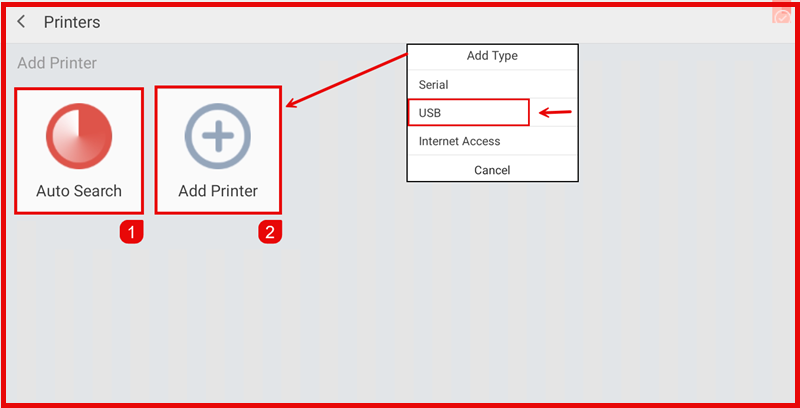
On the Printer page, tap Add Printer to add a new printer.
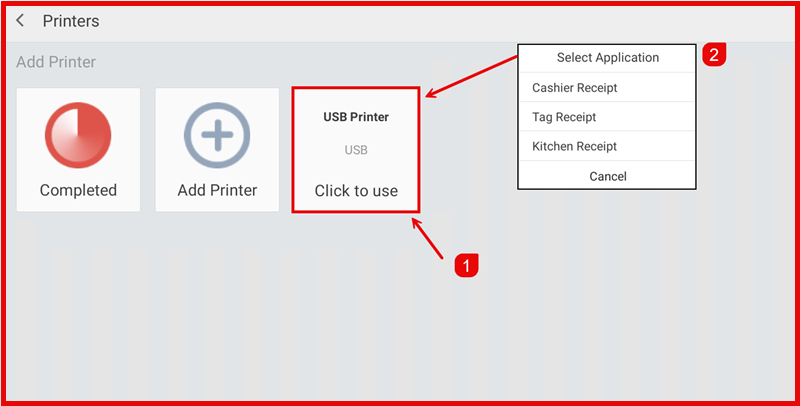
Select Kitchen Printer as the printer type.
Configuring the Kitchen Printer
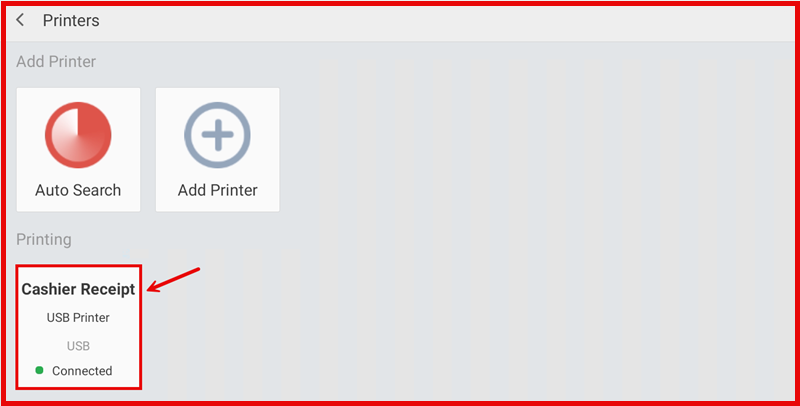
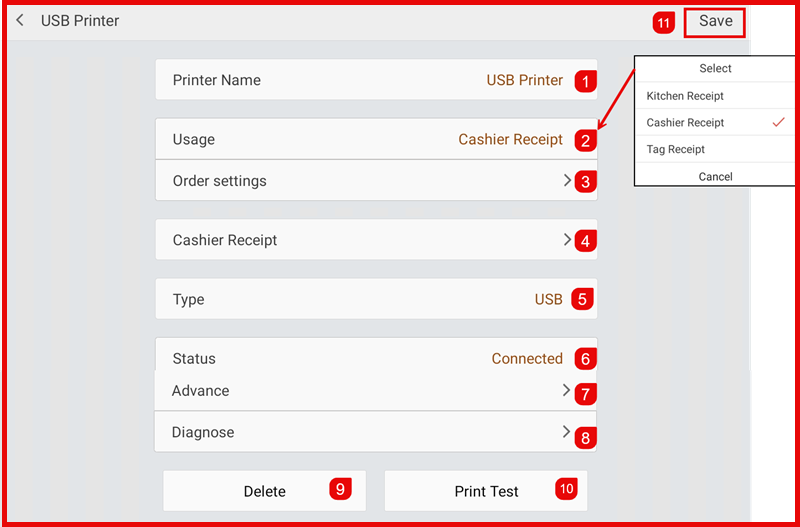
Fill in the printer settings:
- Name * — Enter a name (e.g. Kitchen Printer 1).
- Type * — Kitchen Printer
- Connection Type — Choose: USB, LAN, or Bluetooth
- IP Address — For LAN printers, enter the IP address.
- Port — Printer port (default usually 9100).
- Print Copies — Number of copies per order.
- Print Content — Select items to print: Order No., Item Name, Modifier, Remarks, etc.
- Tap Confirm to save.
Kitchen Printer Settings
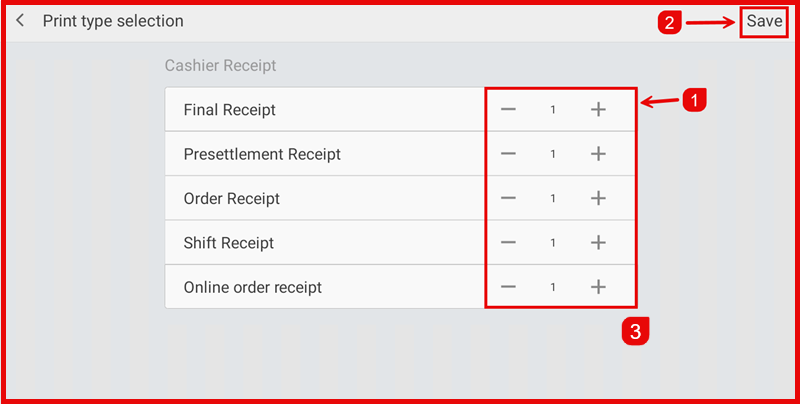
Configure what information prints on kitchen tickets:
- Print Category — Whether to print category names.
- Print Order Number — Include order number.
- Print Item — Print item names.
- Print Modifier — Print item modifications (e.g. less sugar).
- Print Remarks — Print special instructions.
- Print Amount — Print quantities.
Managing Printers
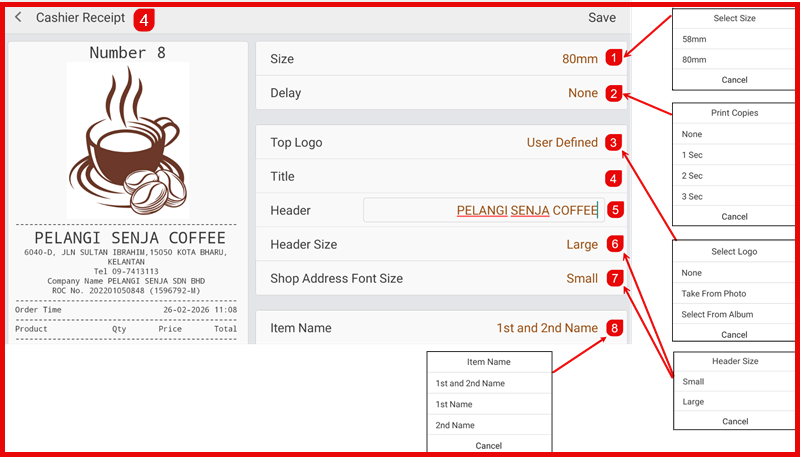
After adding, the printer appears in the list. Use the edit icon to modify settings or delete to remove.
Printing at POS
When an order is placed at the POS, the kitchen printer automatically prints the order ticket with all items, modifiers, and remarks for kitchen staff to prepare.