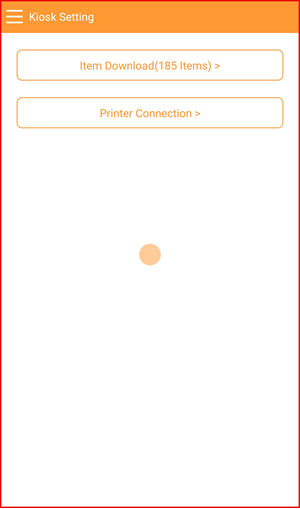
Order Mode to Setting Mode
While the kiosk is in Customer Mode (order screen), you can switch back to Kiosk Setting mode using the side menu. A password is required to prevent unauthorised access.
Step 1: Open the Side Menu
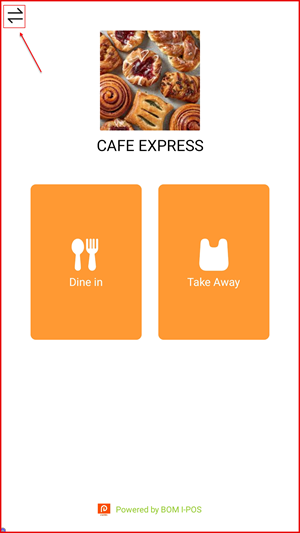
On the Customer Mode home screen, tap the menu icon (≡) at the top left corner to open the side menu.
Step 2: Tap "Switch Mode"
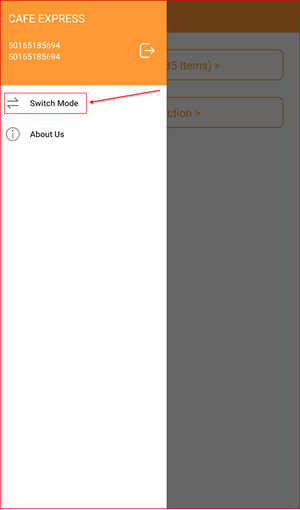
The side menu will slide out showing the store name, username, and two options. Tap Switch Mode to proceed.
Step 3: Enter Password
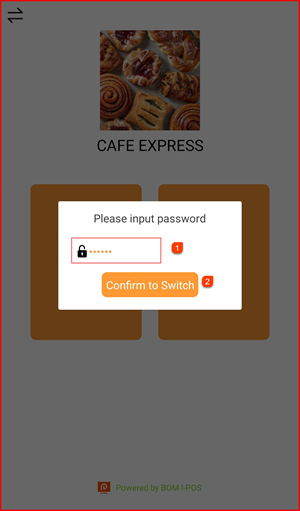
A dialog will appear prompting you to enter the password. Enter your password ① then tap Confirm to Switch ②.
Step 4: Kiosk Setting Mode
After a successful password entry, the app switches to Kiosk Setting mode, where you can access Item Download and Printer Connection settings.