Overview
Scan Order allows customers to scan a QR code placed on their table or seat to browse the menu and place orders directly from their mobile phone. Orders are sent instantly to the POS for staff to receive and confirm.
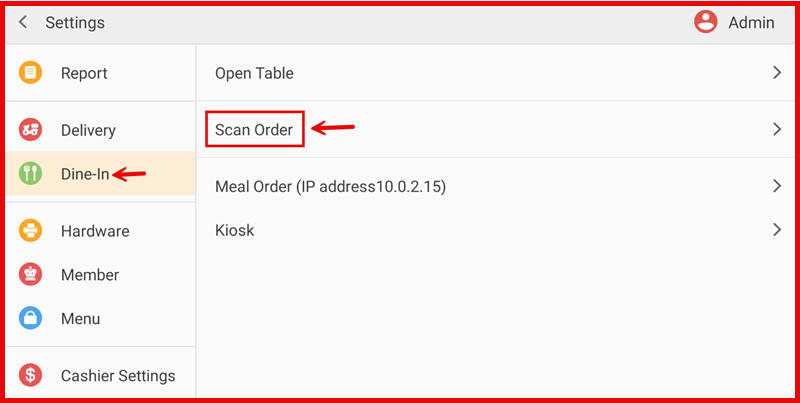
Path: Settings > Dine-In > Scan Order
Setting — Mode
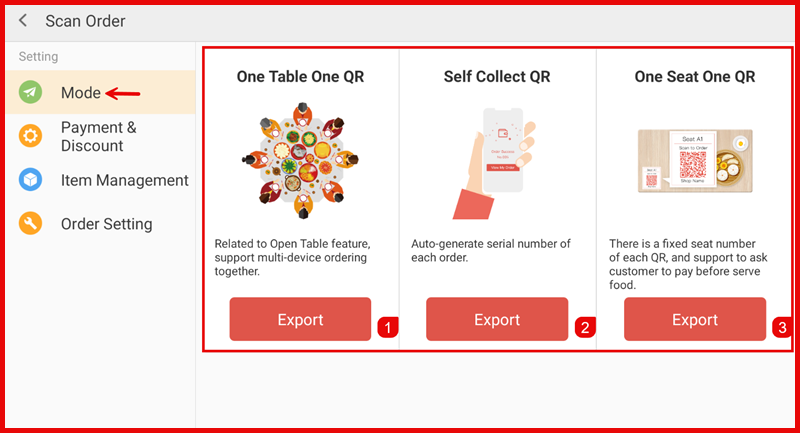
There are three QR modes available. Select the mode that suits your business, then export the QR codes for printing.
1. One Table One QR
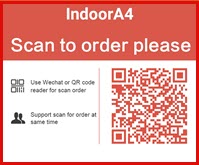
Each table has a fixed QR code linked to the Open Table feature. Supports multi-device ordering at the same table simultaneously.
To export:
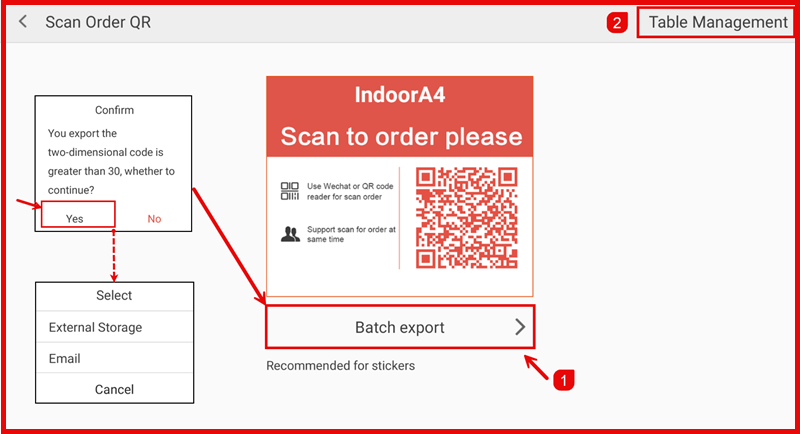
- Tap Export under One Table One QR.
- If exporting more than 30 QR codes, confirm the prompt by tapping Yes.
- Select destination: External Storage or Email.
- Tap Table Management (top right) to manage table assignments.
2. Self Collect QR
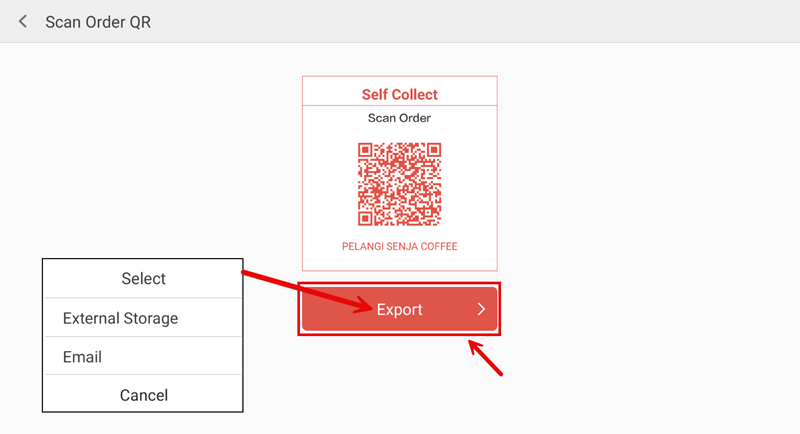
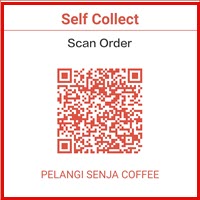
A single QR code is used for all orders. Each order is automatically assigned a unique serial number. Suitable for counter self-collect setups.
To export:
- Tap Export under Self Collect QR.
- Select destination: External Storage or Email.
3. One Seat One QR
Each seat has a fixed QR code with a seat number. Customers can be required to pay before food is served.
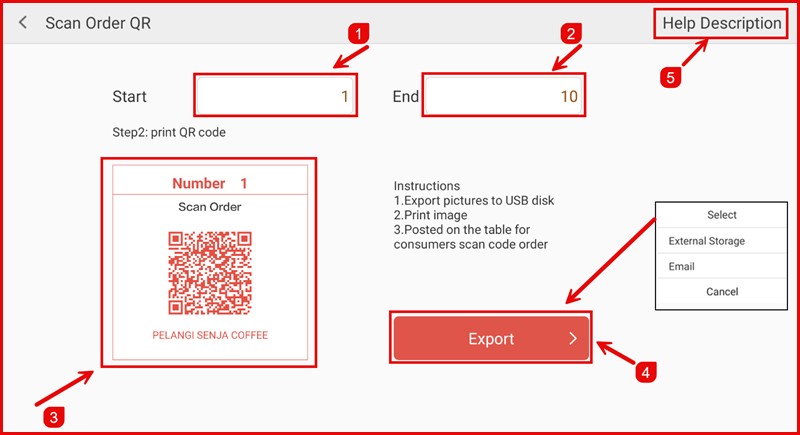
To export:
- Tap Export under One Seat One QR.
- Set the Start and End seat numbers to define the export range.
- Preview the QR code for each seat number.
- Tap Export and select destination: External Storage or Email.
Instructions: Export pictures to USB disk → Print image → Post on table for customers to scan and order.
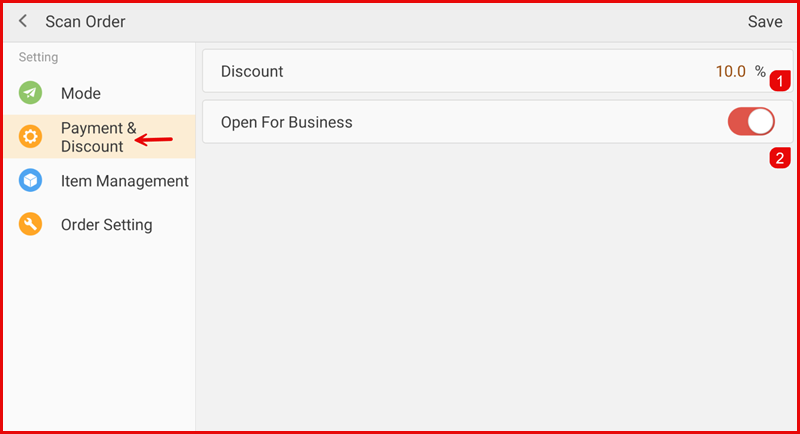
Setting — Payment & Discount
- Discount — Set a discount percentage applied to all Scan Orders (e.g. 10%).
- Open For Business — Toggle on to allow customers to place scan orders. Toggle off to temporarily stop accepting scan orders.
Tap Save after making changes.
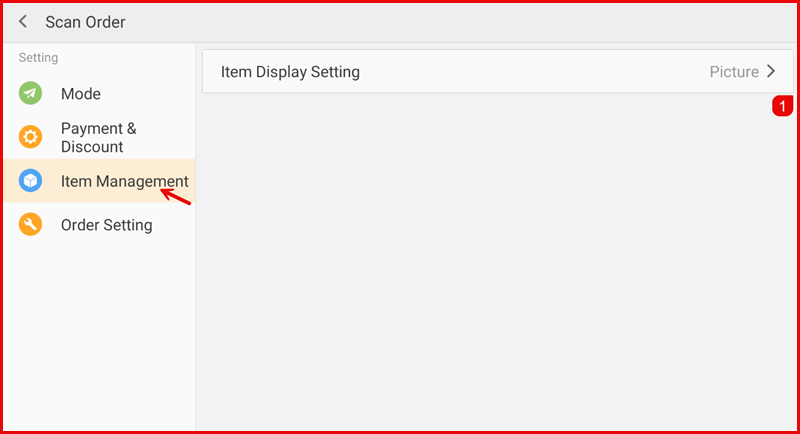
Setting — Item Management
- Item Display Setting — Choose how items are displayed to customers: Picture (shows item images) or Text (text only).
Setting — Order Setting
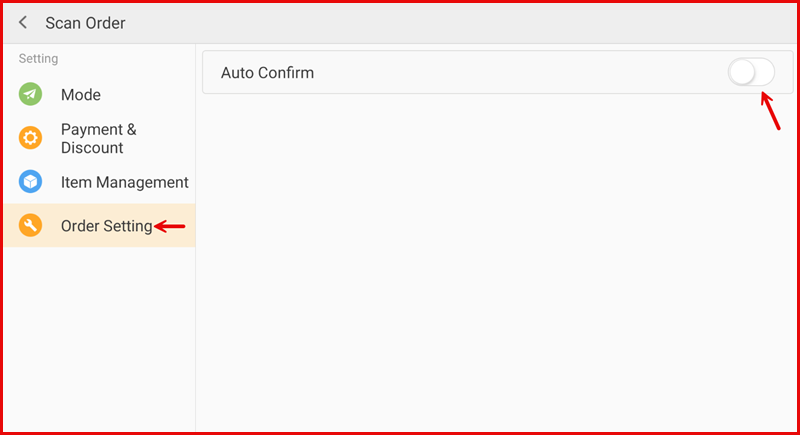
- Auto Confirm — When enabled, incoming scan orders are automatically accepted without requiring manual confirmation on the POS.