Overview
The QR Online Order feature allows customers to place Delivery or Self Pickup orders by scanning a QR code that opens the online ordering page. Orders placed by customers appear instantly on the POS under the Delivery module.
Customer Side — Placing an Order
Step 1: Open the Online Ordering Page
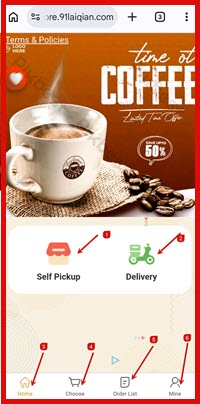
Customer scans the QR code or opens the store link (e.g. store.91laiqian.com). The home page shows two order modes:
The bottom navigation bar contains: Home, Choose, Order List, and Mine.
Step 2: Browse Menu & Add Items
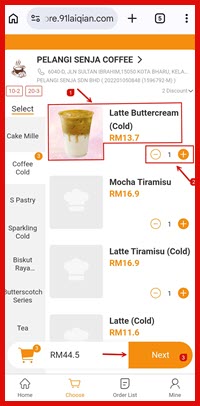
Tap Choose or select an order mode to enter the menu page.
Step 3: Fill in Order Details
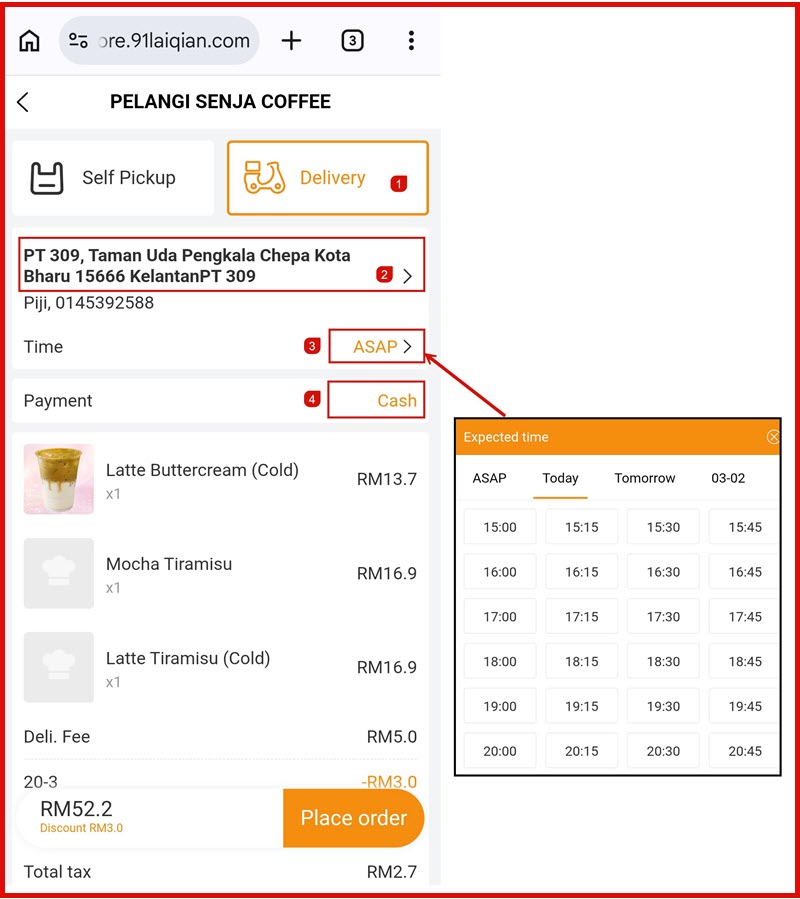
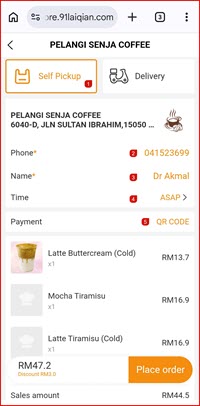
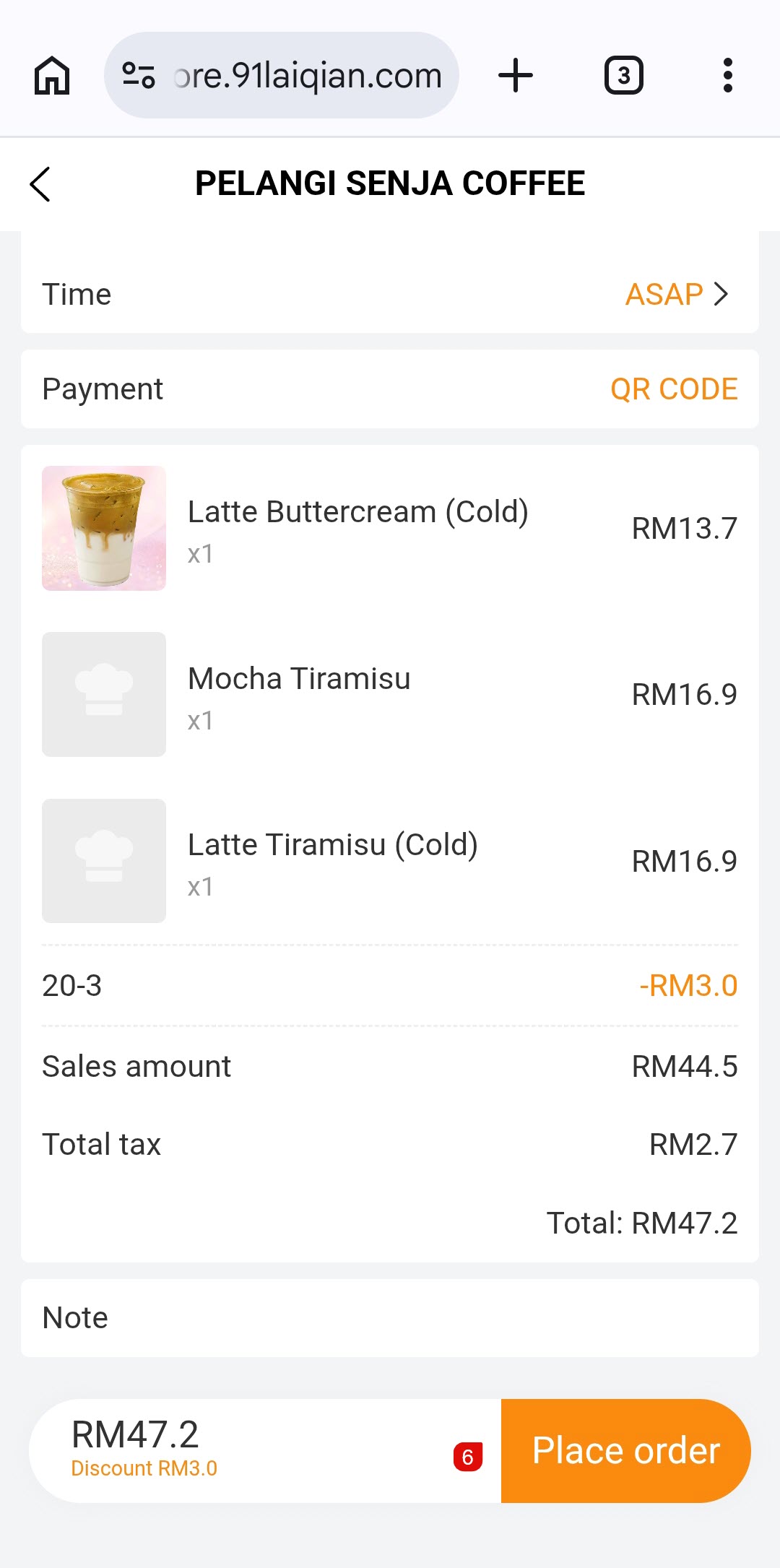
On the checkout page, select either Self Pickup or Delivery tab at the top.
For Delivery:
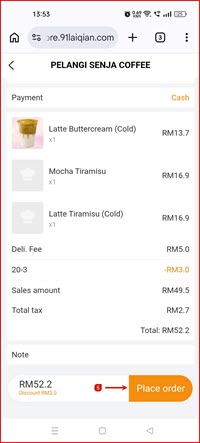
For Self Pickup:
Step 4: Order Success
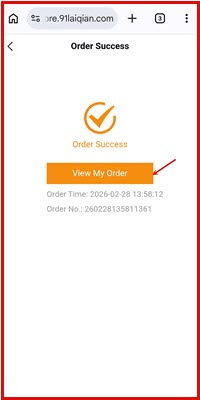
After placing the order, the Order Success screen appears showing:
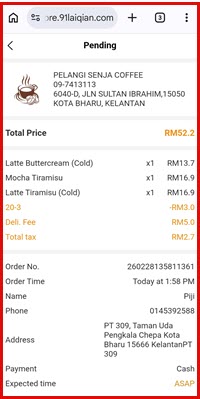
Tap View My Order to track the order status (e.g. Pending, Confirmed).
Merchant Side — Receiving an Order on POS
Step 5: Check Incoming Orders
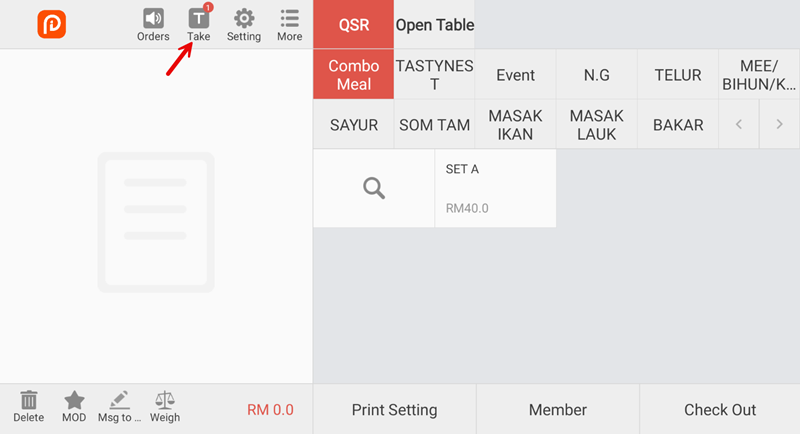
On the POS, new online orders trigger a notification badge on the Take button in the top navigation bar.
Step 6: Accept or Reject the Order
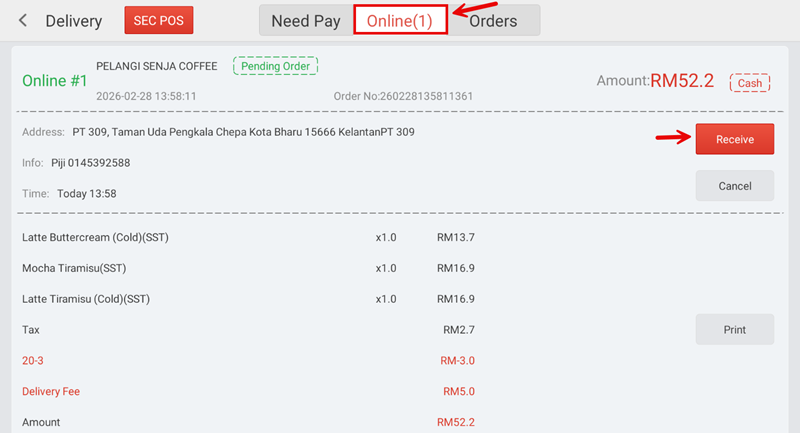
Navigate to Delivery → Online tab. Pending online orders appear here.
Each order card shows:
Actions available: