Customer Side — Placing a Scan Order
This guide covers the customer experience when ordering via QR code scan in iPOS FnB.
Step 1: Scan QR Code & Open Store Page
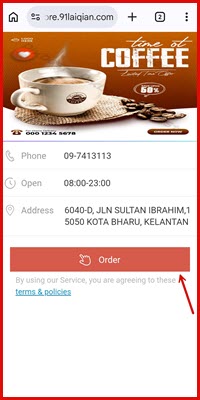
Customer scans the QR code on the table. The store page opens in the browser showing store info (phone, hours, address).
Tap Order to begin.
Step 2: Enter Number of Pax
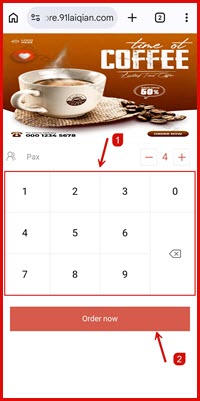
Enter the number of diners using the + / − buttons or the numeric keypad. Tap Order now to proceed to the menu.
Step 3: Browse Menu & Add Items
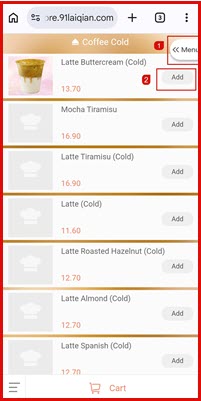
Browse items by category. Tap an item to view details and select modifiers (e.g. Less Sugar, Oat Milk, Buttercream Foam). Adjust quantity then tap Add.

Step 4: Review & Place Order
Added items appear with a Has 1 | Add indicator. Continue adding items — the cart count updates at the bottom. Tap the Cart icon to review the order.
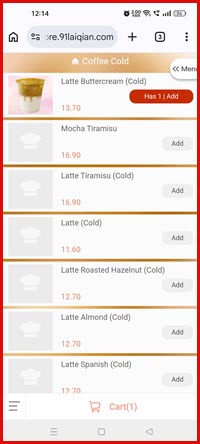
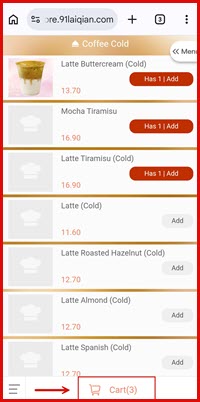
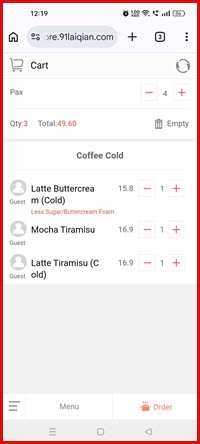
Review the cart (Pax, items, total). Tap Order to place.
Step 5: Order Confirmed
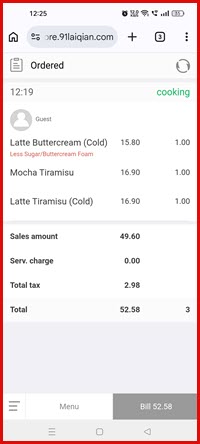
A confirmation screen appears showing the table/seat name and Ordered status. Tap Check order to view the order receipt including items, tax, and total bill.