Logout
To log out of the i-Kiosk app, you must access the side menu from Customer Mode. A password confirmation is required before logout completes.
Step 1: Open the Side Menu
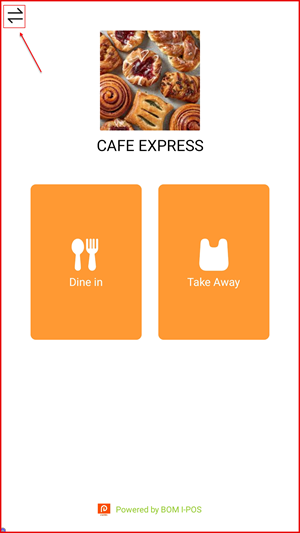
On the Customer Mode home screen, tap the menu icon (≡) at the top left corner to open the side menu.
Step 2: Tap the Logout Icon
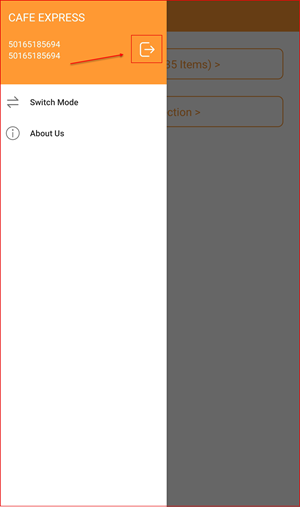
In the side menu, tap the logout icon (→ arrow icon) at the top right of the store header to initiate logout.
Step 3: Enter Password & Confirm
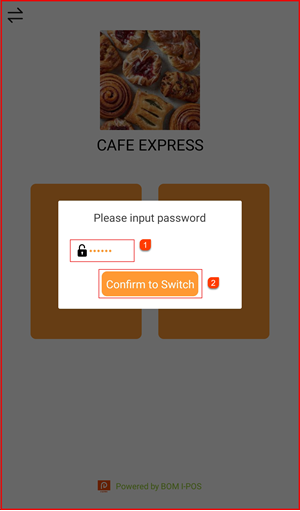
A dialog prompts you to enter the password. Enter your password ① then tap Confirm to Switch ②.
Step 4: Confirm Logout
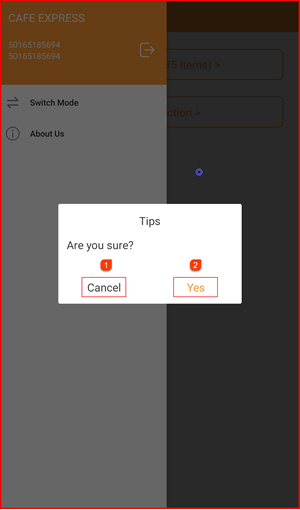
A Tips confirmation dialog will appear asking "Are you sure?"
- Tap Cancel ① to go back without logging out
- Tap Yes ② to confirm and log out of the i-Kiosk app