Kiosk Payment by Pay at Counter
When a customer selects Pay at Counter on the kiosk, the order appears on the POS under the Delivery screen with a Need Pay status. The cashier processes the payment from the POS.
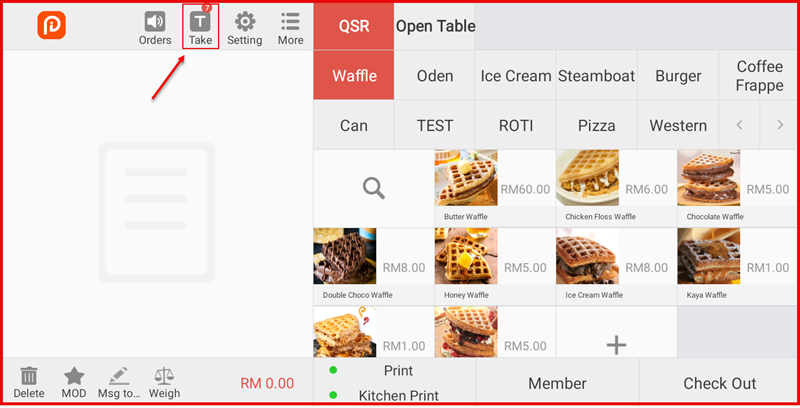
Step 1: Open the Delivery / Take Screen on POS
On the main POS screen, tap Take at the top navigation bar. The notification badge shows the number of pending kiosk orders.
Step 2: Select the Kiosk Order to Pay
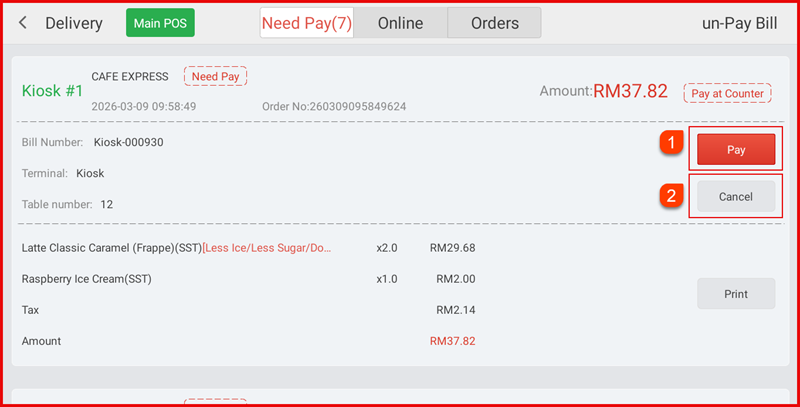
In the Delivery screen, go to the Need Pay tab. Locate the kiosk order (labelled Kiosk #1) showing:
- Need Pay badge — payment not yet received
- Pay at Counter tag — payment method chosen by customer
- Order details: Bill Number, Terminal, Table Number, items, tax and total amount
Tap Pay ① to proceed with payment, or Cancel ② to reject. Tap Print to print the bill.
Step 3: Select Payment Type & Enter Amount
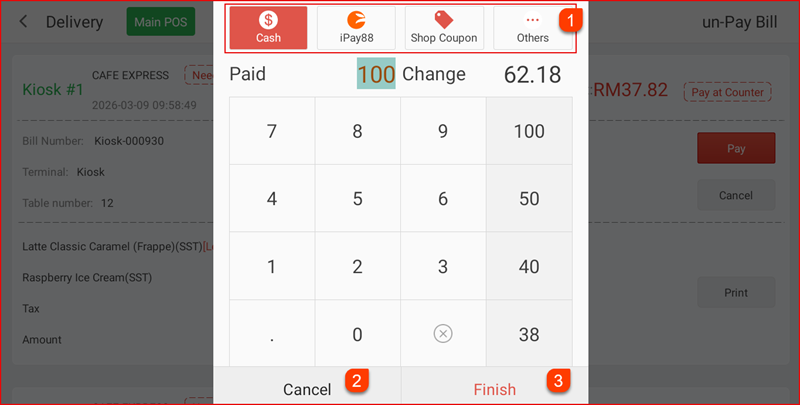
The payment screen opens. Select the payment type ①:
- Cash
- iPay88
- Shop Coupon
- Others
Enter the amount received using the keypad. The Change amount is calculated automatically. Tap Cancel ② to go back or Finish ③ to complete the payment.
Step 4: Payment Completed
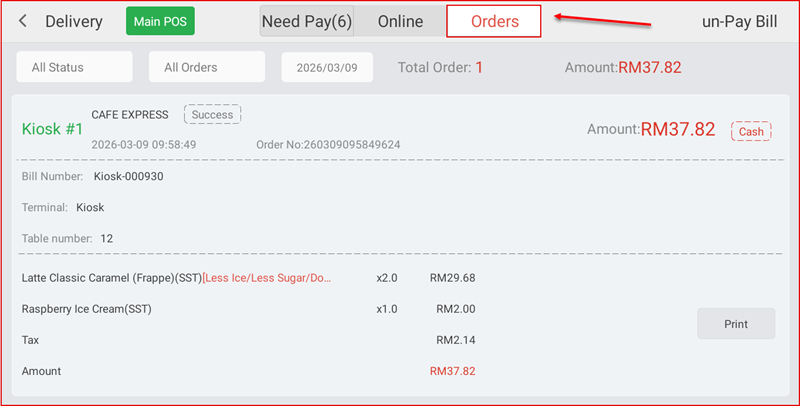
After payment, the order status updates to Success and moves to the Orders tab. The order now shows the payment method used (e.g. Cash) and the full order summary.