Overview
Open Table is a dine-in ordering feature that allows multiple devices to place and sync orders for the same table simultaneously. It is suitable for restaurants that use a table-based ordering system.
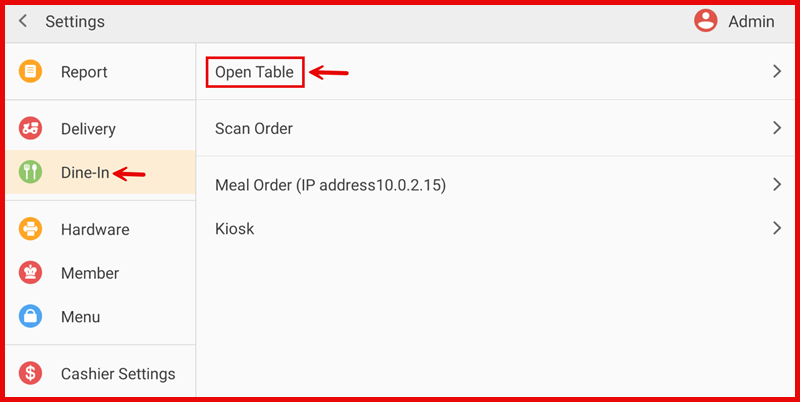
Path: Settings > Dine-In > Open Table
Introduction
The Introduction tab provides an overview of the Open Table feature. Open Table is designed for restaurants that manage seated dine-in orders across multiple tables and areas.
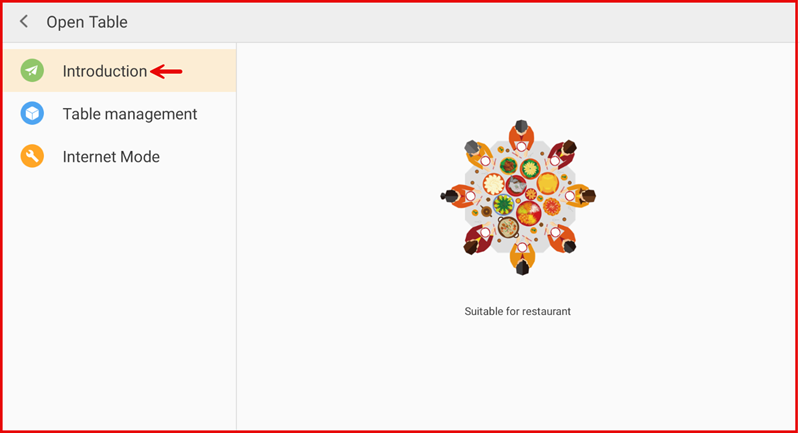
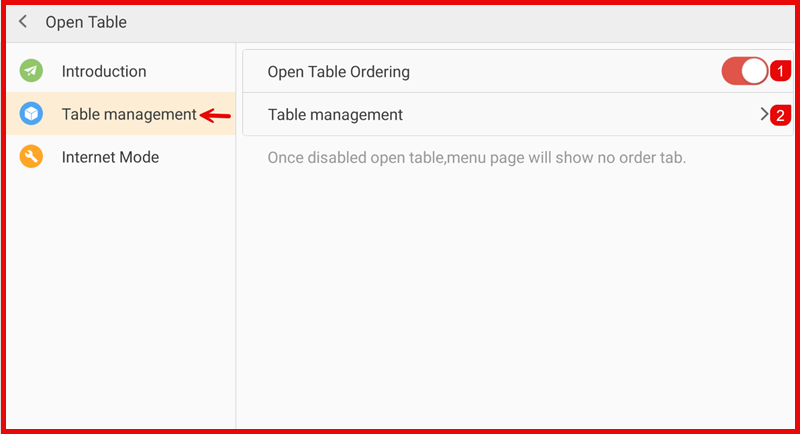
Table Management
Open Table Ordering
- Toggle ON — Enables Open Table ordering. Staff and customers can place orders linked to a specific table.
- Toggle OFF — Disables Open Table. The menu page will show no order tab.
Table Management
Tap the > arrow next to Table management to configure areas and tables.
Managing Areas
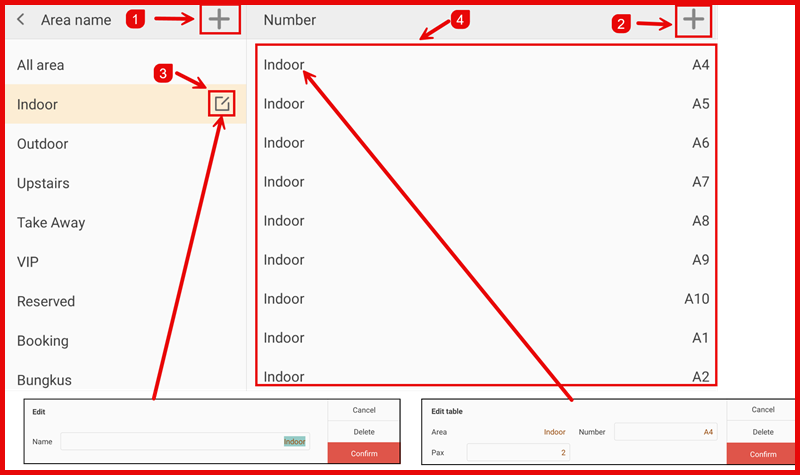
The left panel displays all dining areas. Available actions:
- Tap + next to Area name to add a new area.
- Tap an existing area (e.g. Indoor) to select it.
- Tap the edit icon next to an area to rename or delete it.
Default areas include: All area, Indoor, Outdoor, Upstairs, Take Away, VIP, Reserved, Booking, Bungkus.
Managing Tables
The right panel displays all tables under the selected area. Available actions:
- Tap + next to Number to add a new table.
- Tap an existing table (e.g. Indoor A4) to edit it.
- Set the Area, Number (table name/label), and Pax (seating capacity).
- Tap Confirm to save or Delete to remove the table.
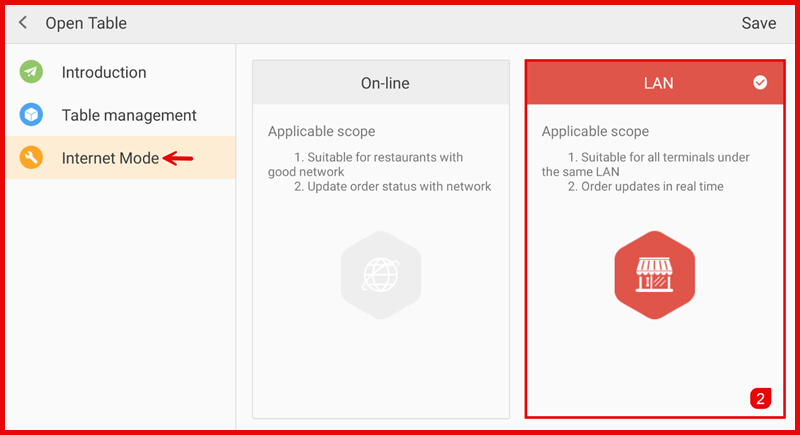
Internet Mode
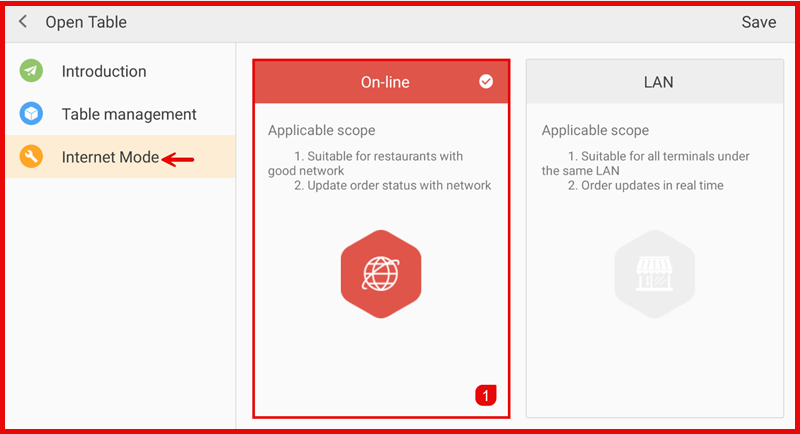
Select the network mode that suits your restaurant setup. Tap Save after selecting.
On-line
Applicable scope:
- Suitable for restaurants with a good internet connection.
- Order status is updated via the internet network.
LAN
Applicable scope:
- Suitable for all terminals connected under the same Local Area Network (LAN).
- Orders are updated in real time across all devices on the LAN.