Merchant Side — Receiving a Scan Order on POS
When a customer places a scan order, a notification appears on the POS. This guide shows how to receive and manage incoming scan orders.
Step 1: Check Incoming Orders
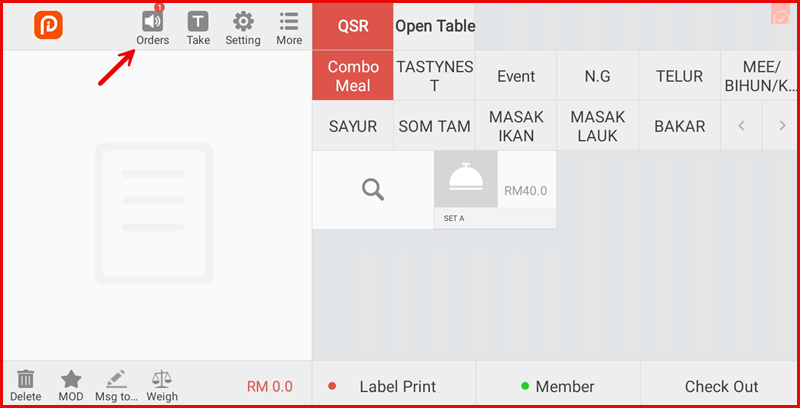
A notification badge appears on the Orders button in the POS top navigation bar. Tap Orders to view incoming orders.
Step 2: Accept or Reject the Order
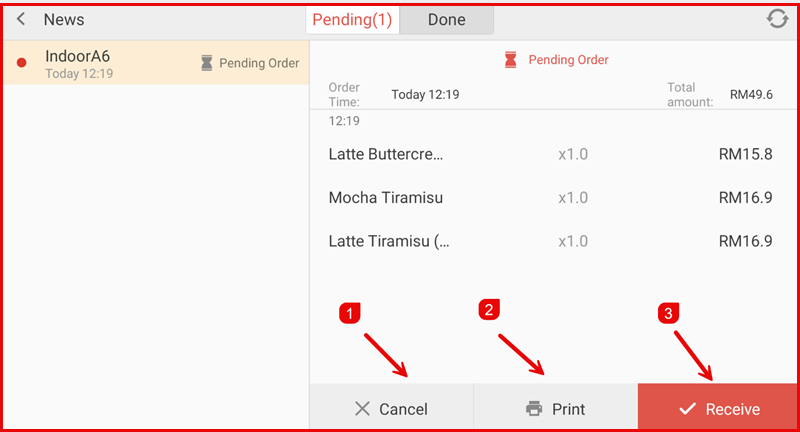
Go to News → Pending tab. The scan order appears with table/seat name, order time, items, and total amount.
Actions available:
- Cancel — Reject the order.
- Print — Print the order receipt.
- Receive — Accept the order and begin preparation.
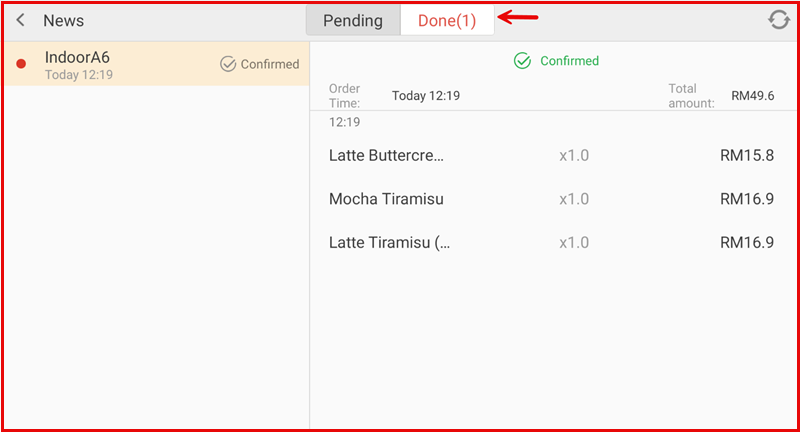
After tapping Receive, the order moves to the Done tab and is marked as Confirmed.