Edit & Delete Table Group
A Table Group is an area that organises your tables (e.g. Indoor, Outdoor, VIP). You can edit a group's name or delete it entirely from the Open Table screen.
Step 1: Go to the Open Table Screen
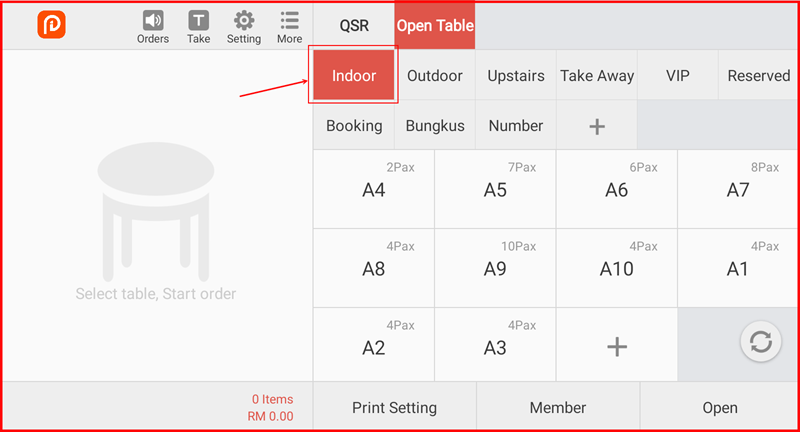
From the main cashier screen, tap the Open Table tab at the top. You will see all your table groups displayed as tabs (e.g. Indoor, Outdoor, Upstairs, etc.). Press and hold the group you want to edit.
Step 2: Tap "Edit" on the Group
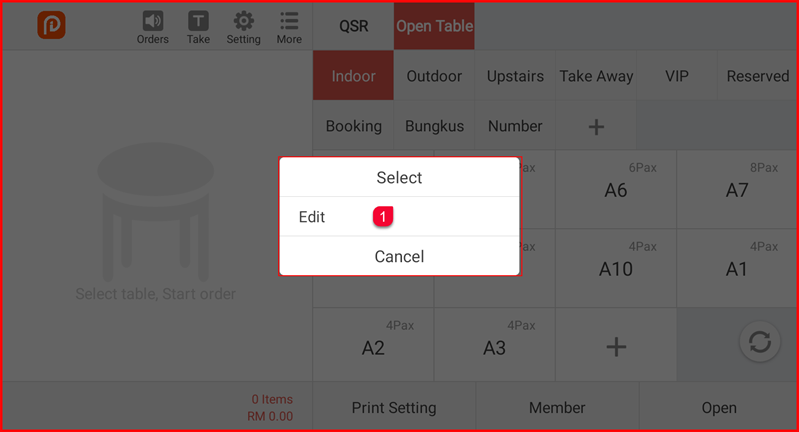
A popup menu will appear with three options: Select, Edit ①, and Cancel. Tap Edit to proceed.
Step 3: Edit or Delete the Group
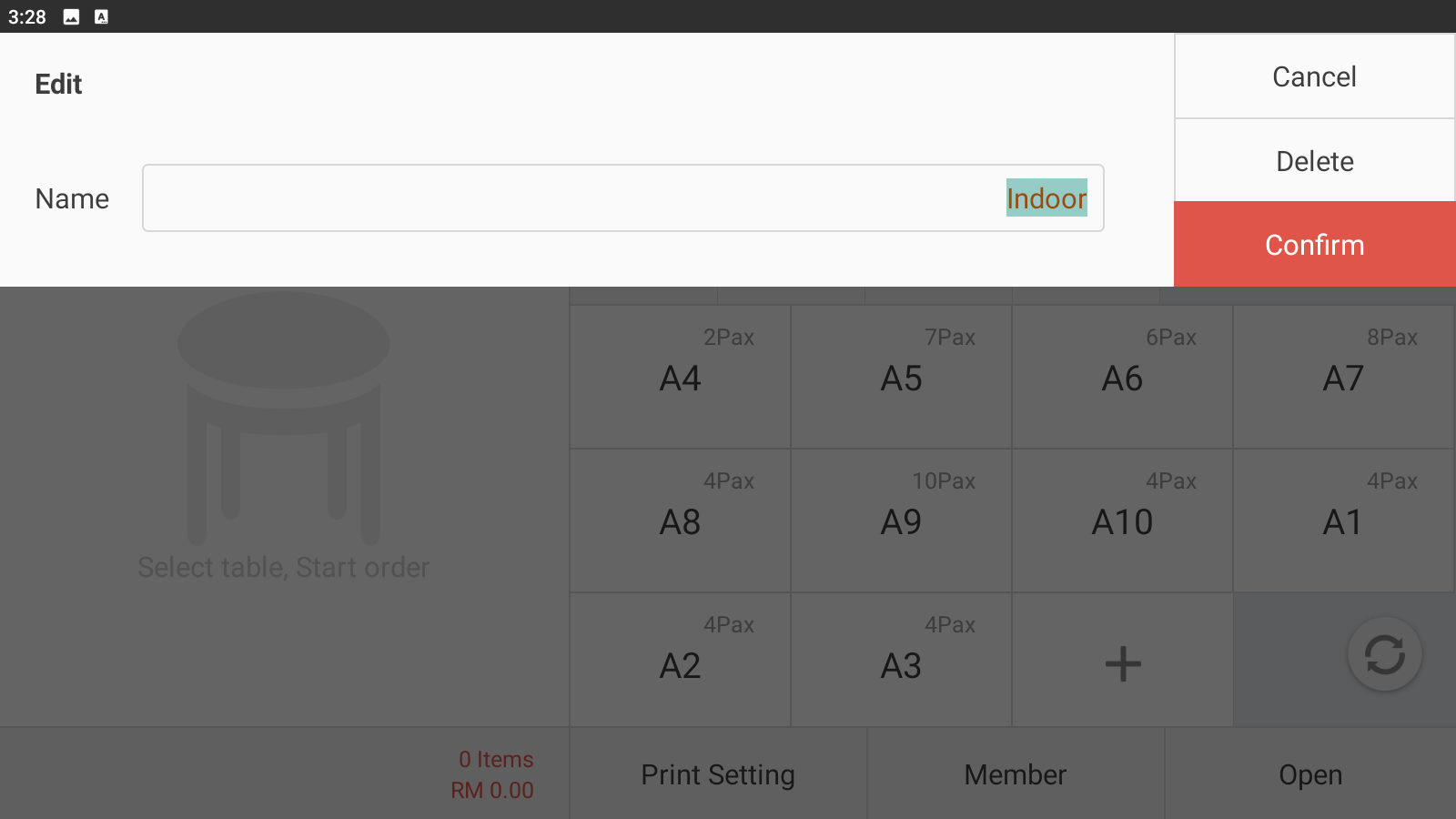
The Edit panel will appear with the following options:
- Name – edit the name of the table group (e.g. Indoor)
- Cancel – discard changes and close the panel
- Delete – permanently remove the table group
- Confirm – save your changes
Update the Name field as needed, then tap Confirm to save, or tap Delete to remove the group entirely.