Overview
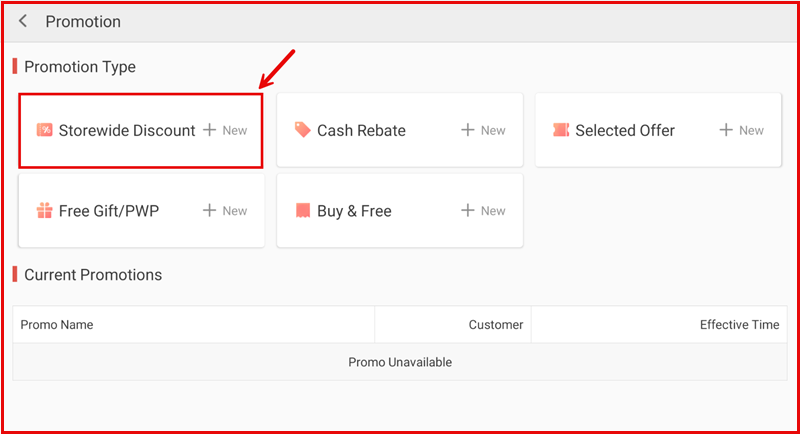
Storewide Discount applies a percentage discount across all items or by specific categories. It is one of five promotion types available under the Promotion module.
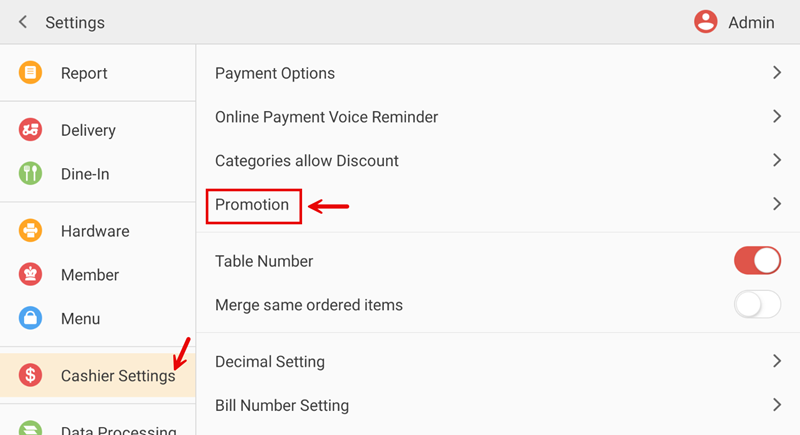
Path: Settings > Cashier Settings > Promotion > Storewide Discount
Step 1: Create a Storewide Discount
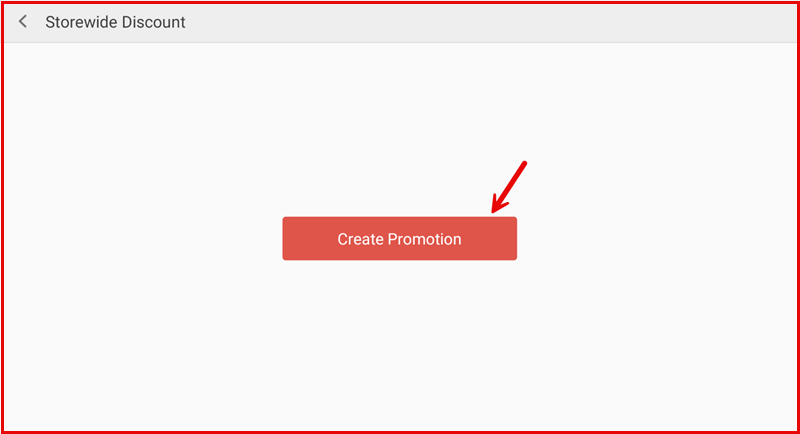
On the Storewide Discount page, tap Create Promotion to begin.
Step 2: Configure the Promotion
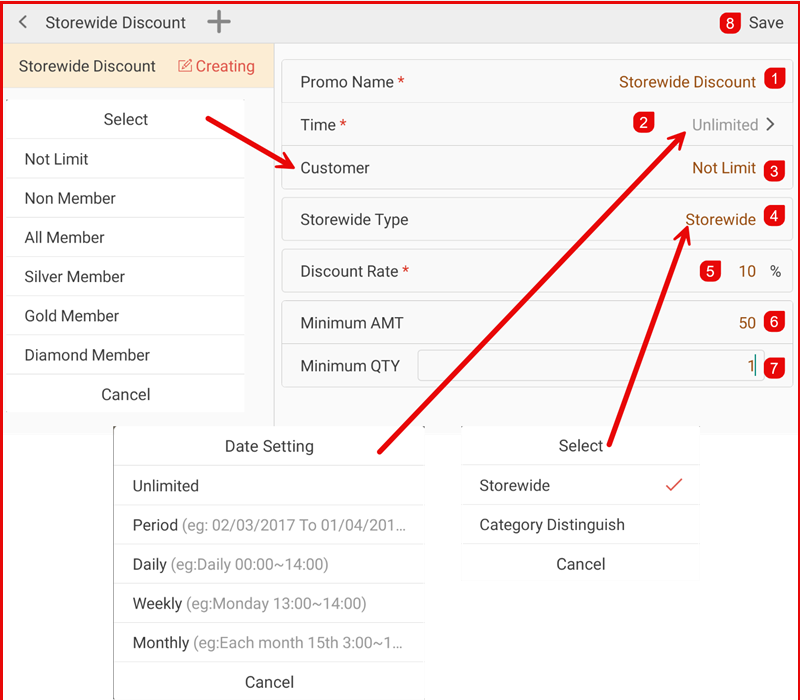
Fill in the promotion details:
- Promo Name * — Enter a name for the promotion (e.g. Storewide Discount).
- Time * — Set the promotion duration. Tap to choose from:
- Unlimited — No end date.
- Period — Specific date range (e.g. 02/03/2017 to 01/04/2017).
- Daily — Active during specific hours each day (e.g. 00:00~14:00).
- Weekly — Active on specific day and time (e.g. Monday 13:00~14:00).
- Monthly — Active on a specific date each month (e.g. 15th, 3:00~1:00).
- Customer — Select which customers this applies to: Not Limit, Non Member, All Member, Silver Member, Gold Member, or Diamond Member.
- Storewide Type — Choose the discount scope:
- Storewide — Same discount rate for all items.
- Category Distinguish — Different discount rate per category.
- Discount Rate * — Enter the discount percentage (e.g. 10%).
- Minimum AMT — Minimum order amount required to trigger the discount (e.g. 50).
- Minimum QTY — Minimum item quantity required (e.g. 1).
- Tap Save to create the promotion.
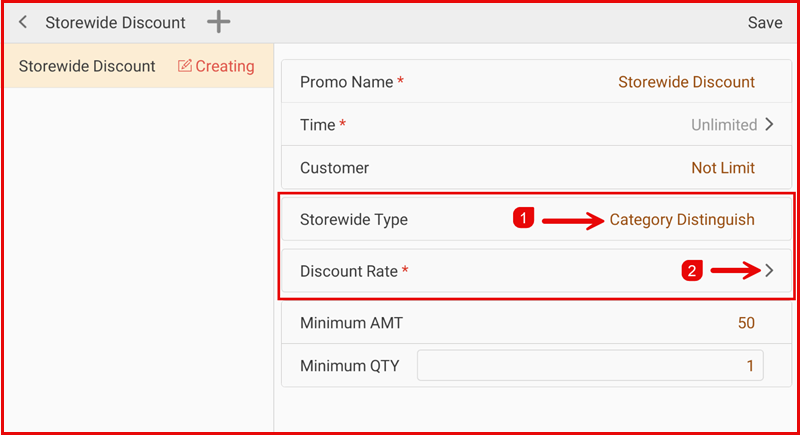
Category Distinguish Mode
If you select Category Distinguish as the Storewide Type, the Discount Rate field changes to a > link that opens the Type Setting page.
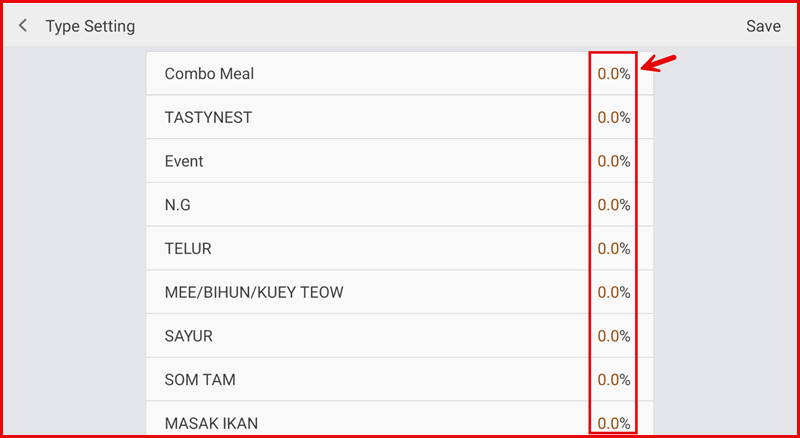
On the Type Setting page, set individual discount percentages for each menu category. Tap Save when done.
Managing a Promotion
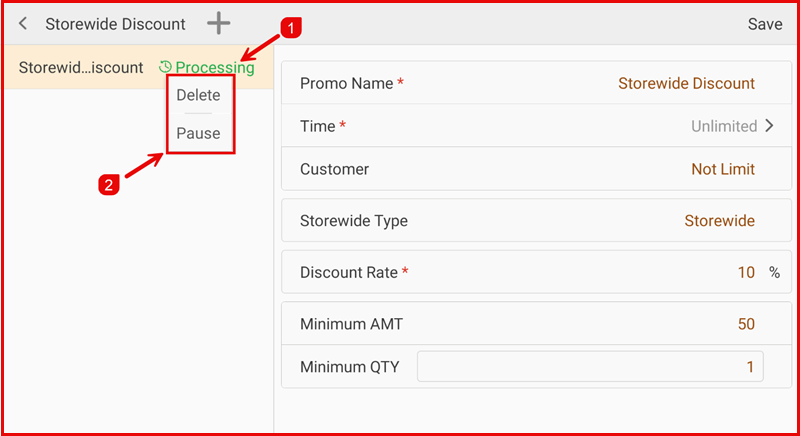
After saving, the promotion appears in the left panel with a Processing status. Tap the promotion name to view or edit its settings.
Tap the edit icon next to the promotion name to access:
- Delete — Permanently remove the promotion.
- Pause — Temporarily deactivate the promotion.
How It Works on POS
When a qualifying order meets the minimum amount and quantity, the storewide discount is automatically applied.
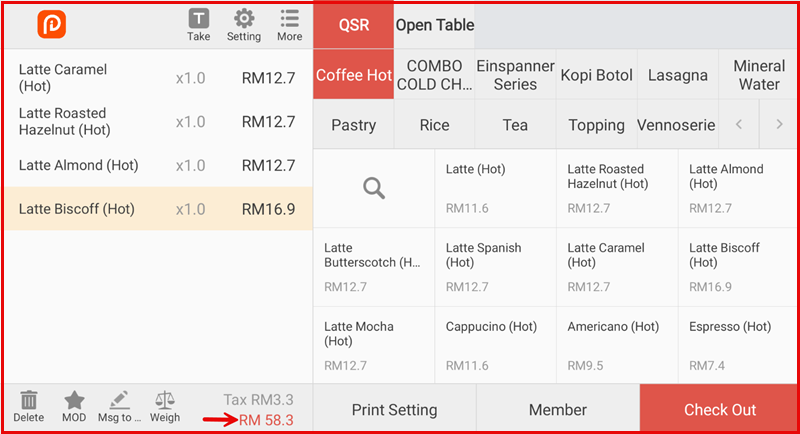
Ordering Screen
Items are added to the order as usual. The total is calculated before discount.
Settlement Screen
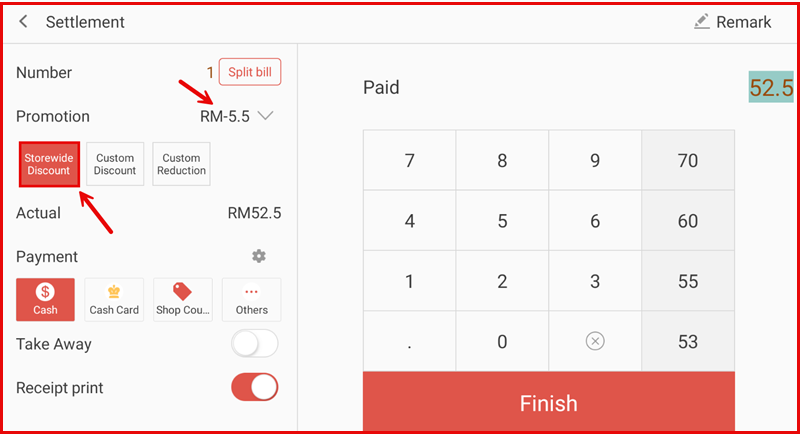
At checkout, the Promotion field shows the discount amount (e.g. RM-5.5). The Storewide Discount button is highlighted to indicate which promotion is active. The Actual amount reflects the discounted total.
Other options visible: Custom Discount, Custom Reduction.