Overview
Selected Offer allows you to create discounts or special pricing on specific menu items. Customers receive the discount when they order the selected items.
Path: Settings > Cashier Settings > Promotion > Selected Offer
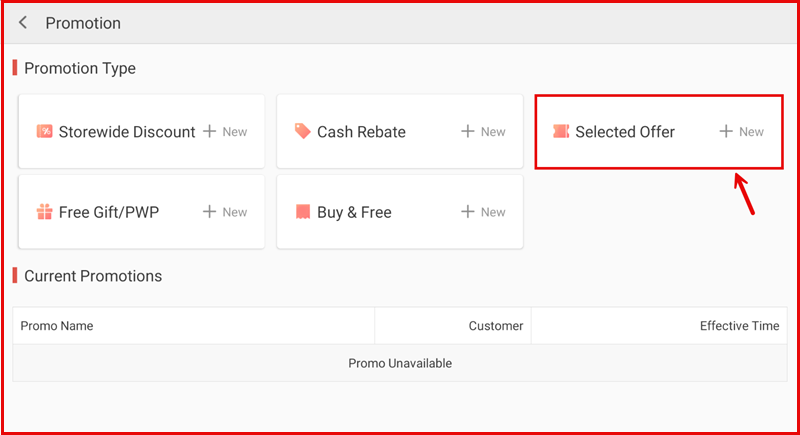
Step 1: Create a Selected Offer
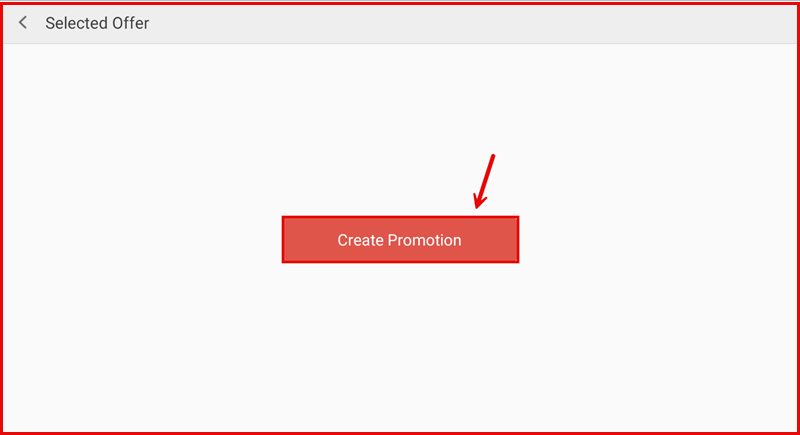
On the Selected Offer page, tap Create Promotion to begin.
Step 2: Configure the Promotion
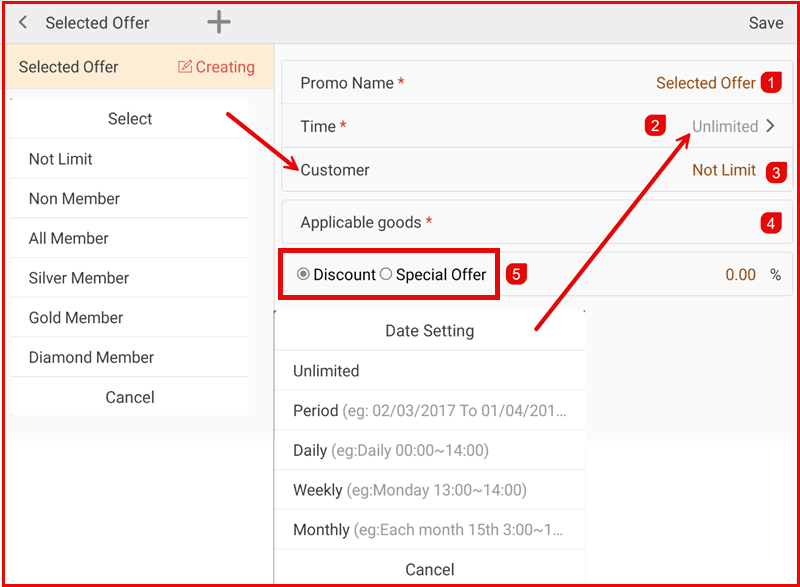
Fill in the promotion details:
- Promo Name * — Enter a name for the offer.
- Time * — Set duration: Unlimited, Period, Daily, Weekly, or Monthly.
- Customer — Select target customers.
- Applicable goods — Tap to select which items this offer applies to.
- Discount / Special Offer — Choose:
- Discount — Percentage off (e.g. 20%).
- Special Offer — Fixed price (e.g. RM10 instead of RM15).
- Tap Save to create.
Step 3: Select Items
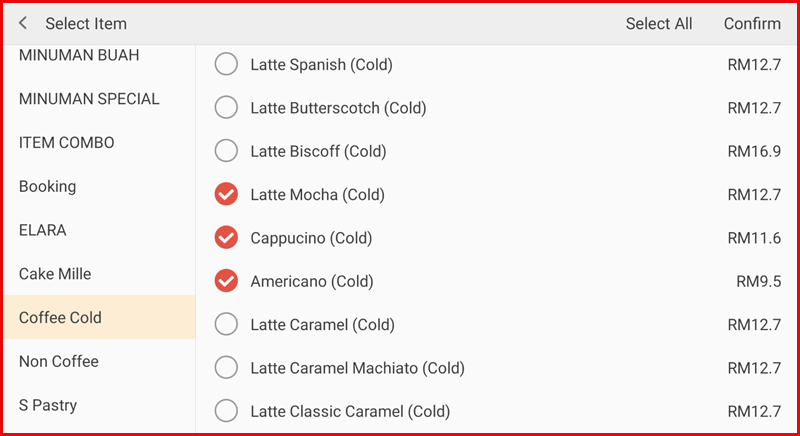
Tap Applicable goods to choose which items are eligible:
- Browse categories in the left panel.
- Select items by tapping the checkbox next to each item.
- Tap Select All to choose all items in a category.
- Tap Confirm to save the selection.
How It Works on POS
Ordering Screen
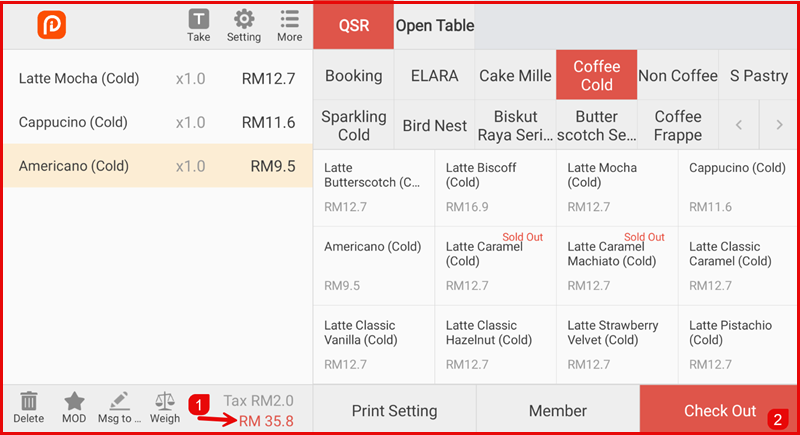
Selected items are shown in the order with their discounted prices (e.g. Latte Mocha RM12.7, Cappucino RM11.6, Americano RM9.5).
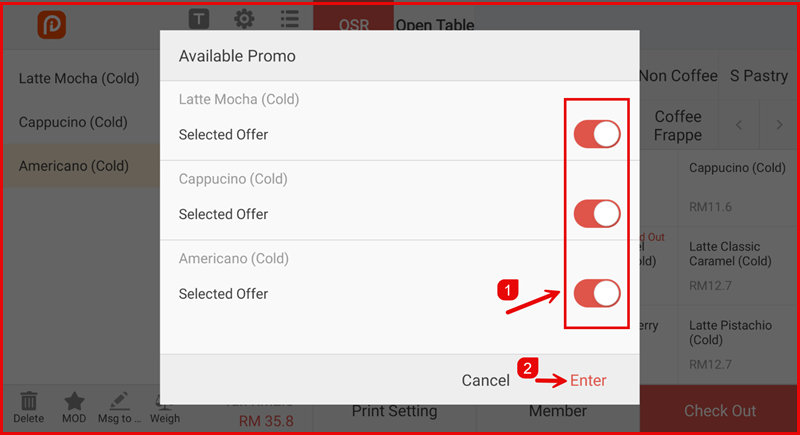
Available Promo Popup
When multiple promotions apply, a popup shows available offers. Each selected item has a toggle to enable/disable the Selected Offer discount.