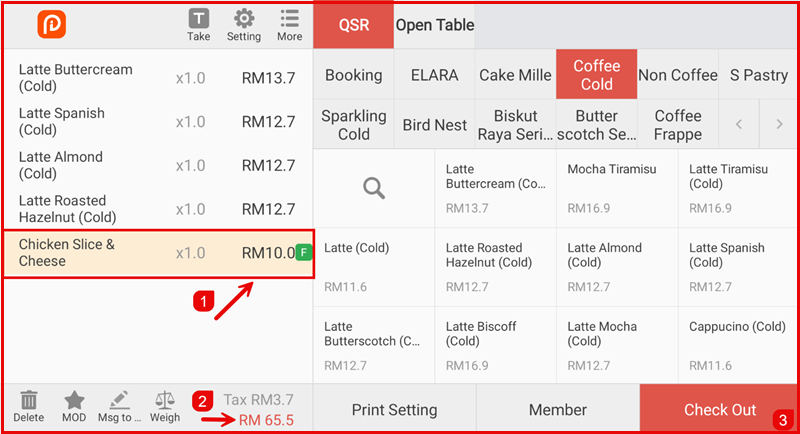
Overview
PWP (Purchase With Purchase) or Free Gift allows you to offer a free item when customers purchase a qualifying item or spend a minimum amount. Also known as "Buy X Get Y Free".
Path: Settings > Cashier Settings > Promotion > Free Gift/PWP
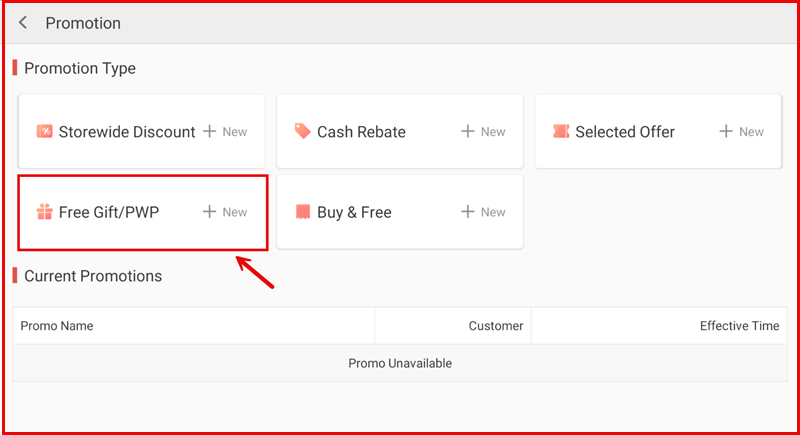
Step 1: Create a PWP Promotion
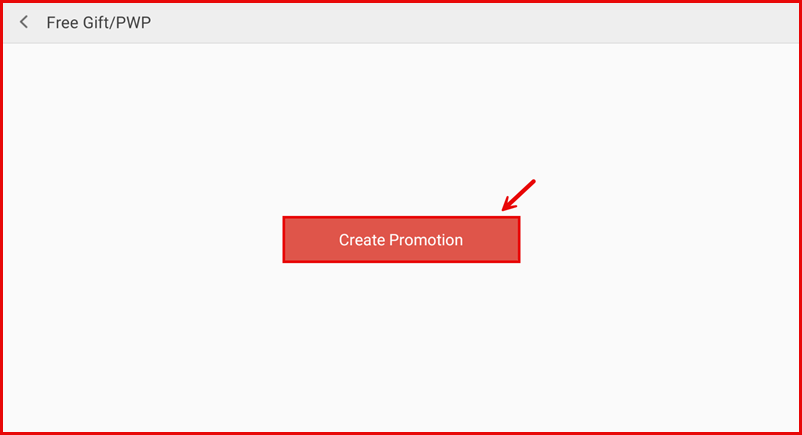
On the Free Gift/PWP page, tap Create Promotion to begin.
Step 2: Configure the Promotion
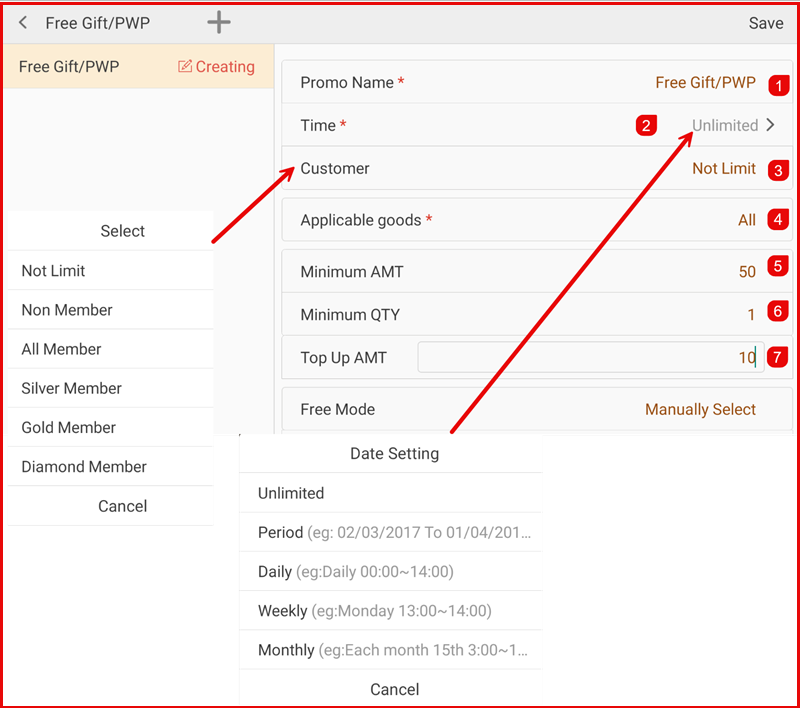
Fill in the promotion details:
- Promo Name * — Enter a name (e.g. Buy Latte Get Muffin Free).
- Time * — Set duration: Unlimited, Period, Daily, Weekly, or Monthly.
- Customer — Select target customers.
- Buy Item — Select the qualifying item that triggers the free gift.
- Free Item — Select the free gift item.
- Buy Min Amount — Minimum spend to qualify (optional).
- Buy Min Qty — Minimum quantity of qualifying item (e.g. 1).
- Free Max Qty — Maximum free items per order.
- Tap Save to create.
Step 3: Select Buy Item
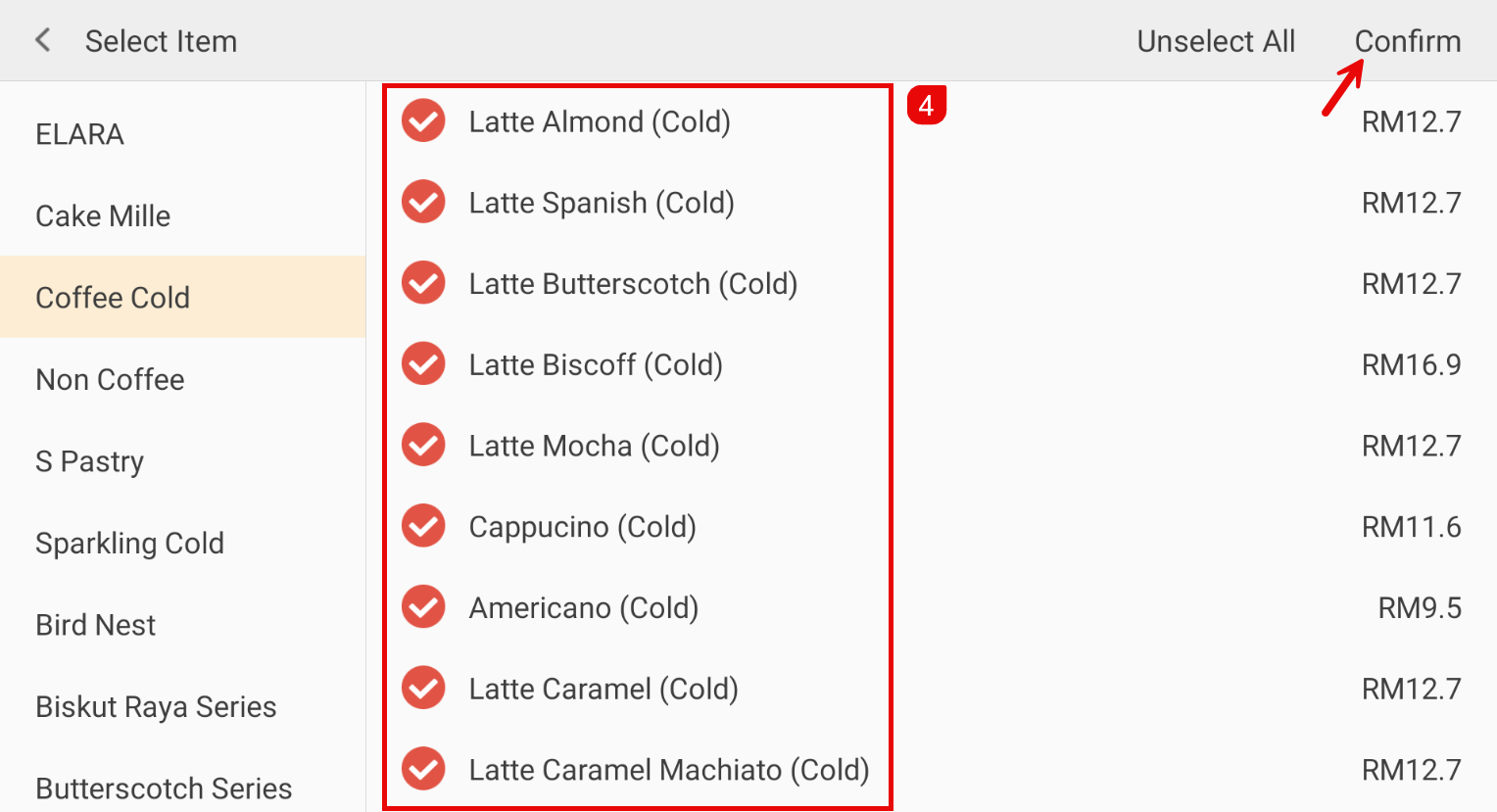
Tap Buy Item to select the qualifying item:
- Browse categories in the left panel.
- Select the qualifying item (e.g. Latte).
- Tap Confirm.
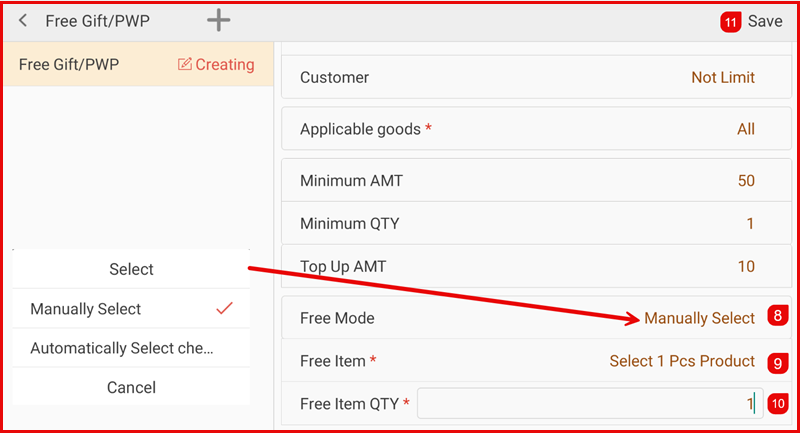
Step 4: Select Free Item
Tap Free Item to select the free gift:
- Browse categories.
- Select the free item (e.g. Muffin).
- Tap Confirm.
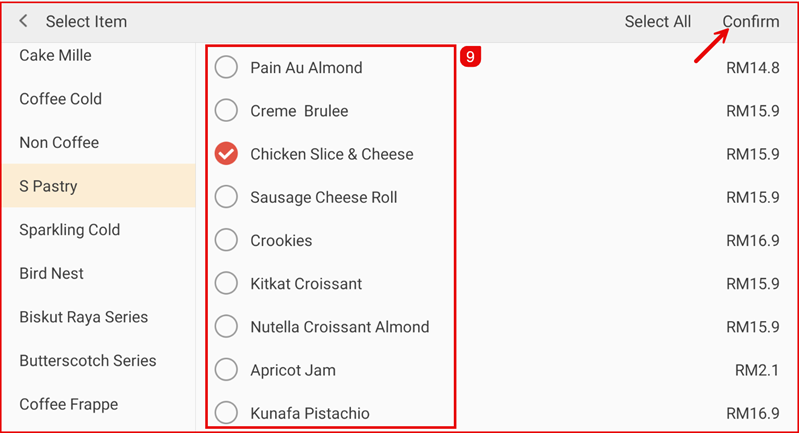
Step 5: Set Buy & Free Quantities
After selecting items, set the quantities:
- Buy Min Qty — How many need to be purchased (e.g. 1 Latte).
- Free Max Qty — How many free (e.g. 1 Muffin).
Tap Save when done.
Managing the Promotion
After saving, the promotion appears in the left panel with Processing status. Use the edit icon to modify or delete.
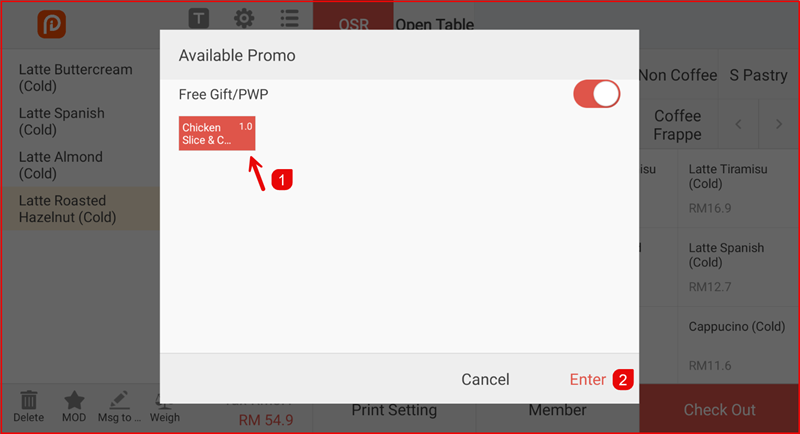
How It Works on POS
When the customer orders the qualifying item (e.g. 1 Latte), the free item (e.g. 1 Muffin) is automatically added to the order at RM0.00.
The free item appears in the order list with zero price.