Overview
Buy & Free is similar to PWP but uses a simpler "Buy X Get Y" logic — when customers buy a certain quantity of an item, they get another item free. No need to select separate buy and free items.
Path: Settings > Cashier Settings > Promotion > Buy & Free
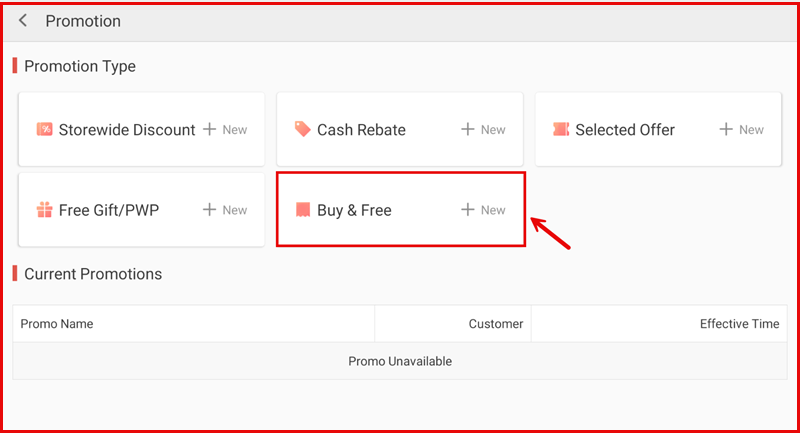
Step 1: Create a Buy & Free Promotion
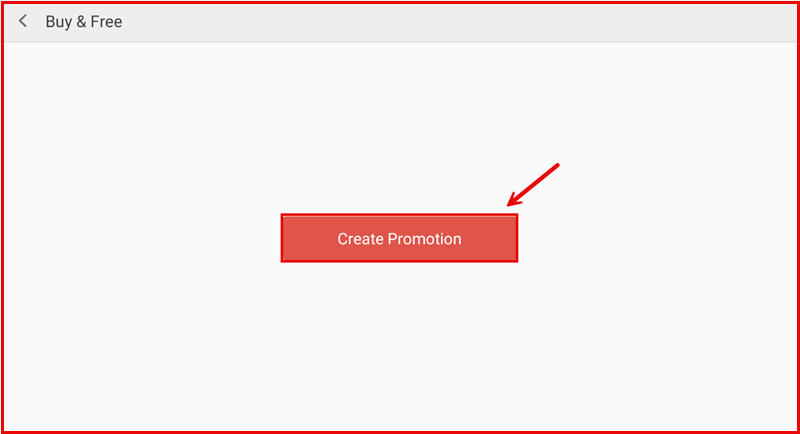
On the Buy & Free page, tap Create Promotion to begin.
Step 2: Configure the Promotion
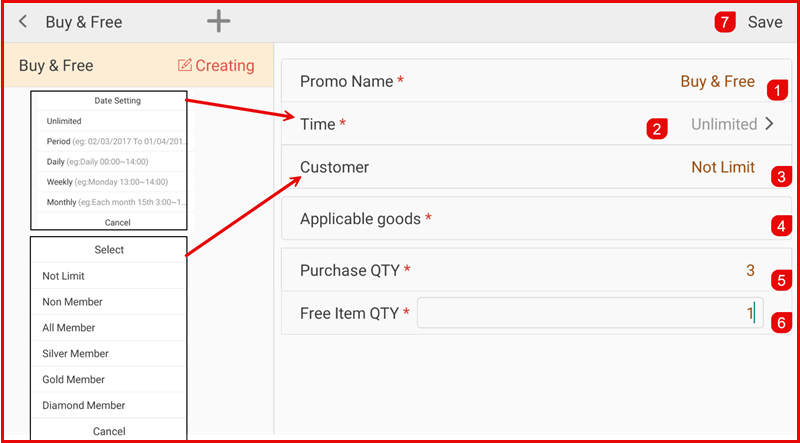
Fill in the promotion details:
- Promo Name * — Enter a name (e.g. Buy 2 Get 1 Free).
- Time * — Set duration: Unlimited, Period, Daily, Weekly, or Monthly.
- Customer — Select target customers.
- Category — Select which category applies (or Not Limit for all).
- Buy Min Qty * — Minimum quantity to buy (e.g. 2).
- Free Max Qty * — Free items to give (e.g. 1).
- Tap Save to create.
Category Type Setting
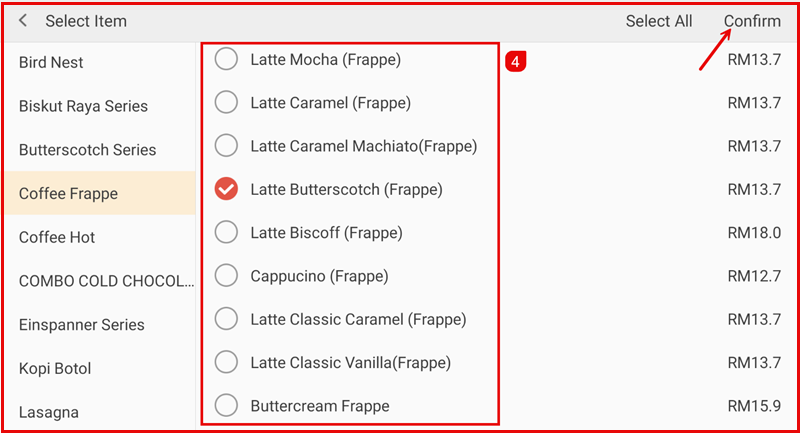
If you selected specific categories, tap the > icon to configure eligible categories. Toggle each ON or OFF.
Managing the Promotion
After saving, the promotion appears in the left panel. Tap the edit icon to modify or delete.
How It Works on POS
Ordering Screen
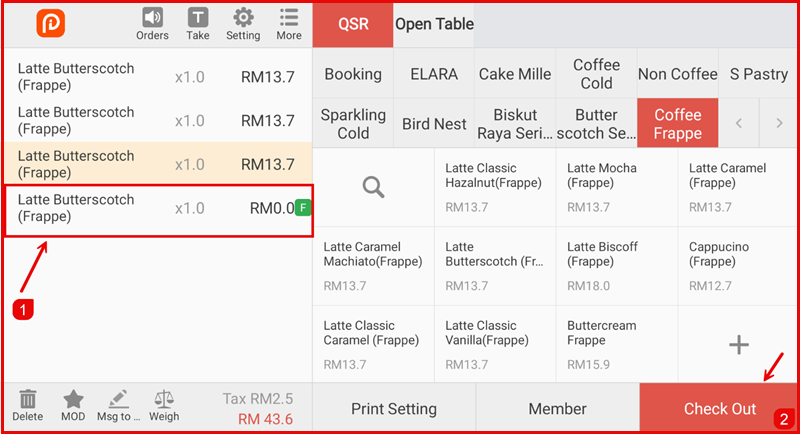
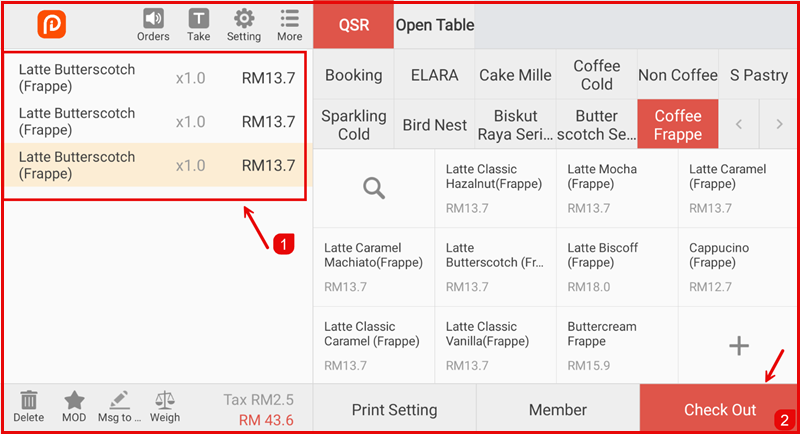
When customers order the qualifying quantity (e.g. 2 of any item in the category), the free item is automatically added.
The free item appears in the order with RM0.00 price.
Settlement Screen
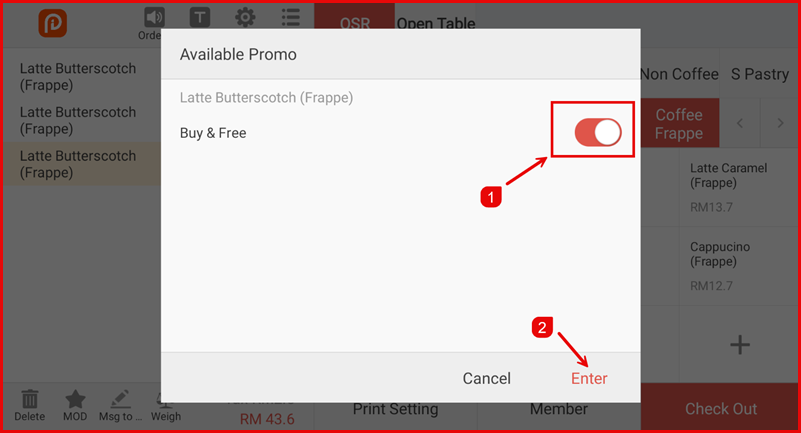
At checkout, the promotion is applied. The Buy & Free button is highlighted to show the active promotion.