Overview
Cash Rebate gives customers a fixed cashback amount when they spend above a minimum order threshold. The rebate is applied at checkout.
Path: Settings > Cashier Settings > Promotion > Cash Rebate
Step 1: Create a Cash Rebate
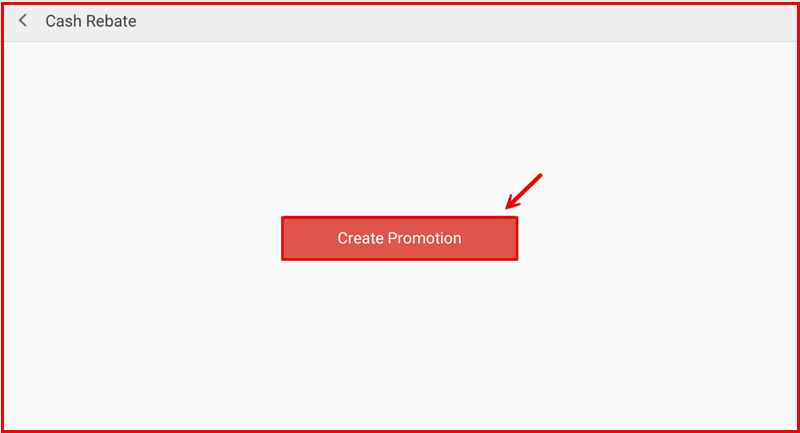
On the Cash Rebate page, tap Create Promotion to begin.
Step 2: Configure the Promotion
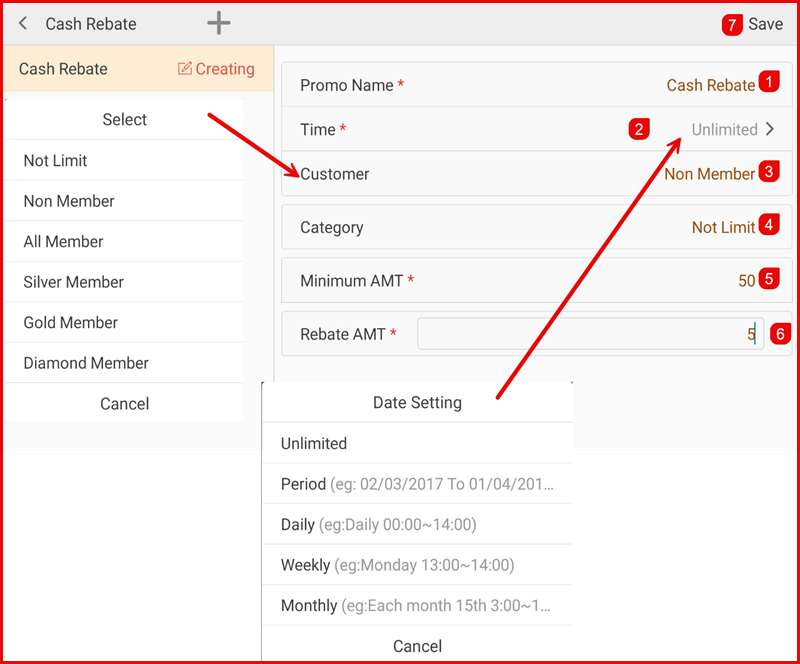
Fill in the promotion details:
- Promo Name * — Enter a name (e.g. Cash Rebate).
- Time * — Set duration: Unlimited, Period, Daily, Weekly, or Monthly.
- Customer — Select target customers: Not Limit, Non Member, All Member, Silver, Gold, or Diamond.
- Category — Choose Not Limit or specific categories.
- Minimum AMT * — Minimum order amount to qualify (e.g. 50).
- Rebate AMT * — Fixed cashback amount (e.g. 5).
- Tap Save to create.
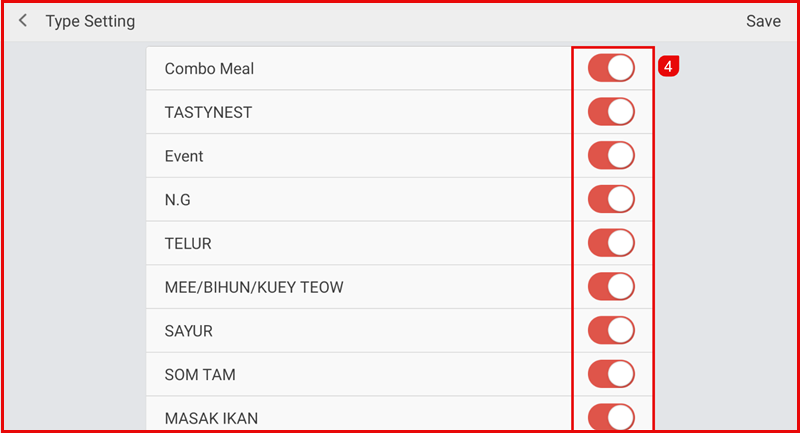
Category Type Setting
If you select specific categories, tap the > icon to configure which categories are eligible. Toggle each category ON or OFF.
How It Works on POS
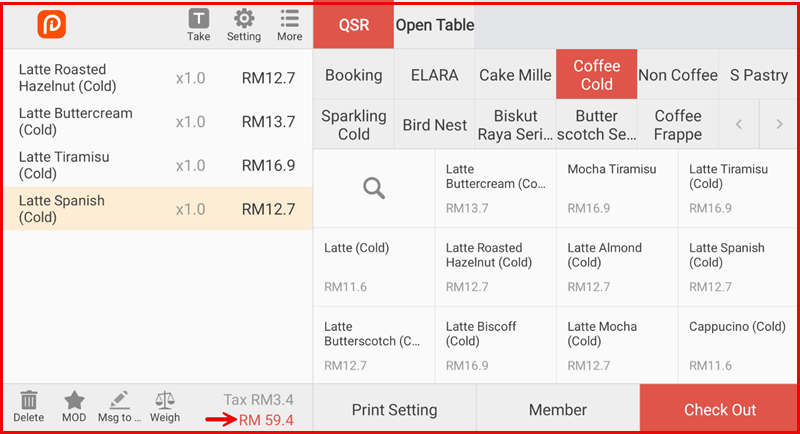
Ordering Screen
Customers add items to their order. Total before rebate is shown.
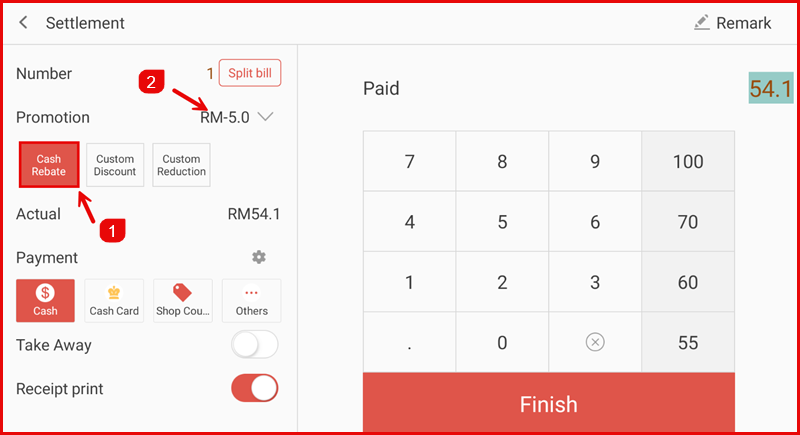
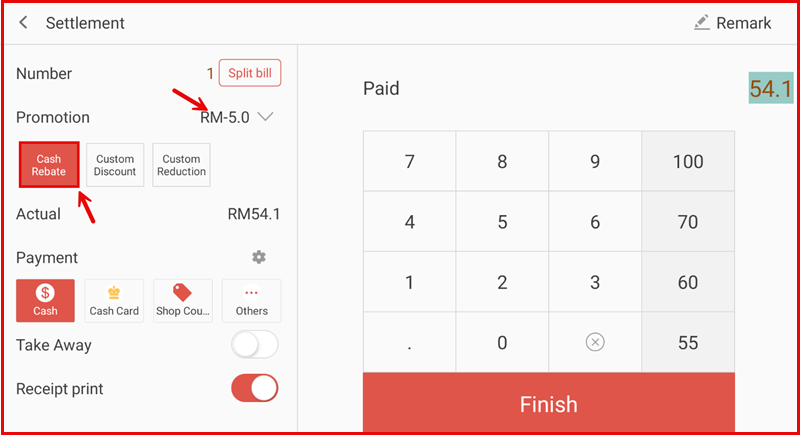
Settlement Screen
When the order meets the minimum amount, the cash rebate is automatically applied:
- Cash Rebate button is highlighted.
- Promotion field shows the rebate amount (e.g. RM-5.0).
- Actual amount reflects the cashback.
In this example: Total RM59.4 - RM5.0 rebate = Actual RM54.1.