Stock Query Intro
The Stock Query feature in iPOS Retail gives you a real-time view of your current stock levels, costs, and pricing across all items and categories. You can also filter for insufficient stock items and search by barcode or item name.
Step 1: Open Stock Query
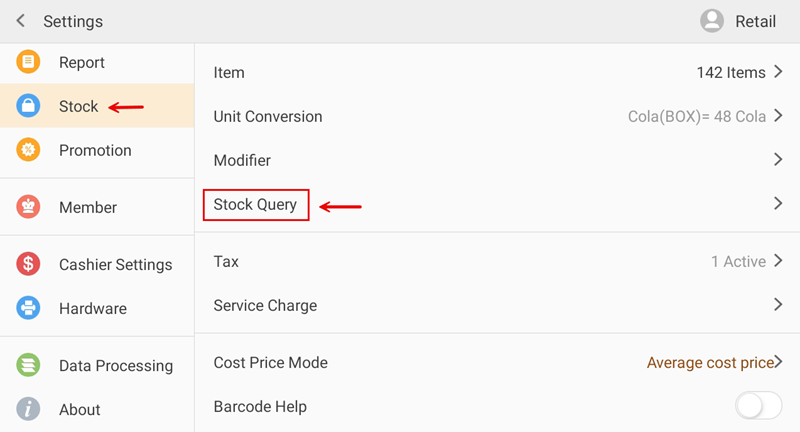
Go to Settings and tap Stock from the left sidebar. Then tap Stock Query from the right panel to open the stock query page.
Step 2: View Stock Levels
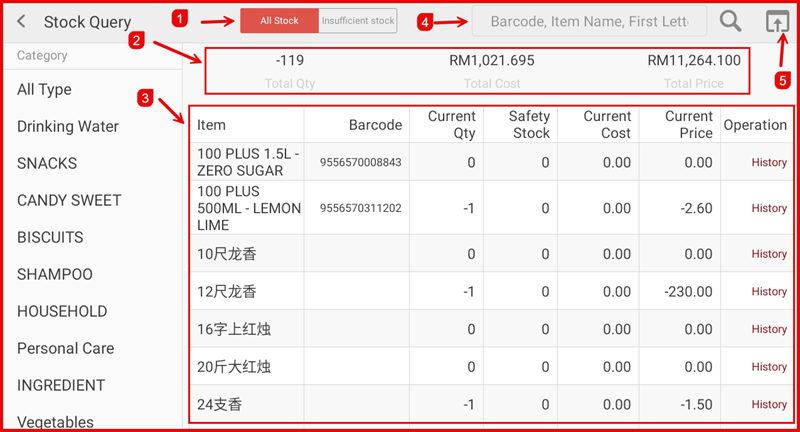
The Stock Query page displays all your stock items with the following information:
- Tab bar (①) — Switch between All Stock (view all items) and Insufficient Stock (view items below safety stock level).
- Category filter (②) — Tap any category on the left sidebar to filter items by category. Select All Type to view all categories.
- Summary panel (③) — Shows the overall Total Qty, Total Cost, and Total Price for the selected filter.
- Search bar (④) — Search for a specific item by Barcode, Item Name, or First Letter.
- Export (⑤) — Tap the export icon to download the stock list.
The item table shows each item's Current Qty, Safety Stock, Current Cost, Current Price, and a History link to view that item's stock movement history.
Step 3: Filter Items by Status
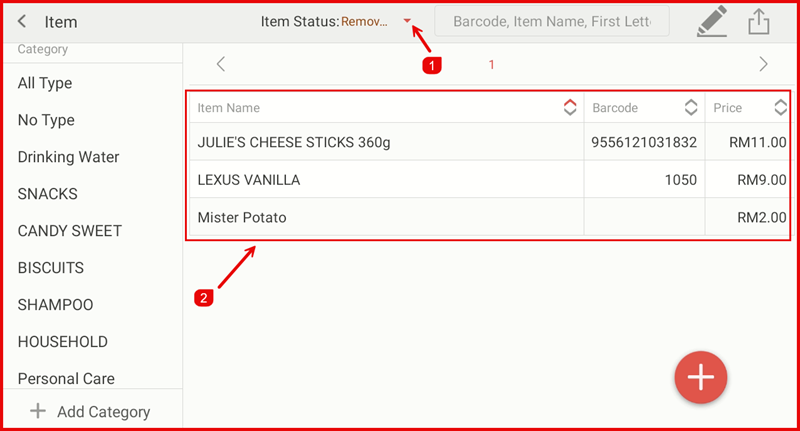
From the Stock settings, tap Item to open the item list. Use the Item Status filter (①) to view items by their current status (e.g. Active, Inactive, or Removed). The item table (②) shows the Item Name, Barcode, and Price for each filtered item. Tap the + button to add a new item.