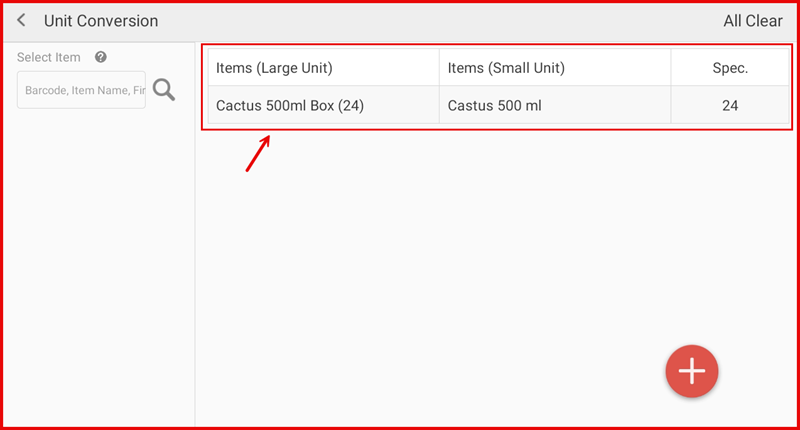
How to Set Unit Conversion
This guide explains how to configure unit conversions for stock items in the iPOS Retail Stock module. Unit conversion allows you to buy stock in one unit and sell in another (e.g. buy in carton, sell in pieces).
Step 1: Open Unit Conversion
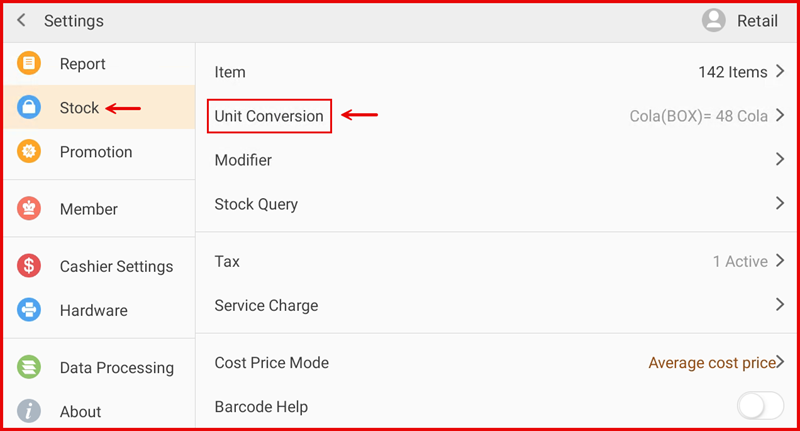
Navigate to Stock > Unit Conversion to access the unit conversion settings.
Step 2: Add Unit Conversion
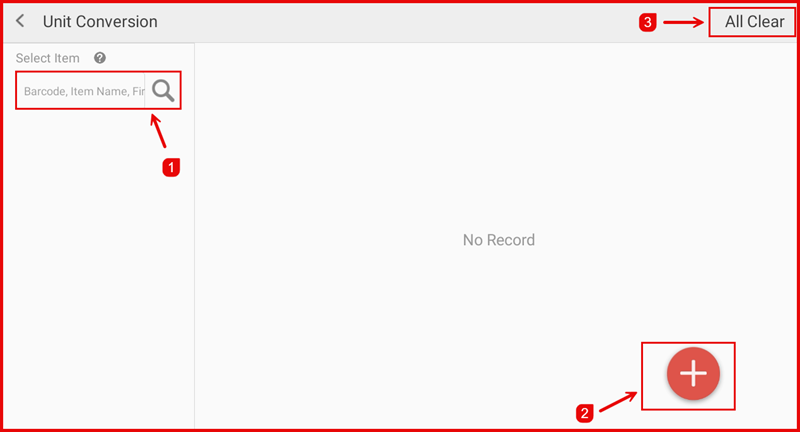
Tap the Add button to create a new unit conversion. Enter the base unit, converted unit, and the conversion rate (e.g. 1 carton = 12 pieces).
Step 3: Configure Conversion Details
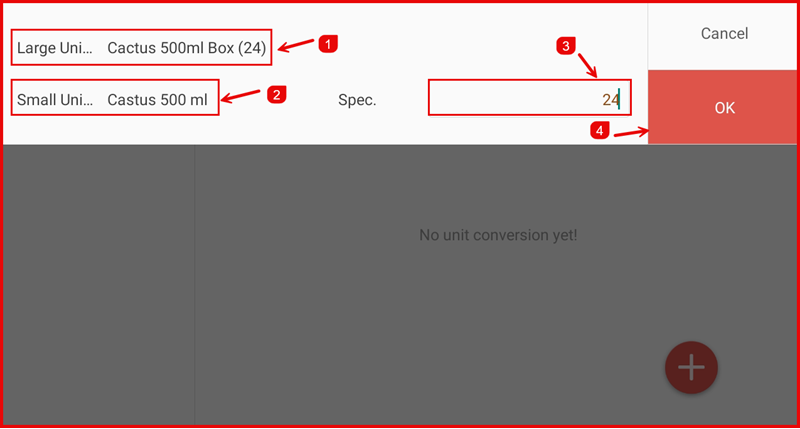
Fill in the unit conversion details including the unit name and conversion rate. Ensure the rate is accurate to avoid stock discrepancies.
Step 4: Save Unit Conversion
Tap Save to confirm and apply the unit conversion. The new unit conversion will now be available when adding or editing stock items.