Change Quantity & Price
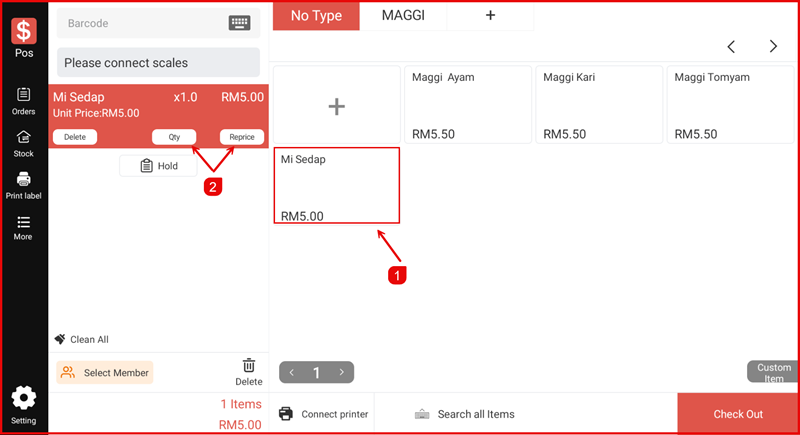
During a sales transaction, you can tap an added item to adjust its quantity or change its price on the fly using the Qty and Reprice buttons.
Step 1 — Tap the Item in the Cart
After adding an item to the cart (①), tap on it to reveal the action buttons. You will see Delete, Qty, and Reprice buttons (②) appear above the item row.
Step 2 — Adjust Quantity or Reprice
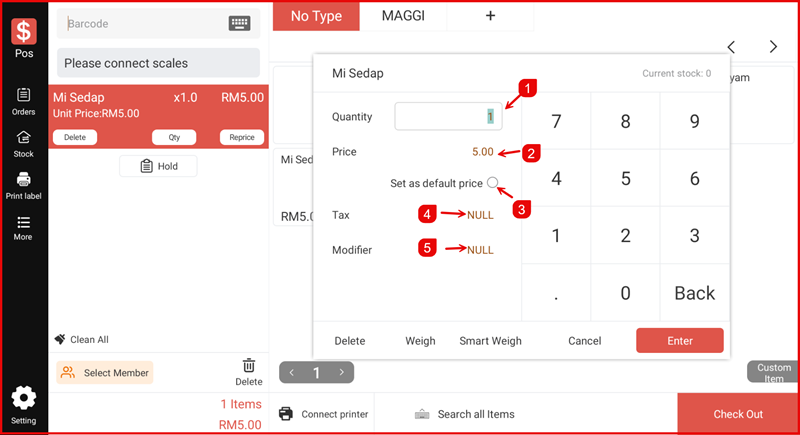
A popup dialog will appear for the selected item showing the current stock. You can:
- Enter a new Quantity (①) using the numeric keypad.
- Edit the Price (②) directly — toggle Set as default price to save it permanently.
- Review or set Tax (④) and Modifier (⑤) if applicable.
Tap Enter to apply the changes.