Export Report By Email
iPOS FnB allows you to export any report (such as the Sales Summary) and send it directly to an email address. This is useful for sharing daily or periodic reports with management or accounting teams.
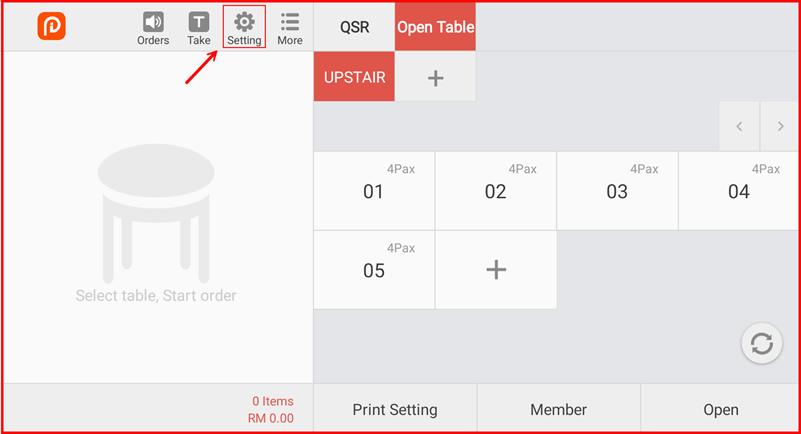
Step 1: Tap Setting on the Main Screen
From the main POS screen, tap the Setting icon on the top toolbar to open the Settings menu.
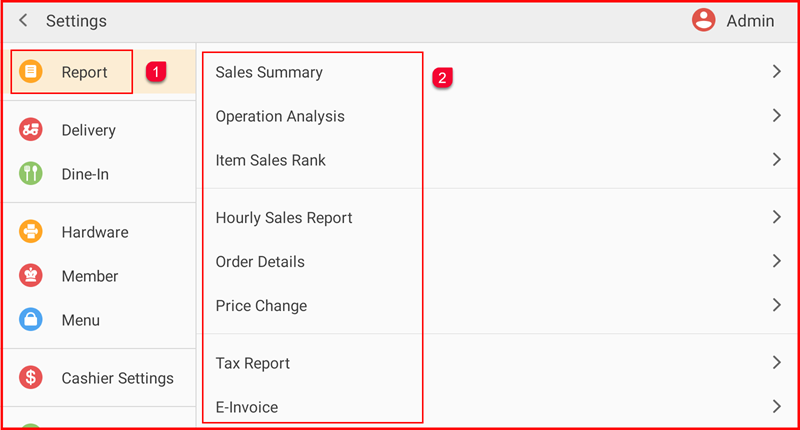
Step 2: Select Report and Choose a Report Type
In the Settings menu, tap Report ① from the left sidebar. A list of available report types will appear on the right ②:
- Sales Summary
- Operation Analysis
- Item Sales Rank
- Hourly Sales Report
- Order Details
- Price Change
- Tax Report
- E-Invoice
Tap the report you want to export, for example Sales Summary.
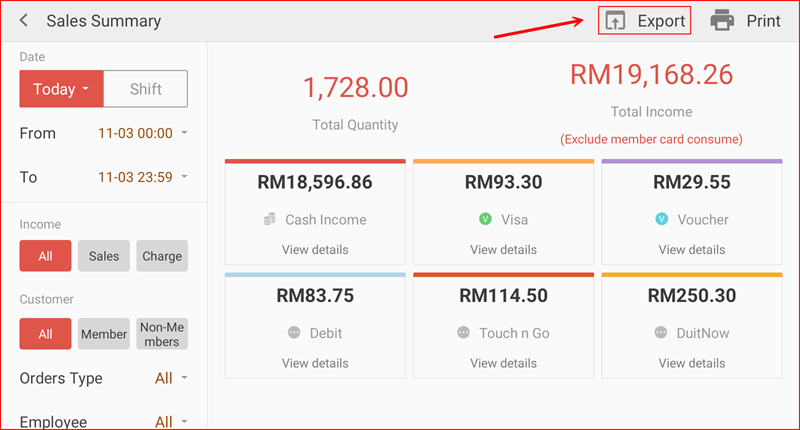
Step 3: Tap Export on the Report Screen
The selected report (e.g. Sales Summary) will open showing the data for the current period. Tap the Export button at the top right of the screen to begin the export process.
Step 4: Select Email and Enter the Email Address
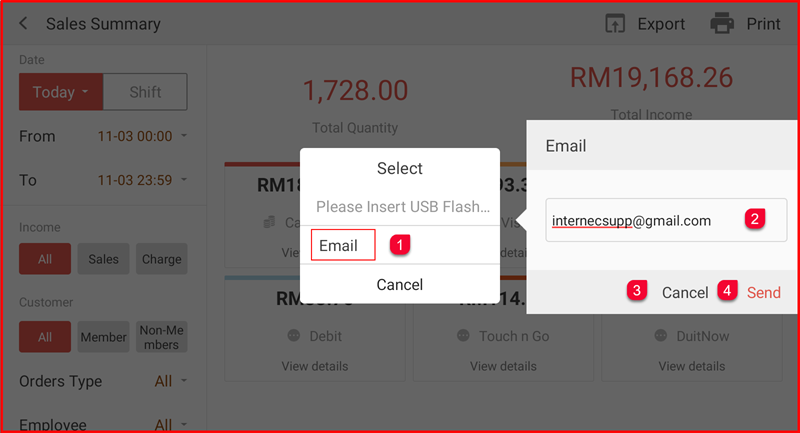
A Select dialog will appear with two options. Tap Email ①. An email input field will appear showing the pre-configured email address (e.g. internecsupp@gmail.com) ②. Verify or edit the address, tap Cancel ③ to abort or Send ④ to send the report.
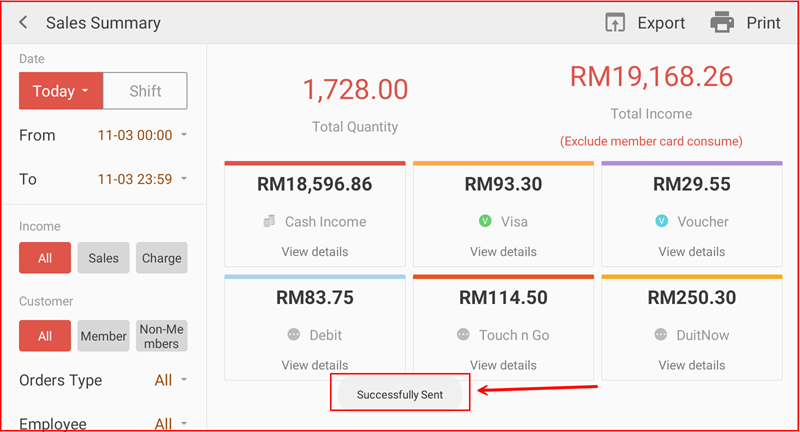
Step 5: Confirmation — Successfully Sent
Once the report has been sent, a Successfully Sent confirmation message will appear at the bottom of the screen, confirming the report has been delivered to the specified email address.