Overview
Combo Meal allows you to bundle multiple menu items together as a fixed-price set. Customers can choose from predefined item options within each slot when ordering.
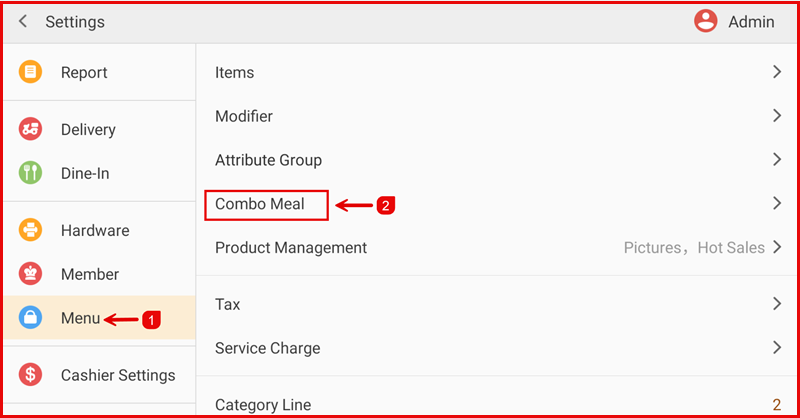
Path: Settings > Menu > Combo Meal
Step 1: Create a Combo Meal
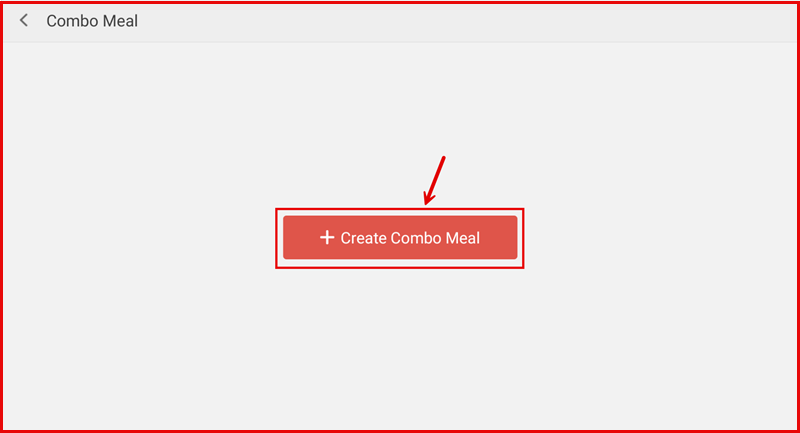
On the Combo Meal page, tap + Create Combo Meal to add a new set.
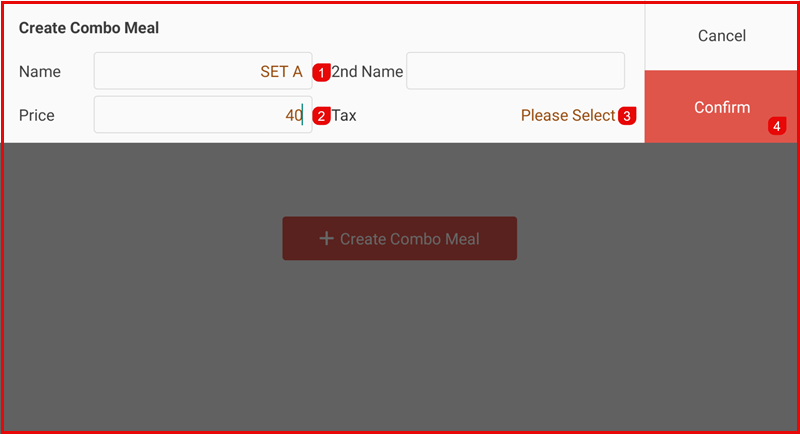
Fill in the details:
- Name — Enter the set name (e.g. SET A) and an optional 2nd Name.
- Price — Enter the fixed price for the combo set.
- Tax — Select the applicable tax rate.
- Tap Confirm to save the combo meal.
Step 2: Bind Items to the Combo Meal
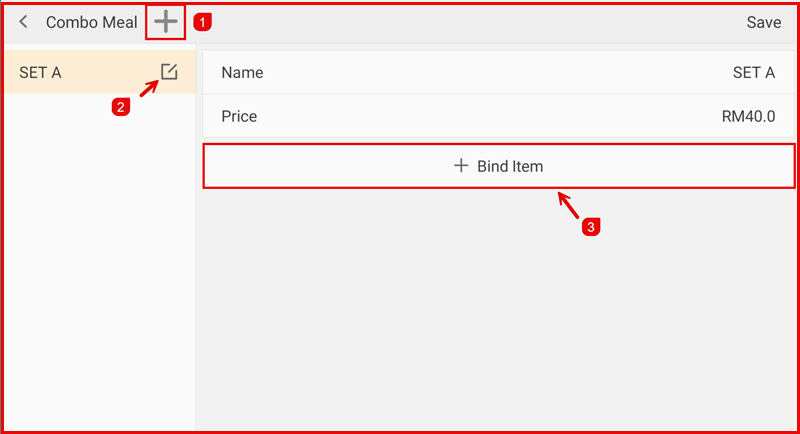
After the combo meal is created, it appears in the left panel. Select it to view its details on the right.
- Tap + (top left) to add another combo meal.
- Tap the edit icon next to the combo name to rename or delete it.
- Tap + Bind Item to add items to this combo set.
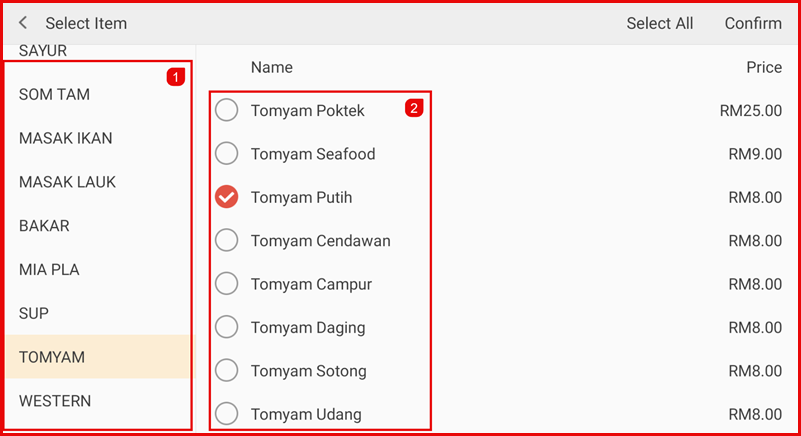
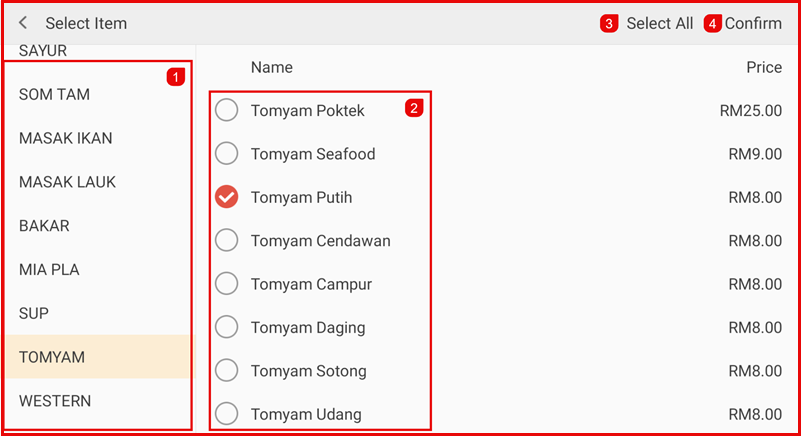
On the Select Item screen:
- Browse item categories on the left panel.
- Select items from the right panel by tapping the radio button next to each item.
- Tap Select All to select all items in the current category.
- Tap Confirm to bind the selected items.
Step 3: Configure Bound Items
After binding, all selected items appear in the combo meal detail with the following columns:
- Product — Item name(s) bound to this slot.
- Qty — Total items available for this slot.
- Select Qty — Number of items the customer must select.
- Operable — Add to include more items in this slot; Delete to remove.
Tap Add next to a product to bind additional items to the same slot, allowing customers to choose from multiple options (e.g. Tomyam Putih, Tomyam Campur, or Tomyam Seafood in one slot).
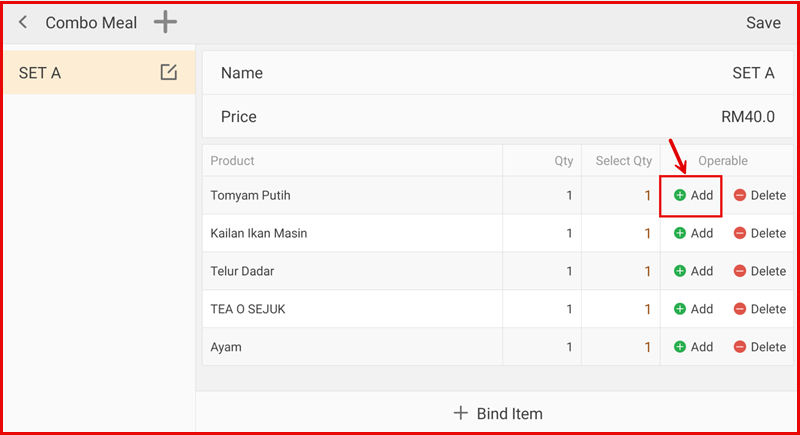
When multiple items are added to a slot, the Product column displays all options separated by commas with the total item count shown in Qty.
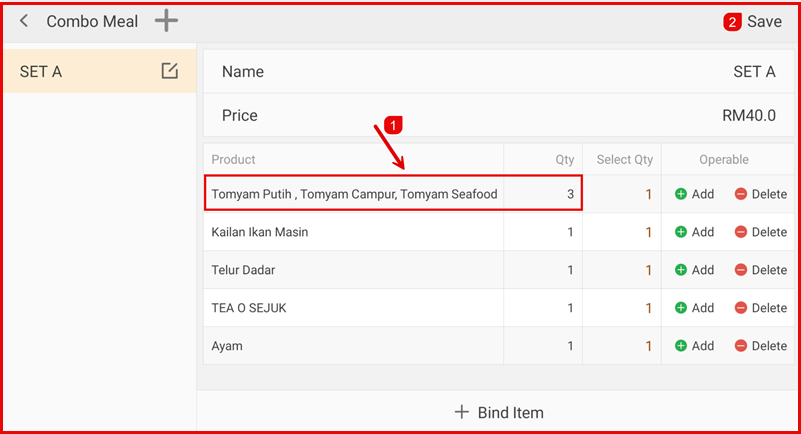
Tap Save (top right) when done configuring.
Step 4: Ordering Combo Meal on POS
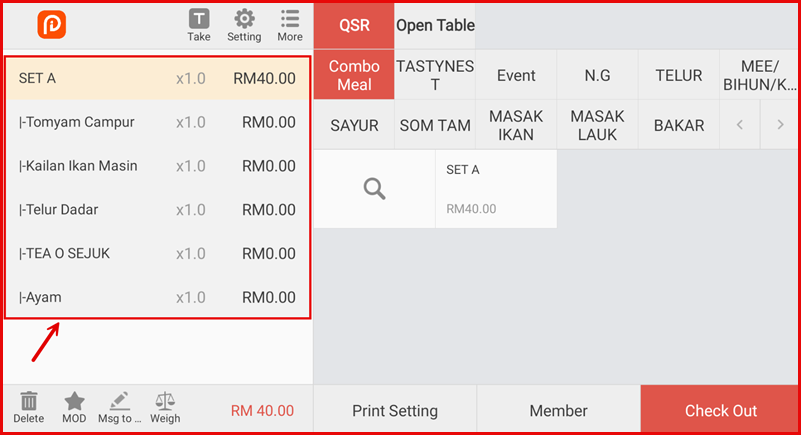
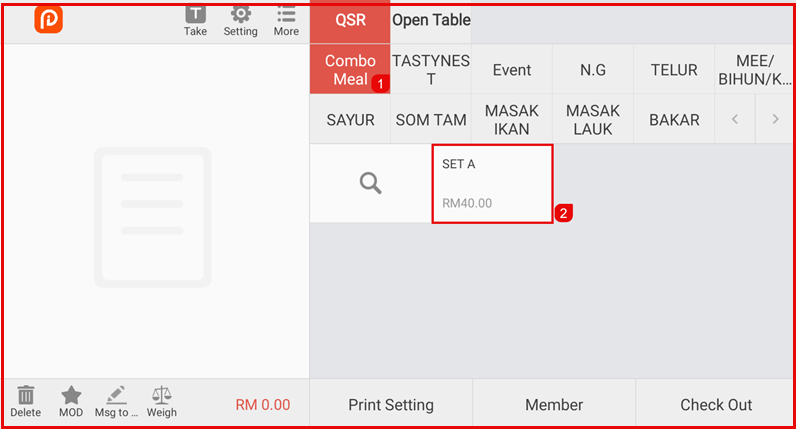
The configured combo meal appears under the Combo Meal category tab in the QSR ordering screen. Tap the set (e.g. SET A) to begin the order.
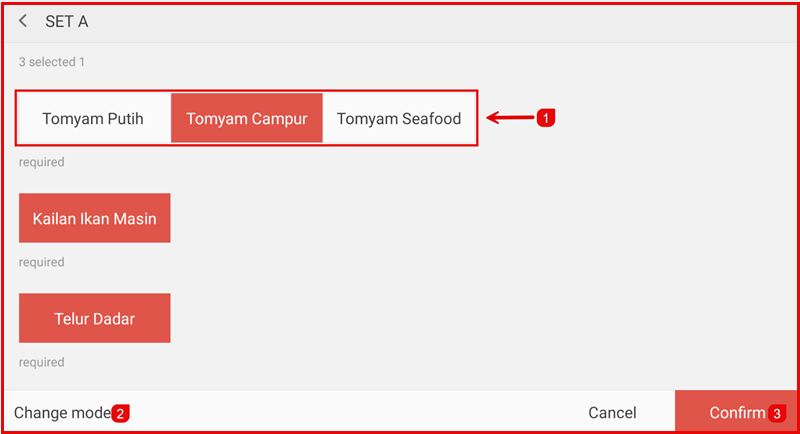
A selection screen appears for each slot:
- If a slot has multiple item options, tap to choose one (the selected item is highlighted in red).
- Tap Change mode to switch between selection modes if needed.
- Tap Confirm to finalise the item selections.
The order list on the left shows the combo set with all selected sub-items listed below it (prefixed with |-), each at RM0.00 — the price is covered by the set price.