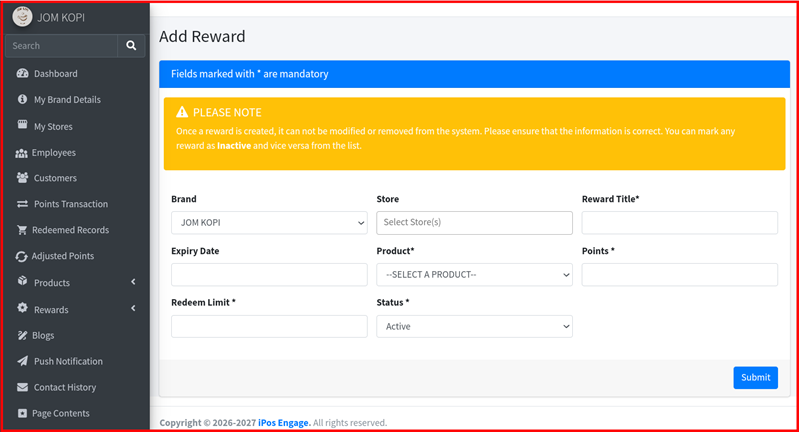
Reward Info
The Rewards section in the iPOS Engage backend allows you to manage all rewards linked to your brand. You can view all rewards, filter by status, export the list, and add new rewards. Note that once a reward is created it cannot be modified or removed — only set to Inactive.
1. Rewards Page
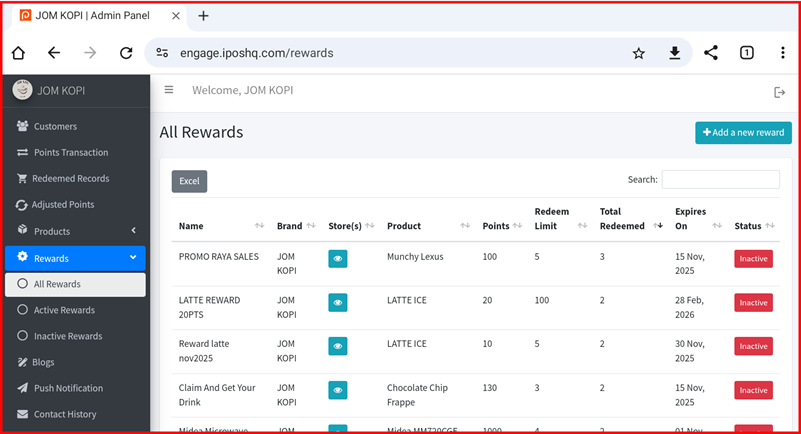
Navigate to Rewards from the left sidebar to open the All Rewards page. The table displays each reward's Name, Brand, Store(s), Product, Points, Redeem Limit, Total Redeemed, Expires On, and Status.
2. Export, Filter & Add Reward
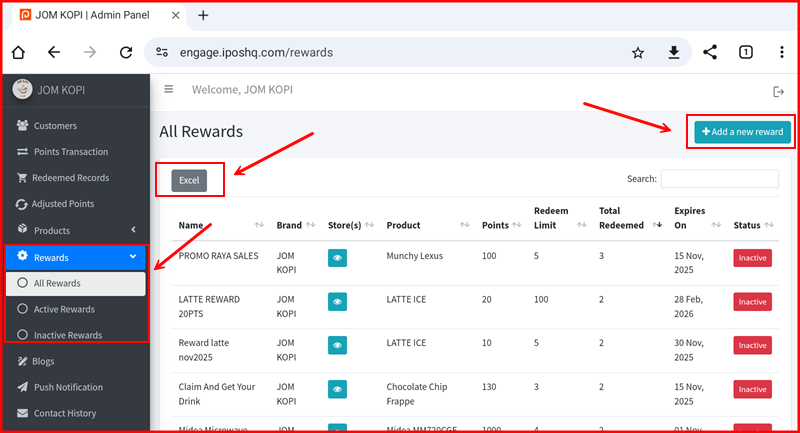
From the All Rewards page you can:
- Excel — Click the Excel button to export the full rewards list.
- Filter by Status — Use the sidebar to switch between All Rewards, Active Rewards, and Inactive Rewards.
- Add a Reward — Click the + Add a new reward button at the top right to create a new reward.
3. Add Reward — Fill in Details
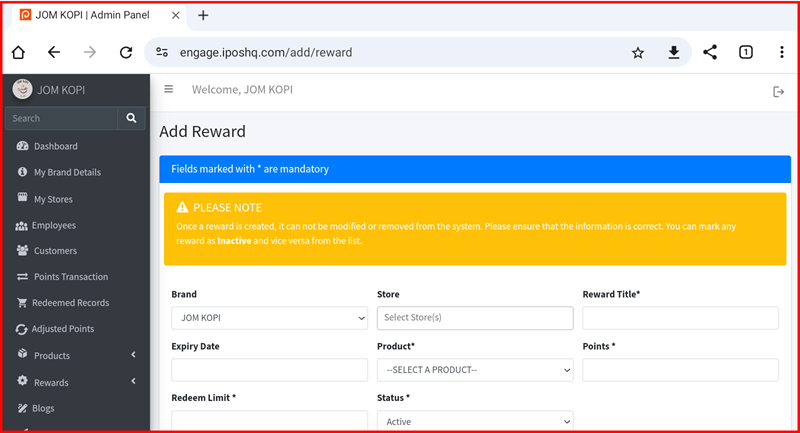
On the Add Reward page, note the warning: once a reward is created, it cannot be modified or removed. You can only mark it as Inactive. Fill in the required fields (marked with *):
- Brand — Select the brand this reward belongs to.
- Store — Select the store(s) where this reward is available.
- Reward Title* — Enter the reward name.
- Expiry Date — Set an optional expiry date for the reward.
- Product* — Select the product linked to this reward.
- Points* — Set the number of points required to redeem this reward.
- Redeem Limit* — Set the maximum number of times this reward can be redeemed.
- Status* — Set to Active or Inactive.
4. Add Reward — Submit
Review all the entered details carefully. Once confirmed, click Submit to create the reward. The reward will appear in the All Rewards list and cannot be edited after submission.