Product Info
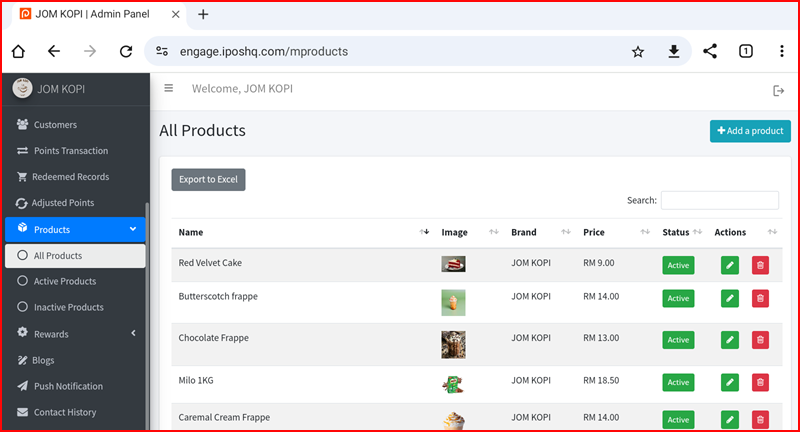
The Products section in the iPOS Engage backend allows you to manage all products linked to your brand. You can view all products, filter by status, export the list, and add new products.
1. Products Page
Navigate to Products from the left sidebar to open the All Products page. The table displays each product's Name, Image, Brand, Price, Status, and Actions (edit/delete).
2. Export, Filter & Add Product
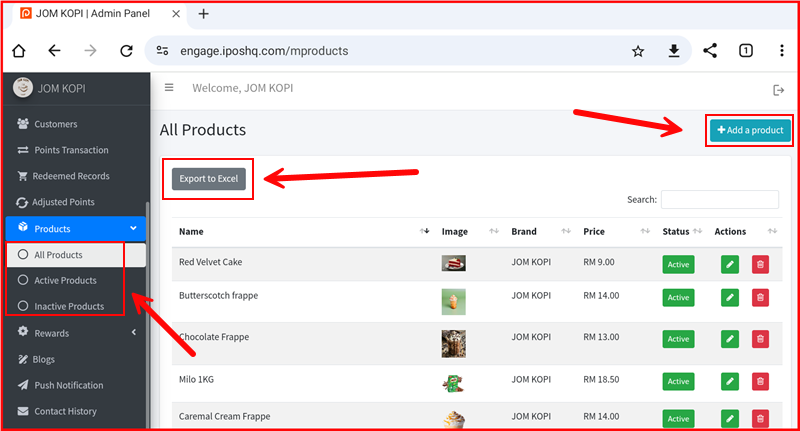
From the All Products page you can:
- Export to Excel — Click the Export to Excel button to download the full product list.
- Filter by Status — Use the sidebar to switch between All Products, Active Products, and Inactive Products.
- Add a Product — Click the + Add a product button at the top right to create a new product.
3. Add Product — Fill in Details
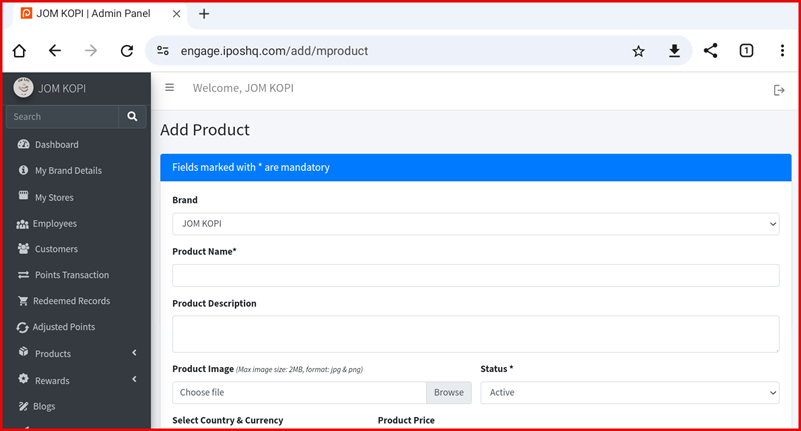
On the Add Product page, fill in the required fields (marked with *):
- Brand — Select the brand this product belongs to.
- Product Name* — Enter the product name.
- Product Description — Optional description of the product.
- Product Image — Upload an image (max 2MB, JPG or PNG format).
- Status* — Set to Active or Inactive.
4. Add Product — Country, Price & Submit
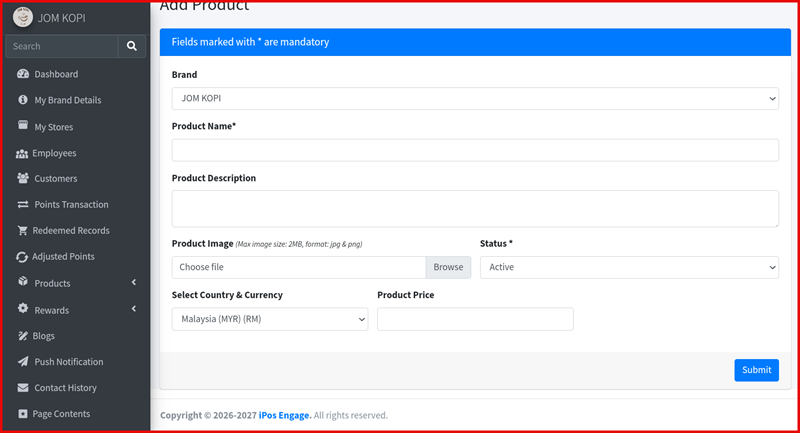
Complete the remaining fields:
- Select Country & Currency — Choose the country and currency (e.g. Malaysia (MYR) RM).
- Product Price — Enter the price for this product.
Click Submit to save the new product. It will appear in the All Products list immediately.