Page Contents
The Page Contents section allows you to create and edit static pages — such as Terms & Conditions and Privacy Policy — that are displayed inside the i-POS Engage member app.
Step 1 — Navigate to Page Contents
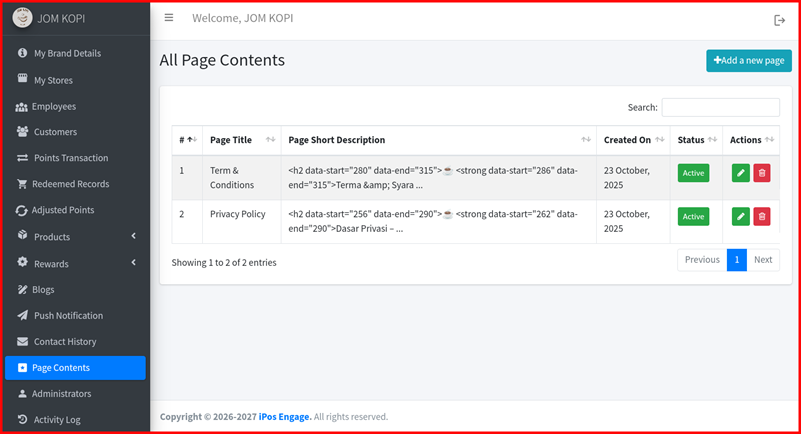
From the left sidebar, click Page Contents. The All Page Contents page lists all existing pages with their Page Title, Page Short Description, Created On, Status, and Actions (edit / delete). Click the + Add a new page button to create a new page.
Step 2 — Edit Terms & Conditions
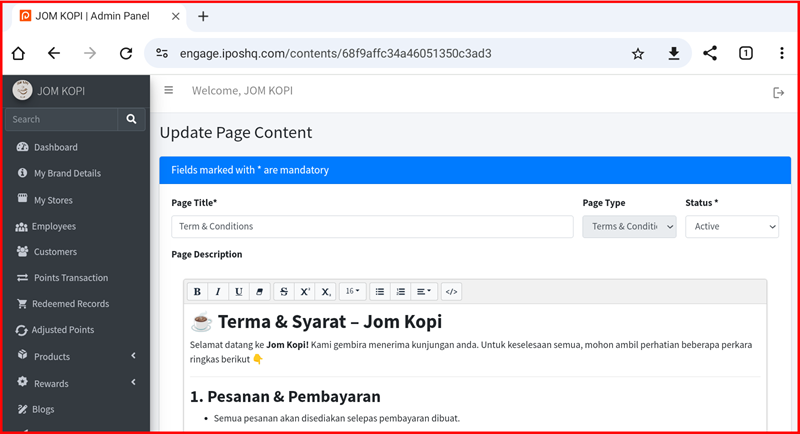
Click the edit icon next to Term & Conditions to open the Update Page Content form. Fill in:
- Page Title * — The page heading (e.g. Term & Conditions).
- Page Type — Select Terms & Conditions from the dropdown.
- Status * — Set to Active to make it visible in the app.
- Page Description — Write the full terms content using the rich text editor.
Click Submit to save changes.
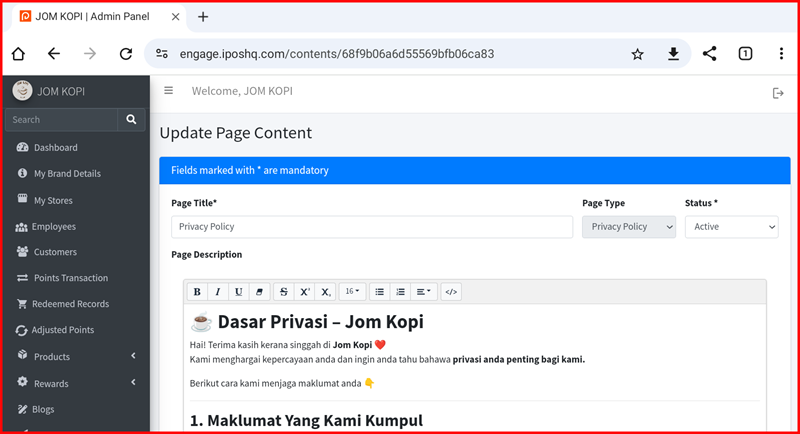
Step 3 — Edit Privacy Policy
Click the edit icon next to Privacy Policy. The form works the same way — set the Page Type to Privacy Policy, write your privacy content in the Page Description editor, and click Submit to save.