AnyDesk Remote Support
AnyDesk is a remote desktop application that allows iPos support technicians to connect to your device remotely to assist with troubleshooting and configuration.
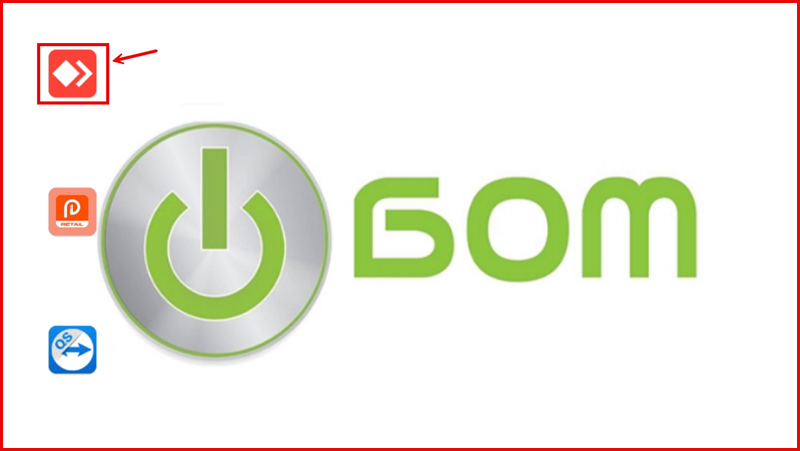
Step 1: Open the AnyDesk App
On your device home screen, tap the AnyDesk app icon (red icon with white diamond/arrow symbol) to launch it.
Step 2: Incoming Connection Request
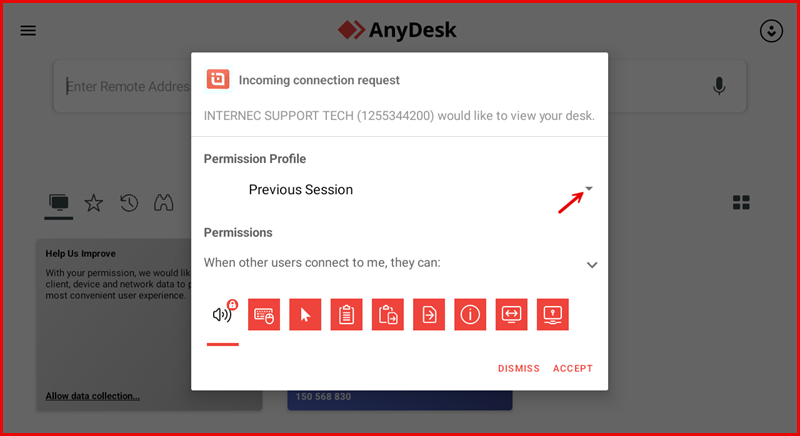
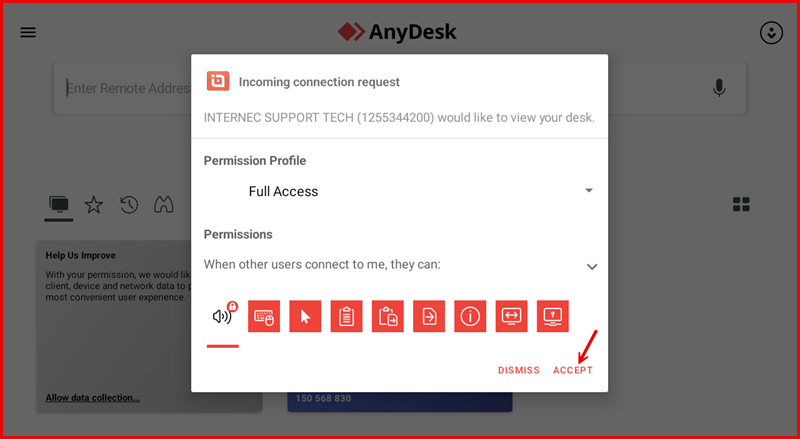
When iPos support initiates a remote session, an Incoming connection request dialog will appear. It will show the message: "INTERNEC SUPPORT TECH (1255344200) would like to view your desk."
A Permission Profile dropdown is shown — tap the arrow on the right to expand the permission options.
Step 3: Select "Full Access" Permission
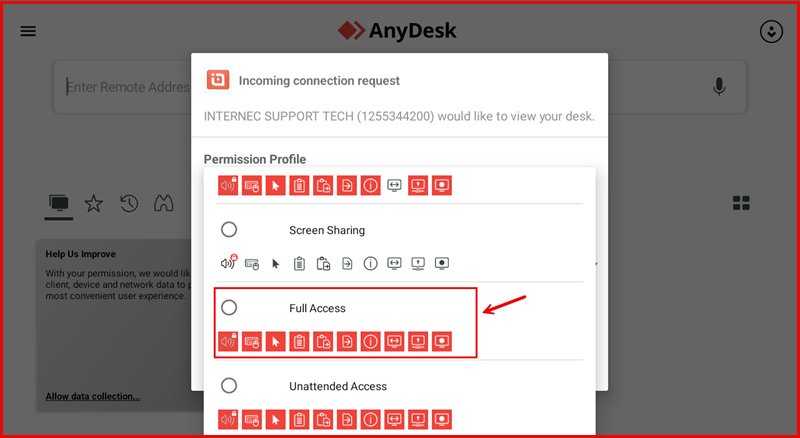
The Permission Profile list will expand showing three options:
- Screen Sharing
- Full Access
- Unattended Access
Select Full Access to allow the support technician full control of your device for troubleshooting.
Step 4: Accept the Connection
With Full Access now selected as the Permission Profile, tap the ACCEPT button to allow the support technician to connect to your device.
Step 5: Allow Screen Recording
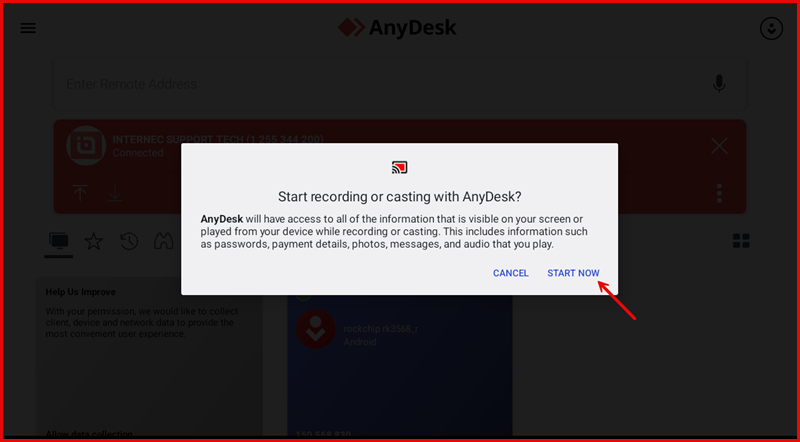
A system prompt will appear asking "Start recording or casting with AnyDesk?"
AnyDesk will have access to all information visible on your screen, including passwords, payment details, photos, messages, and audio. Tap START NOW to grant permission and begin the support session.